
Accounts & Ledger
Account Type Master
Account Types are the organizational backbone of the chart of accounts. Every account must be assigned to a type, and the type determines where and how the account appears on the Balance Sheet and Income Statement. Types control the financial statement category, the normal debit/credit behaviour, the valid account number range, and the hierarchical grouping of accounts for report presentation. For a complete walkthrough of account setup, see the Quasar Guide. Access from Setup › Ledger › Account Types.
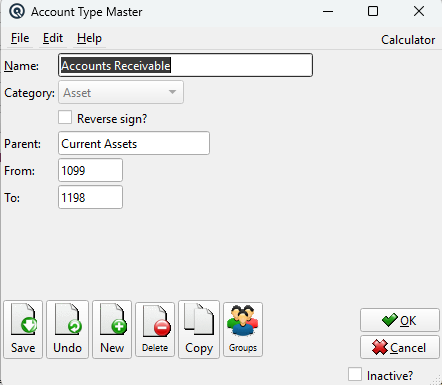
Fields
NameDescriptive name for the type (e.g., “Bank”, “Accounts Receivable”, “Cost of Goods Sold”). This name appears as a section heading on financial reports. CategoryDetermines which financial statement this type belongs to:
Reverse sign?When checked, the sign of amounts is reversed when printing. Use this for types like Accumulated Depreciation (an Asset that normally has a credit balance) or Sales Returns (a Revenue account that normally has a debit balance). This ensures they display as positive numbers on reports even though their balance is opposite to the category norm. ParentOptional parent type for hierarchical grouping. Accounts under a child type are indented under the parent on financial statements. The parent must be in the same category. See Hierarchical Grouping below. FromMinimum account number allowed for accounts of this type. Accounts created with this type must have a number ≥ this value. Leave blank for no minimum. ToMaximum account number allowed for accounts of this type. Accounts created with this type must have a number ≤ this value. Leave blank for no maximum. InactiveMarks the type as inactive. Inactive types do not appear in dropdowns or lists. |
How Account Types Control Financial Statements
|
Account Types are the primary grouping mechanism for the Balance Sheet and Income Statement. When the system prints these reports, it: 1. Groups all accounts by their type The From/To range on the type enforces a numbering convention. For example, if “Bank” has From=1000 and To=1099, the system prevents assigning account 2000 to the “Bank” type. Where to run the statements. The Balance Sheet and Income Statement are reports rather than screens — there is no Balance Sheet window to open. Run them from the Reports list, where the period and store are chosen at print time. Because the layout comes entirely from the account types set up here, a statement that groups or subtotals wrongly is corrected on this screen rather than in the report: change the type's Category, Parent, or From number and reprint. To investigate the figures behind a statement interactively, use Balance Sheet Analysis or Profit & Loss Analysis, which drill from these same type groupings down to the individual transactions. |
Hierarchical Grouping
|
Types can be nested using the Parent field to create sub-sections on reports. For example:
On the Balance Sheet, this produces a structured report like:
|
Typical Account Type Setup
|
A standard chart of accounts uses these types. Adjust the From/To ranges to match your numbering convention:
|
The Report Sequence Field
|
Within each type, individual accounts are ordered by their Report Sequence field (set on the Account Master). This allows you to control the precise order of accounts within a type section independently of account numbers. For example, within the “Bank” type you might order:
Using gaps (10, 20, 30...) allows inserting new accounts without renumbering existing sequences. |
Key Concepts
|
Reverse Sign — Income Statement accounts in the “Income Statement” category include both revenue (credit-normal) and expense (debit-normal) accounts. Since the category itself doesn't distinguish, use Reverse Sign on expense/COGS types so that costs print as positive numbers rather than negative. Similarly, “Accumulated Depreciation” is an Asset with a credit balance — checking Reverse Sign makes it print as a positive deduction on the Balance Sheet. From/To Ranges — These are soft constraints enforced when saving an account. They don't prevent you from setting any number, but they validate that the account number falls within the type's range. Non-overlapping ranges across types prevent accounts from being accidentally assigned to the wrong type. Parent Inheritance — When you select a Parent type, the Category is automatically inherited and locked. This ensures all child types stay within the same financial statement category. |
Related Screens
| Account Type List | Account Master | Account List | Reports | Balance Sheet Analysis | Profit & Loss Analysis |
| Quasar Accounting 7.1 • © Linux Canada Inc. • Table of Contents |