
Customers & Sales
Customer Payment
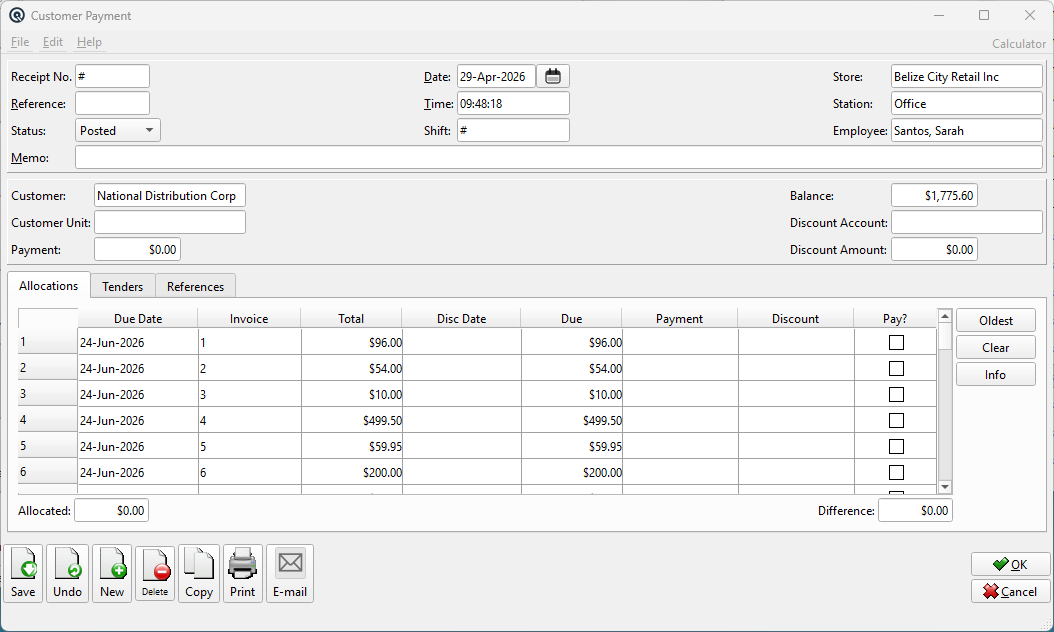
The Customer Payment screen (also called Receipt) records incoming payments from customers against their open invoices. It handles tender entry (cash, cheque, EFT, credit card), invoice allocation with early-payment discount tracking, foreign currency conversion, and customer reference collection. After saving, you are prompted to print the receipt. Access from Sales › Payments or by editing a receipt from the Receipt List.
Transaction Bar
Receipt No.Unique transaction number. Enter # to auto-generate. Once saved, the number is permanent. Sequence numbering is by store. DatePayment posting date. Defaults to today. TimeTransaction time. StoreStore receiving the payment. Changing the store re-validates the customer — if the selected customer belongs to a different store, the customer field is cleared and the invoice table reloads. MemoOptional memo text for the payment. ReferenceOptional reference number (e.g. cheque number, wire transfer reference). |
Header Fields
CustomerThe customer making the payment (lookup). Selecting a customer triggers several actions: Customer UnitOptional customer unit for multi-unit customers (e.g. a franchise with multiple locations under one account). When set, only invoices for this unit are shown. If you select a unit before a customer, the customer is auto-filled from the unit's parent. PaymentTotal payment amount received from the customer. When you enter or change this amount:
BalanceRead-only. The customer's current outstanding accounts receivable balance across all open invoices. Discount AccountGL account for posting early-payment discount amounts. Auto-populated from the store's customer terms account. If the store has no default set, the value you enter here becomes the store default on save. Discount AmountRead-only. Total of all discount amounts from the Allocations tab. StatusTransaction status. Controls posting and visibility in lists. Work DateWork date for the transaction (may differ from posting date). ShiftShift assignment for labour or shift-based reporting. StationWorkstation or terminal where the transaction was entered. EmployeeEmployee who created or is responsible for the transaction. |
Allocations Tab
|
Shows all open (unpaid) invoices for the selected customer, sorted by date (oldest first). Each row represents one invoice that can receive a partial or full payment allocation. Invoice Table Columns
Note: Rows cannot be inserted or deleted. The table is automatically populated from the customer's open invoices. Credits (negative balances) are excluded. Action ButtonsOldestAllocates the payment amount starting from the oldest invoices first, working forward until the amount is exhausted. Applies early-payment discounts where eligible. If the payment doesn't fully cover an invoice, only a partial payment is allocated and no discount is applied to that line. ClearClears all Payment, Discount, and Pay? values back to zero across all rows. InfoOpens the Invoice Info dialog for the currently selected invoice row. Shows detailed payment terms, the discount calculation breakdown, and allows adjusting the discount amount. Changes to the discount in this dialog are applied back to the table row. TotalsAllocated — Read-only. Sum of all Payment column amounts plus all Discount column amounts. Represents the total amount applied against invoices. |
Layaways Tab (Layaway Mode)
|
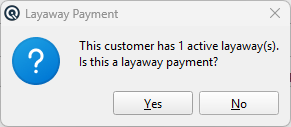
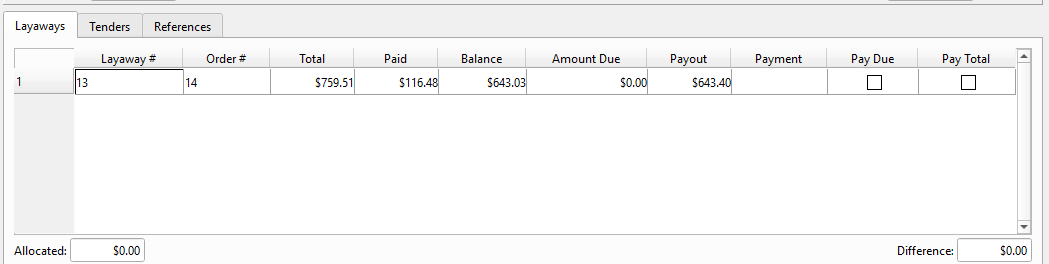
When the customer has active layaways and you confirm a layaway payment, the Allocations tab is replaced by the Layaways tab. This tab lists all active layaways for the customer with live balance and schedule data. Layaway Table Columns
Note: Rows cannot be inserted or deleted. The table is automatically populated from the customer's active layaways. Action ButtonsPay All — Distributes the payment amount across all layaways, starting from the first row and allocating up to each layaway's balance until the payment is exhausted. TotalsAllocated — Sum of all Payment column amounts across all layaways. What Happens on SaveWhen a layaway payment is saved, the system performs several automated actions for each layaway that received a payment: • If this is the first payment on the layaway and the plan has a Setup Fee, a fee line item is added to the linked sales order and a journal entry is recorded. |
Tenders Tab
|
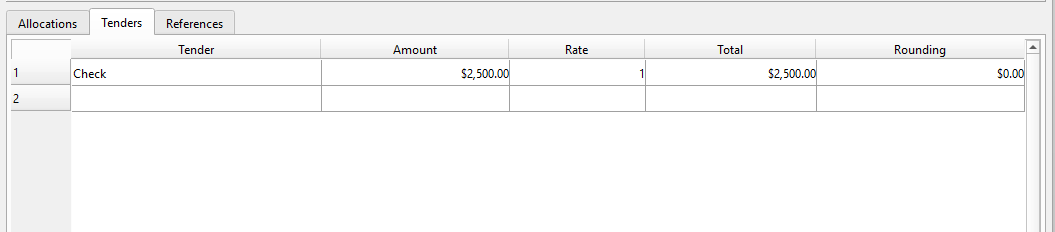
Enter one or more tenders (payment methods) that make up this receipt. The first tender you select auto-fills with the remaining payment amount. Tender Table Columns
Add additional tenders on the next blank row (e.g. split payment between cash and cheque). Each new tender auto-fills with the remaining unallocated amount. |
References Tab
|
Stores named reference data for this payment. Reference fields are pre-populated from the customer's reference definitions (configured in the Customer Master). When a customer is selected and has defined references, a dialog prompts for each value. Reference Table Columns
Common uses: cheque numbers, purchase order numbers, wire transfer references, contract IDs, or any customer-specific tracking data. |
Standard Buttons & Menu
SaveSaves and posts the payment. After saving, prompts to print the receipt using the receipt_print.xml template. Validates: DeleteVoids the payment. Reverses all GL postings and un-allocates all invoice payments, returning invoices to their previous unpaid state. CopyDuplicates the payment with a new number and today's date. Retains the customer, tender, and allocation structure. Reprints the receipt using receipt_print.xml. Emails the receipt to the customer. File › RecurringCreates a Recurring transaction from this payment for scheduled re-posting (e.g. monthly subscription payments). |
Workflow
|
1. Select the Customer. Enter any reference data when prompted. |
Related Screens
| Receipt List | Invoice | Customer | Layaway | Layaway Plan | Cheque Master |
| Quasar Accounting 7.1 • © Linux Canada Inc. • Table of Contents |