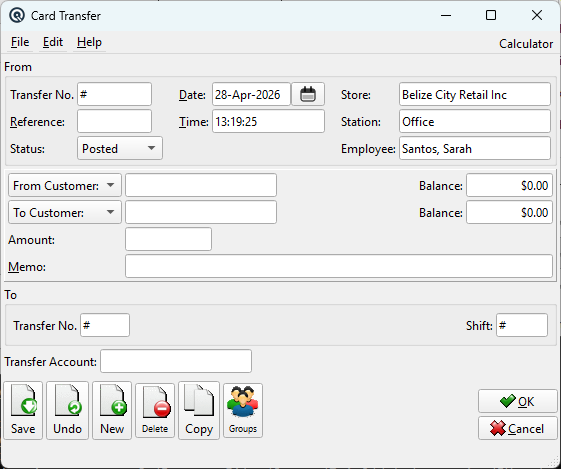
The Card Transfer screen moves an outstanding balance between any two customer or vendor accounts. Both the From and To sides can independently be set to either Customer or Vendor, enabling four transfer combinations: customer-to-customer, vendor-to-vendor, vendor-to-customer, and customer-to-vendor. This flexibility is essential for businesses where the same person holds accounts on both sides of the ledger — for example, a farmer who supplies produce to the store as a vendor and also shops there as a customer. A card transfer lets you move funds from the vendor’s payable balance into the customer’s receivable account, where they can be used as store credit for purchases or withdrawn as cash. Feature-gated to feat_gl. Access from Card File › Card Transfer. Security screen: CardTransfer.
How It Works
A card transfer creates two linked general ledger transactions — one debiting the source account and one crediting the destination account — routed through the store’s Transfer Account as an intermediary. The two transactions are permanently linked in the database, so editing or deleting one automatically affects the other.
When the transfer is saved, the system:
1. Reduces the balance on the From card by the transfer amount
2. Posts the amount through the Transfer Account (a clearing account)
3. Increases the balance on the To card by the transfer amount
4. If the store does not already have a Transfer Account configured, the account you select is saved as the store’s default for future transfers
The accounting entries are automatically adjusted based on whether each side is a customer (Accounts Receivable) or vendor (Accounts Payable), ensuring correct debit/credit direction regardless of the combination.
Transfer Combinations
From
To
Use Case
Customer
Customer
Consolidate two customer accounts into one (e.g., duplicate accounts, company mergers). The credit balance or outstanding receivable is moved from one customer to another.
Vendor
Vendor
Consolidate vendor accounts (e.g., when a supplier is acquired by another). The payable balance is moved between vendor records.
Vendor
Customer
Move a vendor’s payable balance into a customer account. Ideal when the same person is both a supplier and a buyer — for example, a farmer who delivers goods as a vendor can have their earnings transferred to their customer account, where the funds can be used to purchase products in-store or withdrawn as cash.
Customer
Vendor
Move a customer’s credit balance to a vendor account. Useful when a customer overpayment needs to be applied against the same person’s vendor payable.
From Section
Field
Description
Transfer No.
Transaction number for the “From” side of the transfer. Enter # for auto-numbering.
Date
Posting date for both sides of the transfer. Defaults to today.
Store
The store under which this transfer is recorded.
From Customer / From Vendor
Select the card type (Customer or Vendor) using the dropdown, then choose the specific account. The lookup field switches between a Customer and Vendor picker based on the selection.
Balance
Read-only. Displays the current outstanding balance of the selected “From” card. This updates automatically when you select a card, providing an at-a-glance confirmation of how much is available to transfer.
To Section
Field
Description
To Customer / To Vendor
Select the destination card type and the specific account. The “To” type is independent of the “From” type — you can freely mix customers and vendors.
Balance
Read-only. Current outstanding balance of the destination card.
Transfer No.
Transaction number for the “To” side of the transfer. This is a separate transaction number from the “From” side, as the system creates two linked GL transactions.
Shift
Optional shift assignment for the “To” transaction.
Transfer Details
Field
Description
Amount
The dollar amount to transfer between the two accounts.
Memo
Free-text reason for the transfer (up to 40 characters). This memo is recorded on both the “From” and “To” transactions, providing an audit trail visible from either card’s transaction history.
Transfer Account
The GL clearing account used as the intermediary between the two card accounts. This is typically an equity or clearing account. If the store does not already have a default Transfer Account, the account you select here is automatically saved as the store’s default for all future card transfers.
Real-World Example: Vendor–Customer Settlement
Consider a local farmer who supplies fresh produce to your store:
1. The farmer delivers $500 worth of vegetables — this is received as a Vendor Invoice, creating a $500 payable on the farmer’s vendor account.
2. Rather than writing a cheque, you create a Card Transfer with From Vendor (the farmer’s vendor account) To Customer (the farmer’s customer account) for $500.
3. The farmer’s vendor payable is reduced to zero, and their customer account now shows a $500 credit.
4. The farmer can now use that $500 credit to purchase groceries and other products in-store, or withdraw it as cash through a Customer Withdrawal.
This eliminates the need to issue a cheque and then receive a separate payment — the transfer handles the cross-ledger settlement in a single transaction.
Linked Transactions
Every card transfer creates two linked GL transactions. This has important implications:
• Editing — When you open a card transfer for editing, both sides are loaded together. Changes to the amount, memo, or accounts are applied to both transactions simultaneously.
• Deleting — Deleting a card transfer removes both the “From” and “To” transactions. If one side fails to delete, the system automatically restores the other to maintain consistency.
• Transaction Journal — Both transactions appear in the Transaction Journal and on their respective card’s inquiry history, cross-referenced by their linked transaction numbers.