
Inventory
Physical Inventory Count
The Physical Inventory Count screen manages the counting process for physical inventory audits. You create a count document, populate it with items to be counted, enter the actual counted quantities, and then post the count to generate inventory adjustments for any discrepancies. Access from Inventory › Physical Counts.
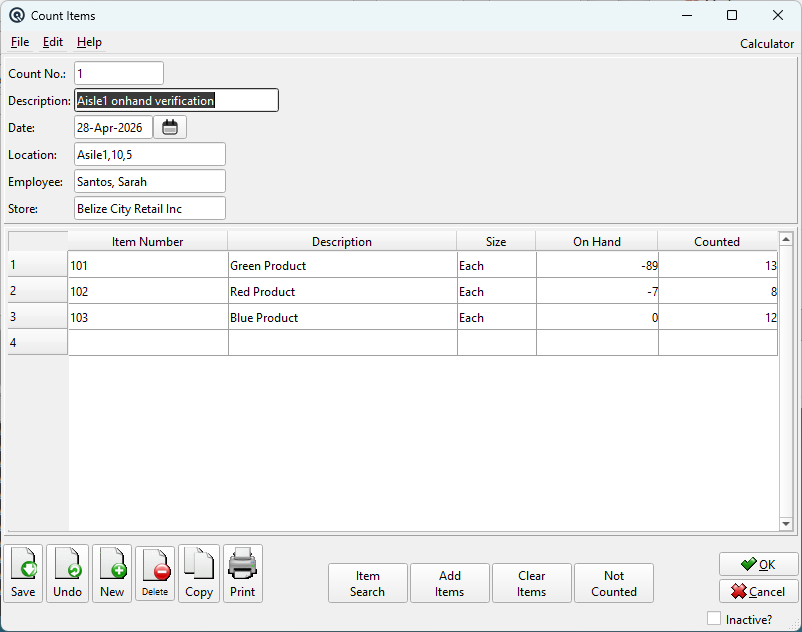
Count Header
Count No.Auto-assigned sequential count number. Use "#" for automatic numbering, or enter a custom number. DescriptionA descriptive label for this count (e.g. "Aisle 3 Count", "Annual Full Count"). DateThe date the count is performed. Defaults to today. LocationOptional warehouse or storage location being counted. Filtered by the selected store. EmployeeThe employee performing the count. StoreThe store being counted. Changing the store clears all items from the table since on-hand quantities are store-specific. |
Items Table
ItemsThe list of items to count. Add items manually, via Add Items, or from Not Counted.
|
Action Buttons
Item SearchOpens a search dialog to find an item already in the count table by Item Number or Description. Add ItemsOpens the item selection dialog to bulk-add items to the count. Filter by Department, Subdepartment, Item Group, or Location. Clear ItemsRemoves all items from the count table after a confirmation prompt. This action cannot be undone. Not CountedIdentifies items that should have been counted but were not. Saves the current count first, then compares inventoried items in the selected store against every item counted in any active count. Missing items are added with a counted quantity of zero. |
Standard Buttons
|
Save — Persists the count without posting. |
Related Screens
| Count List | Item Adjustment | Item Master |
| Quasar Accounting 7.1 • © Linux Canada Inc. • Table of Contents |