
Accounts & Ledger
Transaction Summary
The Transaction Summary (also called the Transaction Reading) provides a comprehensive, multi-dimensional view of all transactions for a selected date range. It organizes data across eight specialized tabs, each offering a different analytical perspective. Double-click any summary row to drill down to individual transactions. Access from Sales › Transaction Summary.
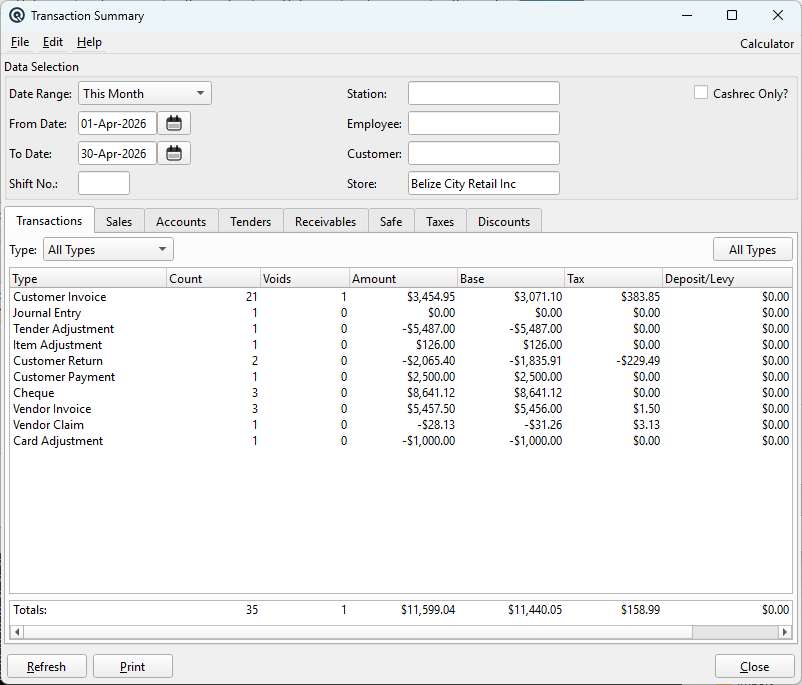
Data Selection Filters
|
The Data Selection group at the top filters all tabs simultaneously. Changing any filter and clicking Refresh reloads all data.
|
Tab Navigation
Eight tabs provide different analytical views of the filtered transactions.
Transactions Tab
|
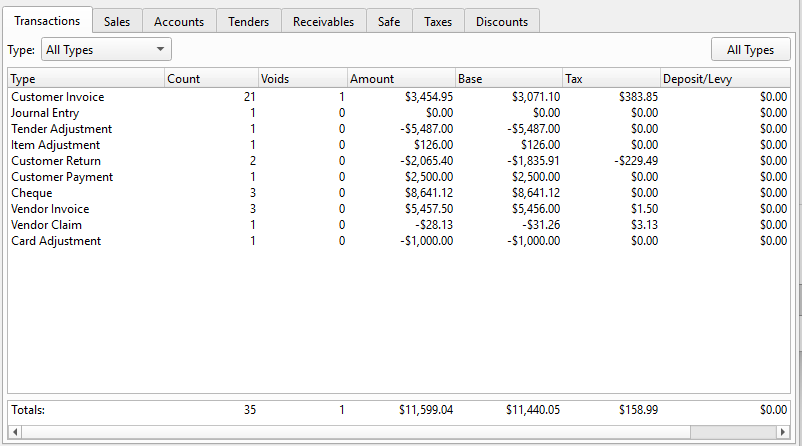
Summarizes transactions by type, or lists individual transactions when a type is selected. TypeSelect a transaction type to drill down to individual transactions. All TypesReturns to the summary view showing all transaction types. TransactionsList of transaction types or individual transactions depending on the selected type. Transaction TotalsFooter totals for the visible transactions. Summary View (All Types)
Detail View (Specific Type)Select a transaction type from the Type dropdown to see individual transactions:
Double-click a transaction to open it for editing. |
Sales Tab
|
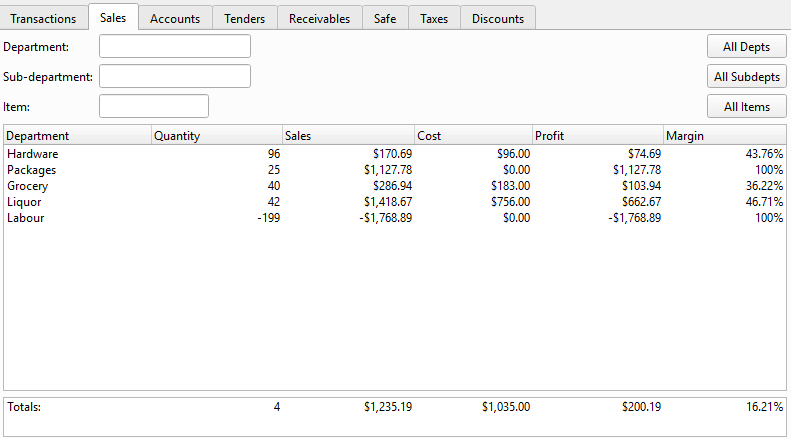
Provides a progressive drill-down through the sales hierarchy. Each level narrows the view and changes the columns. DepartmentSelect a department to drill into its sub-departments. All DeptsResets the sales view to show all departments. Sub-departmentSelect a sub-department to drill into its items. All SubdeptsResets the sub-department filter and shows all sub-departments for the selected department. ItemSelect an item to see individual transactions that sold it. All ItemsResets the item filter and shows all items for the selected sub-department. SalesSales drill-down list showing departments, sub-departments, items or transactions. Sales TotalsFooter totals for the current sales level. Level 1 — By DepartmentColumns: Department, Quantity, Sales, Cost, Profit, Margin Level 2 — By Sub-departmentSelect a department to drill into sub-departments. Same columns with Sub-department as the first column. Level 3 — By ItemSelect a sub-department to see individual items. Columns: Item, Size, Quantity, Sales, Cost, Profit, Margin Level 4 — Individual TransactionsSelect an item to see each transaction that sold it. Columns: Type, Number, Date, Employee, Quantity, Amount. Double-click to open the transaction. Use the All Depts, All Subdepts, and All Items buttons to reset to a higher level. |
Accounts Tab
|
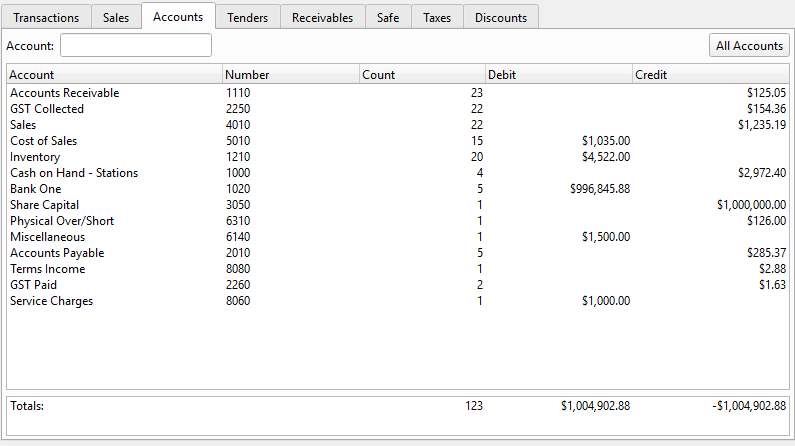
Shows GL account postings from all transactions in the date range. Hidden when the GL feature is disabled. AccountSelect a GL account to drill down to its postings. Account ClassFilter the account list by account class. All AccountsReturns to the summary view showing all GL accounts. AccountsList of GL account summaries or individual postings. Account TotalsFooter totals for the visible account postings. Summary View (All Accounts)
Detail View (Specific Account)Columns: Type, Number, Employee, Customer, Debit, Credit. Double-click to open the transaction. |
Tenders Tab
|
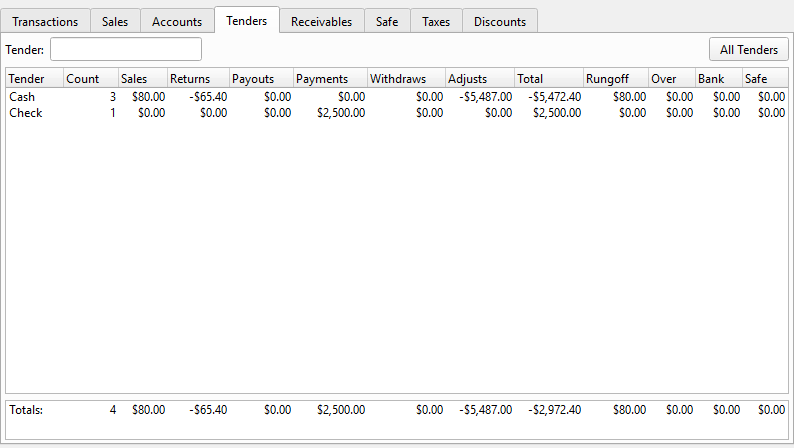
Shows tender movement across all transaction types. Excludes safe-station/employee transactions (those appear on the Safe tab). TenderSelect a tender type to drill down to its transactions. All TendersReturns to the summary view showing all tender types. TendersList of tender summaries or individual tender transactions. Tender TotalsFooter totals for the visible tender activity. Summary View (All Tenders)
Detail View (Specific Tender)Columns: Type, Number, Employee, Customer, Amount. Double-click to open the transaction. |
Receivables Tab
|
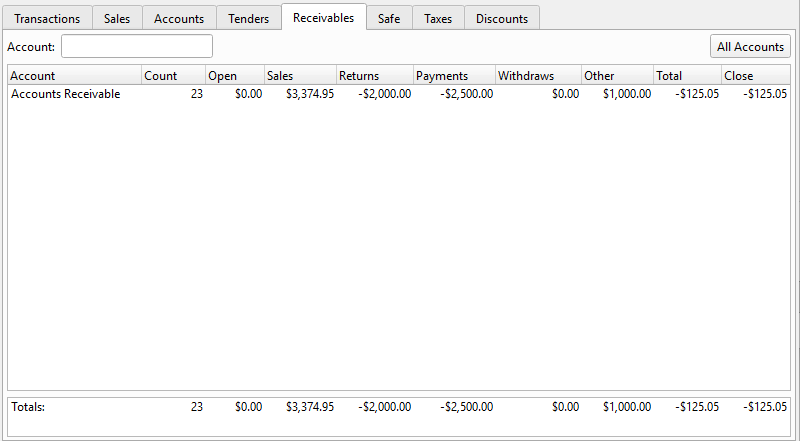
Tracks accounts receivable movement. Hidden when the AR feature is disabled. AR AccountSelect an accounts-receivable account to drill down. All RecsReturns to the summary view showing all receivable accounts. ReceivablesList of AR summaries or individual receivable transactions. Receivable TotalsFooter totals for the visible receivables. Summary View (All Receivables)
Detail View (Specific Receivable)Columns: Type, Number, Employee, Customer, Amount. Double-click to open the transaction. |
Safe Tab
|
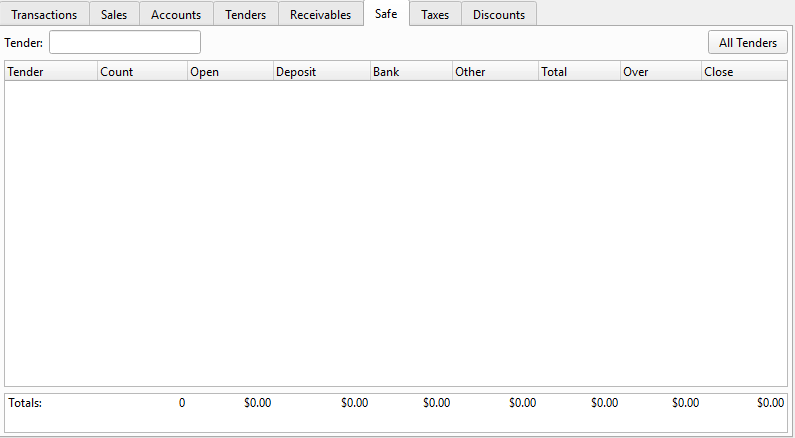
Shows tender movement through the safe (safe station/employee only). Complements the Tenders tab which excludes safe transactions. Safe TenderSelect a safe tender type to drill down. All SafeReturns to the summary view showing all safe tenders. SafeList of safe tender summaries or individual safe transactions. Safe TotalsFooter totals for the visible safe activity. Summary View (All Safe)
Detail View (Specific Safe Tender)Columns: Type, Number, Employee, Customer, Amount. Double-click to open the transaction. |
Taxes Tab
|
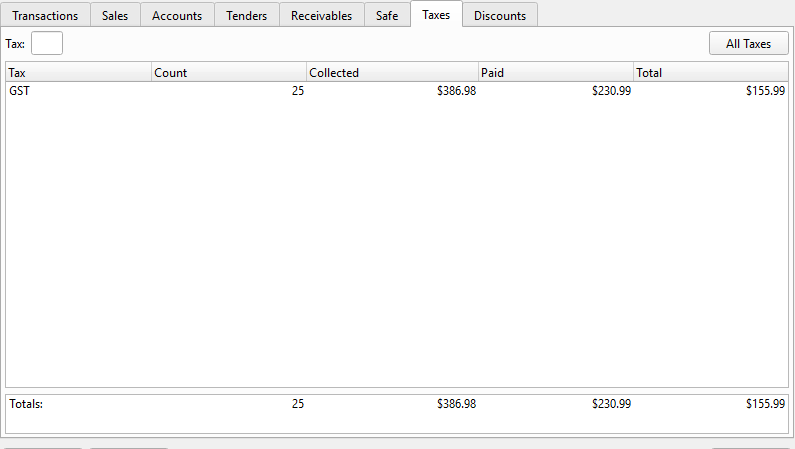
Summarizes tax collected and paid across all transactions. TaxSelect a tax code to drill down to its transactions. All TaxesReturns to the summary view showing all tax codes. TaxesList of tax summaries or individual tax transactions. Tax TotalsFooter totals for the visible tax activity. Summary View (All Taxes)
Detail View (Specific Tax)Columns: Type, Number, Employee, Customer, Amount. Double-click to open the transaction. |
Discounts Tab
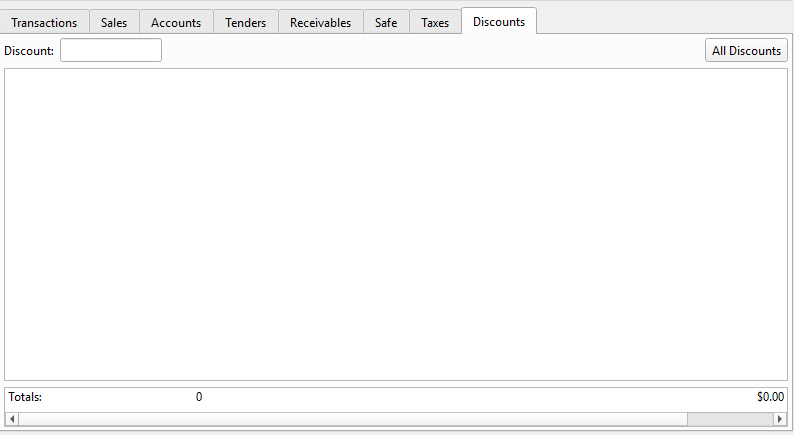
|
Summarizes all discounts applied across invoices and returns. DiscountSelect a discount to drill down to its transactions. All DiscountsReturns to the summary view showing all discounts. DiscountsList of discount summaries or individual discount transactions. Discount TotalsFooter totals for the visible discounts. Summary View (All Discounts)
Detail View (Specific Discount)Columns: Type, Number, Employee, Customer, Amount. Double-click to open the transaction. |
Actions
Drill-Down: On any tab, double-click a summary row to narrow the view to individual transactions. Double-click a transaction row to open it for editing. |
Related Screens
| Report List | Reconcile Wizard | Shift List |
| Quasar Accounting 7.1 • © Linux Canada Inc. • Table of Contents |