
Card File & CRM
Task Master
The Task Master is the central hub for service management, work orders, and job tracking. A Task defines what needs to be done for a customer, while Jobs underneath the task track who does the work and how long it takes. Tasks flow through to Sales Orders (work orders) and ultimately to Invoices for billing. Access from Card File › Task Master or from the Task List.
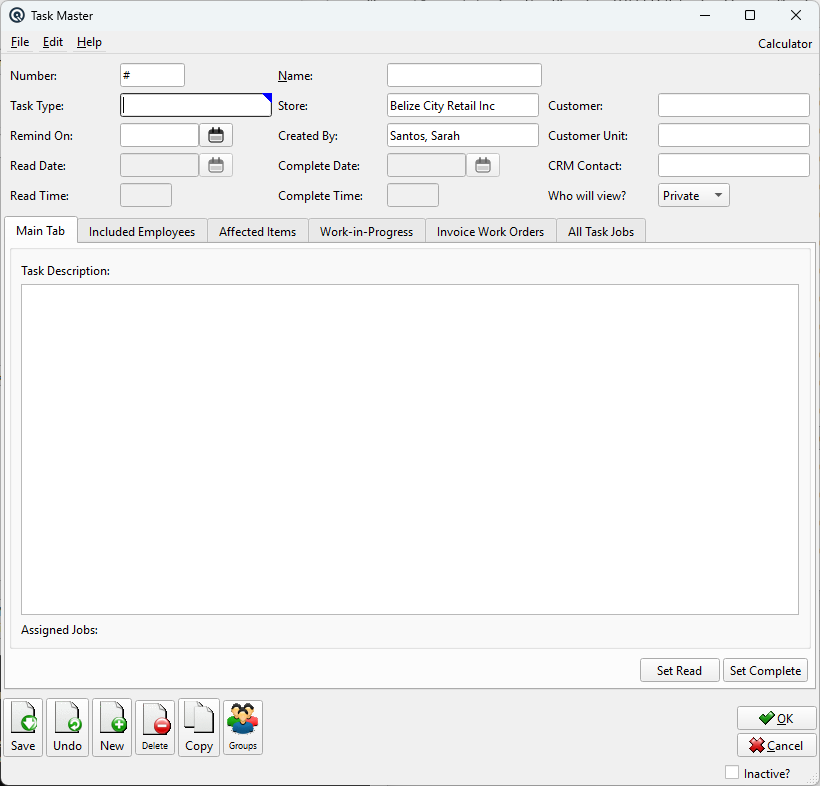
How Tasks, Jobs, Sales Orders, and Invoices Relate
|
The Task → Job → Sales Order → Invoice Pipeline 1. Task — A service request or work order for a customer. It defines the customer, the items/materials involved, and the employees assigned. The Task Type controls whether the task supports Jobs and Work-in-Progress tracking. 2. Job — An individual work assignment within a task. Each job is assigned to one employee and tracks their sign-in/out times, hours worked (Regular, Overtime, Holiday), and a solution description. A task can have many jobs (e.g., multiple technicians working the same service call). 3. Sales Order (Work Order) — When a job's hours are ready to bill, clicking Bill Hours (from the Job Master or the All Task Jobs tab) creates or updates a Sales Order. The employee's billing items (Regular, Overtime, Holiday — configured on the Employee Master) are added as line items with the hours as quantities. This Sales Order acts as a work order that accumulates billable work. 4. Invoice — From the Task Master's Invoice Work Orders tab, select one or more work orders and click Invoice Orders. This converts the selected Sales Orders into a customer Invoice, completing the billing cycle. |
Header Fields
NumberAuto-generated task number (can be overridden). Used as the reference across all related jobs and work orders. Sequence numbering is global (shared across all stores). NameShort descriptive name for the task (e.g., "HVAC Repair — 123 Main St"). Task TypeSelects the task category from Task Type setup. The type controls whether the task supports Jobs (time tracking assignments) and Work-in-Progress (WIP cost accumulation). When a type with Jobs is selected, the Main Tab's job assignment list and the All Task Jobs tab become active. StoreThe store responsible for this task. Created ByThe employee who created the task. Auto-set from the current session. CustomerThe customer this task is for. Flows through to all jobs and work orders created under this task. Customer UnitOptional business unit within the customer (e.g., a department, branch, or equipment unit). Selecting a unit auto-fills the customer if not already set. CRM ContactLinks to a CRM contact record for the customer's representative on this task. Remind OnDate the task should appear as a reminder for the assigned employee. Read Date / Read TimeRead-only. Auto-set when the assigned employee opens the task (or clicks Set Read). Tracks acknowledgement. Complete Date / Complete TimeRead-only. Auto-set when Set Complete is clicked. Marks the task as finished. Who will view?Private — only the creating employee sees it. Selected — only employees listed on the Included Employees tab. All — visible to everyone. ReferenceReference string for cross-referencing or notes (optional). StatusTransaction status. Controls posting and visibility in lists. DatePosting date for the transaction. Defaults to today. TimeTime of posting. Auto-filled from the system clock. Work DateWork date for the transaction (may differ from posting date). ShiftShift assignment for labour or shift-based reporting. StationWorkstation or terminal where the transaction was entered. EmployeeEmployee who created or is responsible for the transaction. MemoFree-form memo or notes attached to the transaction. |
Main Tab
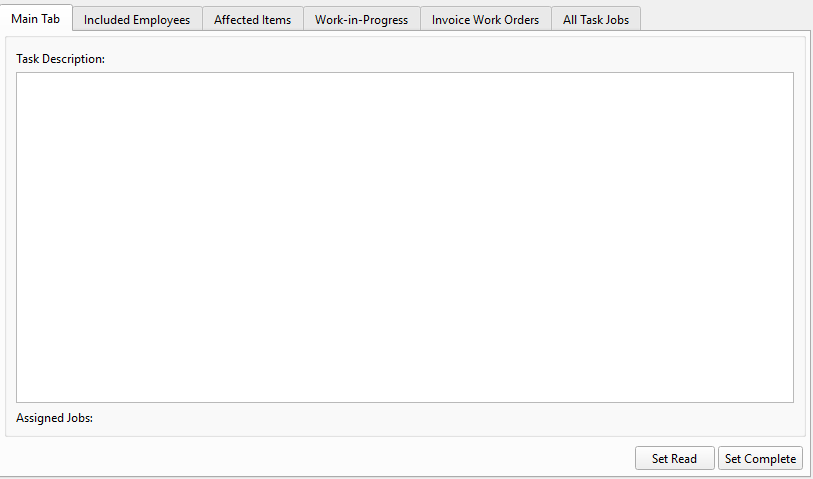
Task DescriptionMulti-line free-text description of the work to be done. This text can be pre-populated from a Customer Unit record. Assigned JobsVisible only when the Task Type supports Jobs. Lists all job assignments under this task, showing: Assignment Number, Assigned Employee, and Job Description. Use the buttons below to manage: • Add Assignment — Opens the Job Master to create a new job linked to this task. The customer, store, and employee are pre-filled. Set Read / Set CompleteStamps the current date/time into the Read or Complete fields for the current employee. |
Included Employees Tab
|
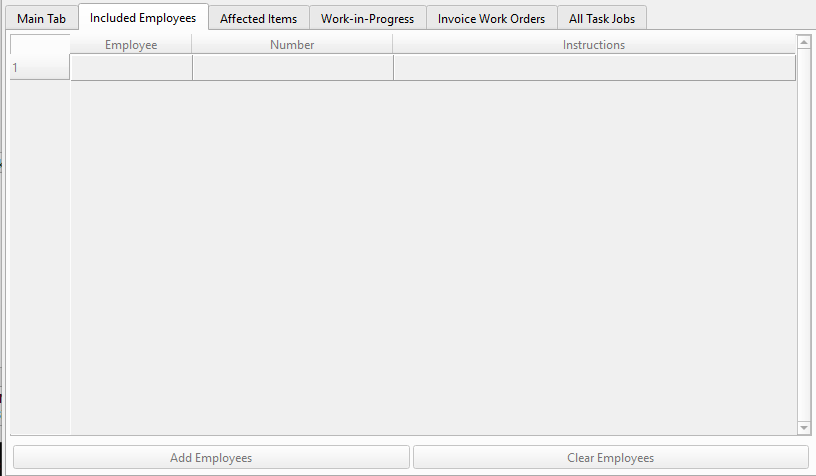
Lists the employees who should see and/or work on this task. Columns: Employee (lookup), Number (auto-filled), Instructions (free-text per employee). Each employee gets their own Read Date/Time and Complete Date/Time tracking. Use Add Employees to bulk-add from a group and Clear Employees to remove all. |
Affected Items Tab
|
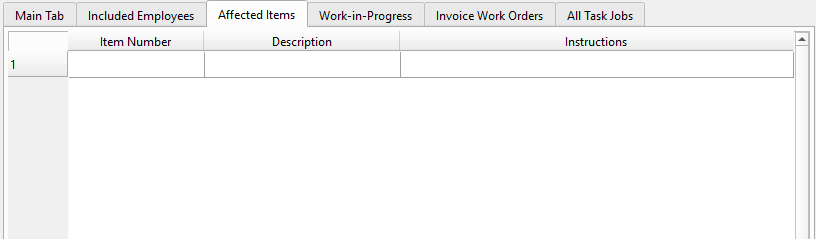
Links inventory items to this task. Columns: Item Number (lookup), Description (auto-filled), Instructions (free-text). This defines the materials, parts, or service items relevant to the task. Items listed here can be pre-populated from a Customer Unit record. |
Work-in-Progress Tab
|
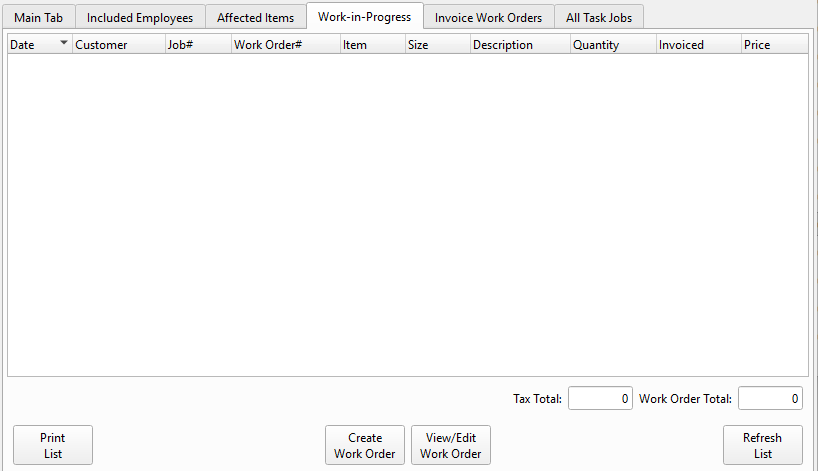
Shows all Sales Order lines (work orders) associated with this task. This is the live view of accumulated billable work. Columns: Date, Customer, Job#, Work Order#, Item, Size, Description, Quantity, Invoiced, Price. Double-clicking a line opens the corresponding Sales Order for editing. Tax Total and Work Order Total summarize all un-invoiced work. Buttons• Print List — Prints the WIP detail. |
Invoice Work Orders Tab
|
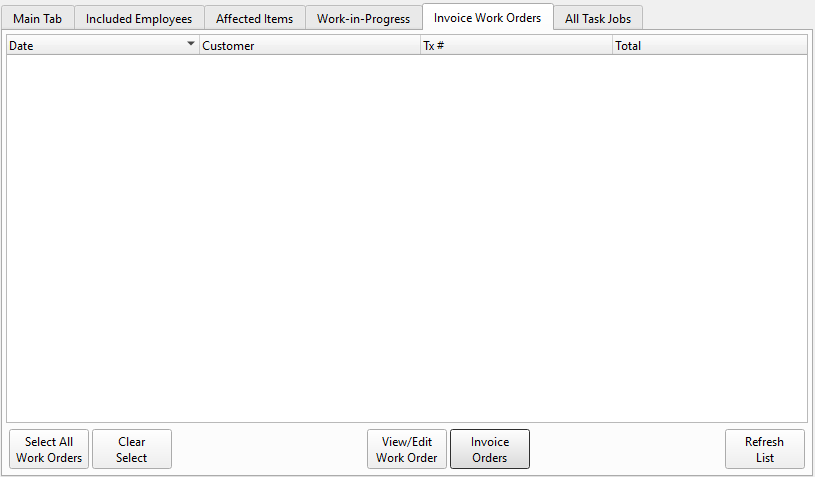
This is the billing hub. It lists all Sales Orders (work orders) linked to this task, showing: Date, Customer, Tx#, and Total. Multi-select is supported. • Select All Work Orders / Clear Select — Toggles selection. |
All Task Jobs Tab
|
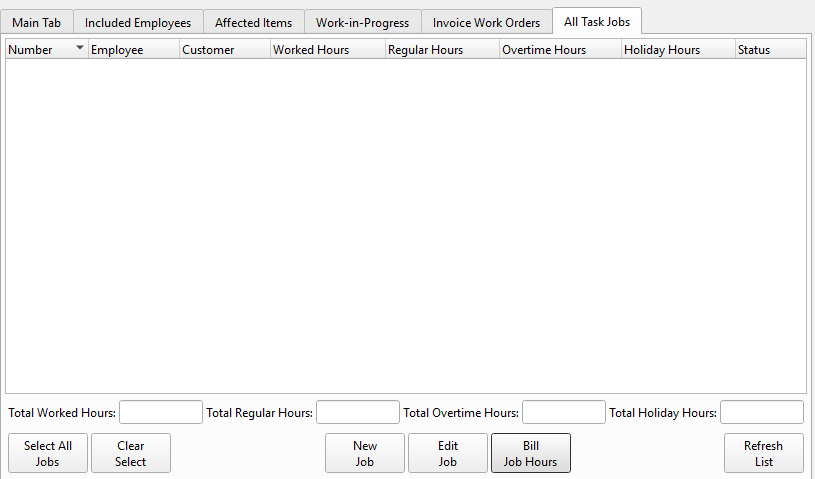
Comprehensive view of every Job linked to this task. Columns: Number, Employee, Customer, Worked Hours, Regular Hours, Overtime Hours, Holiday Hours, Status. Multi-select is supported. Totals at the bottom show: Total Worked Hours, Total Regular Hours, Total Overtime Hours, Total Holiday Hours. Buttons• Select All Jobs / Clear Select — Toggles multi-selection. |