
More Topics
Calculator
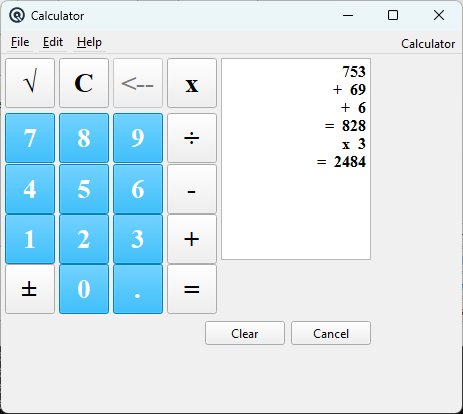
The Quasar Calculator is a built-in arithmetic tool available from every screen in the application. Unlike a typical on-screen calculator that only shows the current value, the Quasar Calculator features a scrolling calculation tape — a running transcript displayed alongside the keypad that records every number, operator, and result. This provides a clear audit trail showing exactly how a final answer was arrived at, making it easy to verify multi-step calculations. Access from the Calculator button in the top-right corner of any screen’s menu bar, or from the main window’s Calculator menu action.
Screen Layout
|
The calculator window is divided into two areas: Keypad (left)A standard arithmetic keypad arranged in a grid: digits 0–9, a decimal point, and operator buttons. Blue-highlighted digit keys provide visual separation from the grey operator keys. Calculation Tape (right)A read-only, right-aligned text panel that scrolls vertically. As you enter numbers and press operators, each step is appended to the tape on a new line. This builds a complete, readable record of the calculation — for example:
The tape auto-scrolls to keep the most recent entry visible. It cannot be edited or clicked into — it is purely a display of calculation history. |
Keypad Buttons
|
Calculation Behaviour
Sequential EvaluationThe calculator evaluates operations in the order they are entered (left to right), not using algebraic precedence. For example, 2 + 3 x 4 evaluates as (2 + 3) x 4 = 20, not 2 + (3 x 4) = 14. Each operator triggers evaluation of the previous pending operation before recording the new one. Operator SwitchingIf you press an operator immediately after another operator (before entering any digits), the new operator replaces the previous one on the tape rather than triggering a calculation. This allows you to correct an operator choice without affecting the result. Negative Number EntryPressing the minus key (−) when no value has been entered yet (or after a clear) treats it as a negative sign rather than a subtraction operator, allowing direct entry of negative numbers. Post-Equals LockoutAfter pressing =, the digit keys are disabled to prevent accidental continuation. Press C (clear entry) or the Clear button to begin a new calculation. |
Action Buttons
|
Keyboard Support
|
The calculator accepts full keyboard input, making it fast to use without the mouse. All digit and operator keys map directly to their on-screen equivalents:
|
Related Screens
| Main Window |
| Quasar Accounting 7.1 • © Linux Canada Inc. • Table of Contents |