
Accounts & Ledger
Recurring Transaction Master
The Recurring Transaction Master manages a transaction that should be posted on a regular schedule. It stores a reference to a saved transaction template and controls when and how often it is re-posted.
|
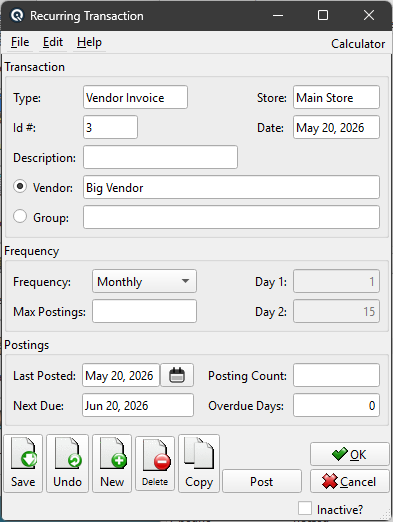
Transaction Section
Read-only summary of the linked transaction template. These fields are populated automatically from the saved transaction.
TypeThe transaction type (e.g., General, Invoice, Cheque, Receive). Read-only. Id #The transaction number of the template transaction. Read-only. StoreThe store the transaction belongs to. Read-only. DateThe original date of the template transaction. Read-only — when posted, the new transaction uses the Next Due date instead. DescriptionA description for this recurring entry (e.g., "Monthly Rent", "Weekly Payroll"). This is the only editable field in this section. CardThe customer or vendor from the template transaction. Select the Card radio button to post to this specific card each time. GroupSelect the Group radio button and choose a customer or vendor group to post a separate transaction for every member of the group each time you post. Useful for batch invoicing (e.g., monthly service charges to all customers in a group). |
Frequency Section
FrequencyHow often the transaction posts. Options: Max PostingsMaximum number of times this transaction will be posted. After reaching this count the recurring is automatically deactivated. Leave blank or set to 0 for unlimited postings. Day 1First day of the month for Semi-Monthly frequency (e.g., 1 for the 1st). Only enabled when Type is Semi-Monthly. Day 2Second day of the month for Semi-Monthly frequency (e.g., 15 for the 15th). Only enabled when Type is Semi-Monthly. |
Postings Section
Last PostedThe date this transaction was last posted. Initialized to the template transaction date; updated each time you post. Next DueThe next date this transaction is due, calculated from the Last Posted date and the frequency. Read-only. Posting CountHow many times this recurring has been posted so far. Overdue DaysNumber of days past due (today minus Next Due). A positive number means the posting is overdue. Read-only. |
Toolbar Actions
PostImmediately post this recurring transaction. Creates a new transaction dated on the Next Due date, increments the posting count, and advances Last Posted. If the Next Due date is in the future, you are warned before proceeding. If a group is selected, a separate transaction is created for each member of the group. Save / Undo / New / Delete / CopyStandard master screen actions. OK / CancelSave and close, or discard and close. Inactive?Toggle to deactivate the recurring schedule. Automatically set when Max Postings is reached. |
Supported Transaction Types
|
The following transaction types support recurring: Journal Entry (General Master) |
Related Screens
| Recurring List | Journal Entry | Customer Invoice | Cheque |
| Quasar Accounting 7.1 • © Linux Canada Inc. • Table of Contents |