
Purchases
Purchase Report
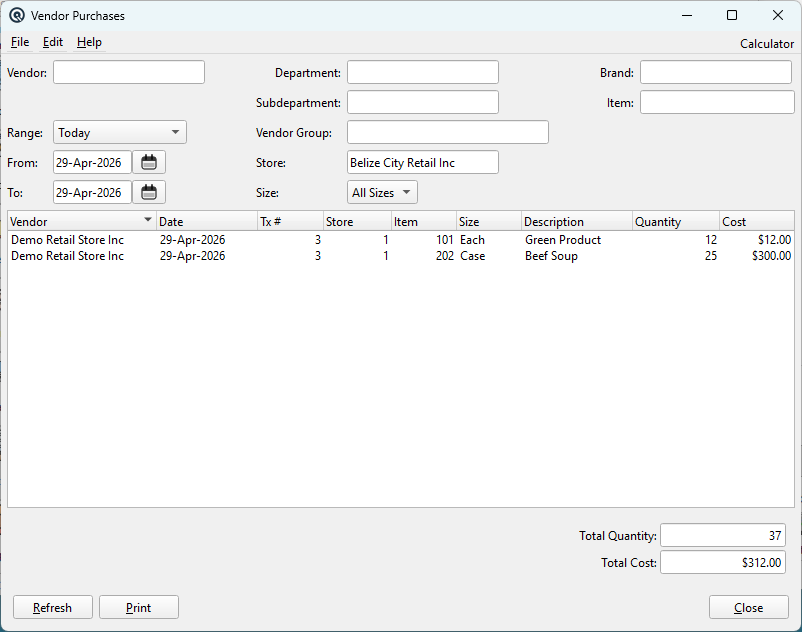
The Purchase Report (Vendor Purchases) provides a detailed, line-level view of all items received on vendor invoices. Filter by vendor, date range, department, subdepartment, vendor group, brand, specific item, and size to analyze purchasing activity. Every row represents one item line from one vendor invoice, with drill-down to the source transaction. Access from Purchases › Purchase Report.
Filters
|
All filters are optional. Only posted, active vendor invoices are included. Combine multiple filters to narrow results (filters are applied with AND logic). VendorFilter to a single vendor. When the report is opened from a Vendor Master, this is pre-set and the date range defaults to Last 30 Days. RangePreset date range selector (e.g. Today, This Week, This Month, Last 30 Days, This Year). Automatically populates the From and To dates below. FromStart of the custom date range. Only invoices posted on or after this date are included. Can be set manually or via the Range preset. Leave blank for no start date limit. ToEnd of the custom date range. Only invoices posted on or before this date are included. Can be set manually or via the Range preset. Leave blank for no end date limit. StoreFilter to a single store. Changing the store also resets the Item filter (since item stocking is store-specific). DepartmentFilter to items belonging to a specific department. Works through the subdepartment hierarchy — an item matches if its subdepartment's parent department matches. SubdepartmentFilter to items in a specific subdepartment (more granular than department). Vendor GroupFilter to vendors belonging to a specific vendor group. BrandFilter to items of a specific brand. Only visible when the Brand feature is enabled. ItemFilter to a specific item (lookup, restricted to purchasable items). When set and the report is refreshed, only invoice lines for this item are shown. When the report is opened from an Item Master, this is pre-set. Selecting an item populates the Size dropdown with its available sizes. SizeFilter to a specific item size. Defaults to "All Sizes". The dropdown is populated when an Item is selected, showing all sizes defined for that item. |
Results List
|
One row per item line per vendor invoice. Column headers are clickable for sorting.
|
Drill-Down
| Double-click any row to open the source vendor invoice in the Vendor Invoice screen for viewing or editing. |
Totals
|
Below the results list: Total QuantitySum of the Quantity column across all displayed rows. Total CostSum of the Cost column across all displayed rows. |
Buttons
RefreshQueries the database using the current filter settings and populates the results list. Must be clicked after changing any filter. Columns auto-resize to fit content. Generates a printable report from the current display. The report header includes all active filter criteria (vendor, store, department, brand, item, size, date range). CloseCloses the Purchase Report window. |
Workflow Examples
|
Vendor spending analysis: 1. Select a Vendor. Item purchase history: 1. Select the Item (or open the report from Item Master). Department purchasing review: 1. Select a Department (or Subdepartment for more detail). |
Related Screens
| Receive List | Vendor Invoice | Vendor List | Purchase Orders |
| Quasar Accounting 7.1 • © Linux Canada Inc. • Table of Contents |