
Customers & Sales
Shift Master
The Shift Master creates and manages POS shifts — the accounting containers that group all transactions for a station or employee during a work period. A shift collects every sale, return, payout, and tender movement that occurs during its window, enabling end-of-day cash reconciliation, over/short tracking, and bank deposit processing. Access from Sales › Shift List.
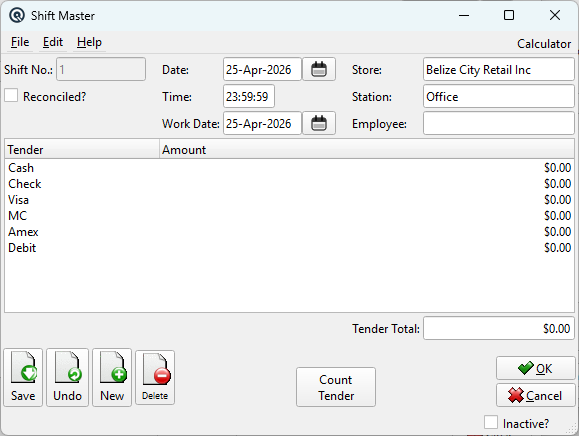
Header Fields
Shift No.Auto-assigned shift number (up to 14 characters). Read-only after creation. Automatically numbered with "#" on creation, assigned sequentially per store. Sequence numbering is by store. Reconciled?Read-only checkbox. Shows whether this shift has been reconciled (closed out). Once checked, the shift is permanently locked — it cannot be edited, deleted, or reconciled again. See the Reconciliation section below. DateThe date the shift was created. Changing the date recalculates the Work Date based on the store's work-day start time. TimeThe time the shift was created. Changing the time recalculates the Work Date (a shift created at 11 PM may belong to the next work day depending on the store's work-day boundary). Work DateRead-only. The business work date this shift belongs to, calculated automatically from Date + Time using the store's work-day start time. For example, if a store's work day starts at 6:00 AM, a shift created at 2:00 AM on May 4 has a Work Date of May 3 (it belongs to the previous business day). StoreThe store this shift belongs to. Determines whether the shift tracks by Station or by Employee (configured in the Store Master). StationThe POS station assigned to this shift. Enabled only when the store's shift method is By Station. All transactions on this station during the shift period are collected into this shift. EmployeeThe employee assigned to this shift. Enabled only when the store's shift method is By Employee. All transactions by this employee during the shift period are collected into this shift. ReferenceReference string for cross-referencing or notes (optional). StatusTransaction status. Controls posting and visibility in lists. ShiftShift assignment for labour or shift-based reporting. MemoFree-form memo or notes attached to the transaction. |
Tender Table
|
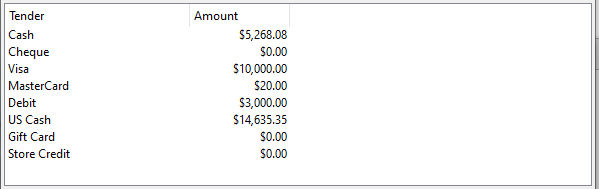
Lists every active tender type and the counted amount for each. This is the physical count of cash, cheques, credit card slips, etc., entered via the Count Tender button. Columns: Tender — The tender name (Cash, Visa, Mastercard, Debit, Cheque, etc.), sorted by menu number. Tender TotalThe sum of all tender amounts. This is the total physical count of all tenders in the drawer/till. |
Count Tender
|
The Count Tender button opens a denomination-level counting dialog for the physical cash and tender in the drawer. For each tender type, you can enter coin/bill denominations and quantities. The system multiplies denomination × quantity to calculate the amount for each tender. This button is disabled once the shift is reconciled, since no further counting changes are allowed after reconciliation. |
Shift Lifecycle
|
A shift progresses through distinct states. Understanding these states is critical for knowing when a shift can be modified or deleted:
|
When Can You Delete a Shift?
|
Deletion Rules: You CAN delete a shift when: • The shift has not been reconciled (Reconciled checkbox is unchecked). When you delete an open shift: • All transactions that were assigned to this shift have their shift assignment cleared (set to null). The transactions themselves are not deleted — they are returned to the unassigned transaction pool and will be picked up by the next shift created for the same station/employee. You CANNOT delete a shift when: • The shift has been reconciled. Once a shift is reconciled, the system has posted GL transactions (over/short adjustments, bank deposits, tender transfers) that depend on the shift. Deleting the shift would orphan those financial transactions and create an accounting imbalance. The system enforces this with the error: "Can't delete a reconciled shift". Tip: If you reconciled a shift in error, you cannot undo it by deleting. Instead, create correcting journal entries to reverse the over/short and deposit transactions that were generated. |
Reconciliation
|
Reconciliation is the final step in the shift lifecycle. It compares what the POS recorded (transaction totals per tender) against what was physically counted, then automatically generates the necessary GL postings: 1. Summary Dialog — A reconciliation summary shows each tender with three columns: Transactions (system total from all sales/returns), Counted (physical count from Count Tender), and Over/Short (the difference). If the net over/short exceeds $5.00, a warning is displayed. 2. Over/Short Adjustment — For any tender where the counted amount differs from the transaction total, an over/short adjustment is posted to the tender's configured over/short GL account. 3. Bank Deposit — Tenders configured for deposit at reconciliation time have a bank deposit transaction created, moving the counted amount from the tender account to the bank account. 4. Tender Transfers — For non-safe stations/employees, the counted amounts are transferred to the safe (transfer-out from the station, transfer-in to the safe). For the safe itself, a carry-forward transaction is created for the next business day. After reconciliation, the shift is permanently marked as reconciled and locked from further changes. |
Shift Method: By Station vs. By Employee
|
The store's shift method (configured in the Store Master) determines how transactions are assigned to shifts:
When you change the Store field, the Station/Employee field toggles accordingly — only the relevant field is active. |