
Customers & Sales
Customer Sales Report
The Customer Sales Report is one of the most powerful analytical tools in Quasar. It provides line-item detail for every sale and return, with over 20 filters and customizable columns. Results can be sorted, printed, and drilled into — double-clicking any row opens the original transaction. Access from Sales › Customer Sales.
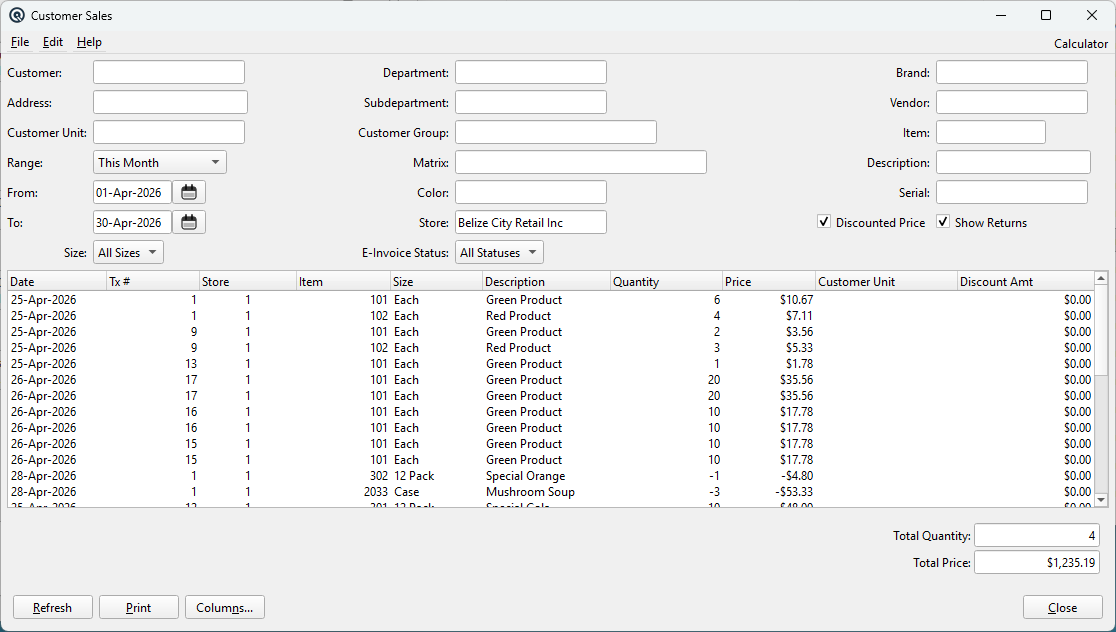
| Key Capabilities: Filter by customer, item, department, vendor, brand, matrix/color/size, date range, store, serial number, description text, address text, e-invoice status, and international product classification (UNSPSC). All filters are combinable. Columns are user-configurable. Every row is a drill-down link to the source transaction. |
Customer Filters (Left Column)
CustomerFilter to a specific customer (lookup). When set, only sales to this customer appear. The item lookup is also scoped to the selected store. Changing the store clears the customer if the customer belongs to a different store. AddressFree-text address search. Matches against the customer address stored on the invoice or return. Supports multiple words — each word is matched independently (all words must appear). Case-insensitive. Customer UnitFilter by customer unit (for multi-unit customer accounts, e.g. franchise locations). Selecting a unit before a customer auto-fills the customer from the unit's parent. |
Product Filters (Centre Column)
DepartmentFilter by merchandise department. Shows only items whose subdepartment belongs to this department. SubdepartmentFilter by subdepartment (a finer grouping within a department). Customer GroupFilter by customer group membership. Only transactions where the customer belongs to the selected group are included. MatrixFilter by item matrix (style/model grouping). Feature-gated: hidden when the Matrix feature is disabled. ColorFilter by item color within a matrix. Feature-gated: hidden when the Matrix feature is disabled. StoreFilter to a specific store. Defaults to the current store. Leave blank for all stores. E-Invoice StatusFilter by electronic invoice certification status: All Statuses, General, Pending, Certified, or Failed. Feature-gated: hidden when neither B2B nor Government e-invoicing is enabled. |
Item & Vendor Filters (Right Column)
BrandFilter by item brand. Feature-gated: hidden when the Brand feature is disabled. VendorFilter by the vendor who supplies the item (via item cost records). Shows all sales of items supplied by this vendor. Feature-gated: hidden when Purchasing is disabled. ItemFilter to a specific item (lookup). The item lookup is scoped to "sold only" items. When an item is selected, the Size dropdown is populated with the item's available sizes. DescriptionFree-text description search. Matches against the line-item description (or the item master description if blank). Supports multiple words — each word is matched independently. Case-insensitive. SerialFilter by serial number. Matches items tracked with the selected serial number on invoices. Feature-gated: hidden when Serial Number tracking is disabled. |
Date & Options
RangeQuick date range selector with presets: Today, Yesterday, This Week, This Month, This Year, Last 30 Days, Last 365 Days, etc. Selecting a range auto-fills the From and To dates. From / ToExplicit date range. A From date is required unless a specific Customer or Item is selected. This prevents accidentally loading the entire transaction history. SizeFilter by item size. Populated when a specific item is selected. Shows "All Sizes" by default. Discounted PriceCheckbox (checked by default). When checked, the Price column shows the discounted sale price (the final price the customer paid after line discounts). When unchecked, shows the original extended price before line discounts were applied. Show ReturnsCheckbox (checked by default). When checked, customer returns (credit notes) are included alongside invoices. When unchecked, only invoices are shown. Return quantities appear as negative values. |
International Product Classification (UNSPSC)
|
These filters are only visible for Mexico (MX) locale installations where CFDI compliance requires UNSPSC product codes. SegmentTop-level product classification (2-digit code). Selecting a segment populates the Family dropdown with child categories. Only segments actually assigned to items in inventory are listed. FamilySecond-level classification (4-digit code). Enabled after selecting a Segment. Selecting a family populates the Class dropdown. Intl. Product ClassThird-level classification (6-digit code). Enabled after selecting a Family. Selecting a class scopes the Product Code lookup below. Intl. Product CodeSpecific UNSPSC product code (8-digit). Direct lookup, or filtered by the selected Class. Matches items assigned to this exact product code. The hierarchy is cascading: Segment → Family → Class → Code. Changing a parent resets all child selections. |
Results List
|
Each row is one line item from an invoice or return. Click any column header to sort. Use Columns... to show/hide columns. Available Columns
|
Transaction Drill-Down
| Double-click any row to open the original transaction (Invoice or Customer Return) in its master screen for viewing or editing. This is the fastest way to investigate a specific sale or return — for example, to verify pricing, check discount details, or review the full invoice contents. |
Totals
Total QuantitySum of the Quantity column across all visible rows. Returns are subtracted (negative quantities). Total PriceSum of the Price column across all visible rows. Gives the net revenue for the filtered result set. |
Buttons
RefreshReloads data from the database using all current filter values. You must click Refresh after changing any filter to update the results. Generates a printable report from the current results. The report includes all visible columns and rows, plus a header listing all active filter criteria (customer, dates, department, item, etc.). Columns...Opens the column configuration dialog. Choose which columns to display and their order. Your column selection is saved per-screen and restored on next open. Use this to hide columns you don't need or to add columns like Discount Amt, Brand, or Vendor. CloseCloses the report window. |
Validation Rules
|
From date required: A From date is mandatory unless you have specified a Customer or an Item. This prevents accidentally querying the entire transaction history, which could be extremely slow on large databases. Set a date range, or select a specific customer/item first. |
Workflow Examples
|
What did we sell this month? Customer purchase history: Find all sales of a specific item: Vendor sales analysis: Track a serial number: |