
Pricing & Labels
Price Batch Master
The Price Batch Master is the primary tool for managing price changes across your inventory. Build a batch of items, calculate new prices using powerful bulk methods, round them to your zone's rounding rules, review side-by-side old vs. new, and execute all changes at once. Price batches can also be created automatically from Purchase Orders and Vendor Invoices when costs change. Access from Inventory › Price Batch Master or from the Price Batch List.
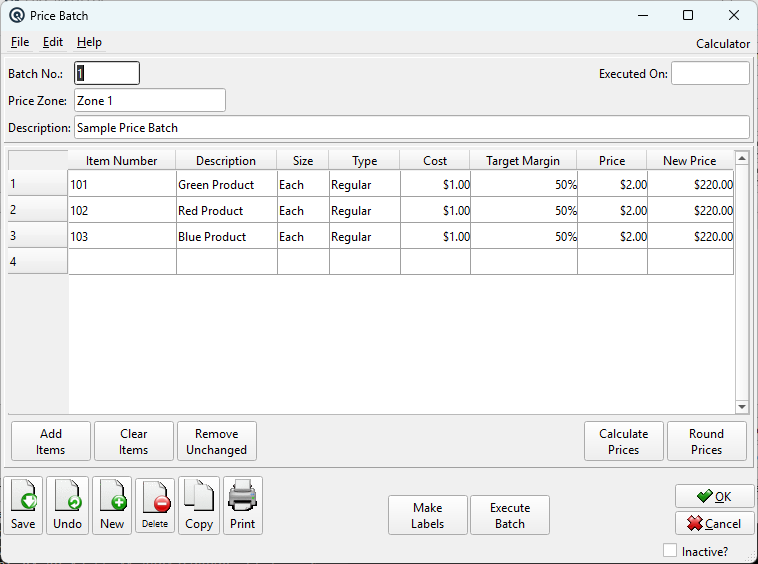
Header Fields
Batch No.Auto-assigned batch number (up to 10 characters). Automatically numbered with "#" on creation. Price ZoneThe price zone this batch applies to. Determines which prices are loaded and which stores are affected when executed. If you change the zone after adding items, the system prompts you to either delete items that don't have prices in the new zone, or create new prices for them. DescriptionFree-text description (e.g., "Q2 margin increase", "Vendor ABC cost update"). Auto-filled when created from a PO or vendor invoice. Executed OnRead-only. Shows the date the batch was executed. Blank until execution. ReferenceReference string for cross-referencing or notes (optional). StatusTransaction status. Controls posting and visibility in lists. DatePosting date for the transaction. Defaults to today. TimeTime of posting. Auto-filled from the system clock. Work DateWork date for the transaction (may differ from posting date). ShiftShift assignment for labour or shift-based reporting. StoreStore where the transaction is posted. Defaults to current store. StationWorkstation or terminal where the transaction was entered. EmployeeEmployee who created or is responsible for the transaction. MemoFree-form memo or notes attached to the transaction. |
Items Table
|
The table shows each item's current pricing alongside the proposed new price. Columns: Item Number — Scan or type an item number. Only sold items with prices in the selected zone are accepted. SizeDropdown of the item's available selling sizes. When changed, the Cost, Target Margin, and Price reload for the selected size. TypeThe price type to change. Dropdown showing all price levels defined for this item: Regular, Cust Level 1–4, Qty Level 1–4, Low Price. Changing the type loads the current price for that level. |
Power Buttons
|
These buttons transform the Price Batch from a simple list into a powerful bulk pricing engine: Add ItemsOpens a selection dialog to bulk-add items by department, subdepartment, group, vendor, or other criteria. Rather than scanning items one at a time, you can load hundreds or thousands of items in a single action. The dialog shows a count of items added when complete. 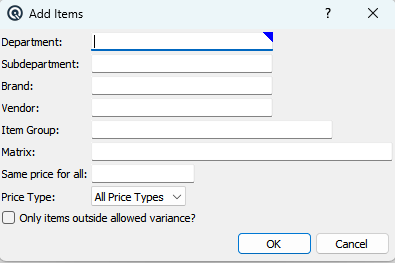 Clear ItemsRemoves all items from the batch (with confirmation). Useful for starting over after an Add Items selection that was too broad. Remove UnchangedScans every row and deletes items where Price equals New Price — i.e., items that were not actually changed. After using Calculate Prices, some items may remain unchanged (e.g., their calculated price matched their current price). This button cleans up the batch to show only genuine price changes, making review and execution more focused. Calculate PricesThe most powerful button. Opens a calculation dialog that applies a formula to every item in the batch at once. Five calculation methods: 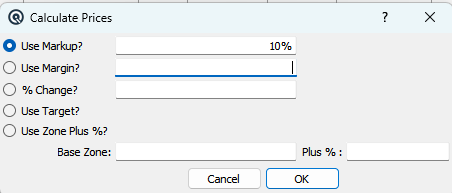
The calculation respects tax-inclusive and deposit-inclusive pricing, automatically adding back taxes and deposits after calculating the base price. A progress bar shows calculation progress for large batches. Round PricesApplies the price zone's rounding rules to every New Price in the batch. For example, if the zone rounds to x.99 endings, a calculated price of $4.73 becomes $4.99. Requires the zone to have rounding rules configured. Reports the number of prices rounded. |
Execution Buttons
Execute BatchApplies all New Prices to the actual item records. For each item where the new price differs from the current price, the item's price is updated in the database for the selected zone, size, and type. After execution: • The Executed On date is set to today. Make LabelsCreates Label Batches for items with changed prices, without executing the batch. A label batch is created for each store in the price zone. Only items where New Price differs from Price are included. Items with "No Labels" label type are skipped. Items with "Item Labels" get one label per unit on hand; "Shelf Labels" get one label each. |
Typical Workflow
|
1. Create a new batch and select the Price Zone. |
Zone Change Prompt
Choose an ActionWhen you change the price zone after items have been added, this dialog asks whether to delete lines that have no price in the new zone, or create new prices for them. Action GroupChoose between deleting lines or creating missing prices. Delete LinesDelete items where prices do not exist in the newly selected zone. Create PricesCreate new prices for items that do not yet have prices in the newly selected zone. Progress BarShows progress while prices are being created for items in the new zone. OKApply the selected action and close the dialog. CancelClose the dialog without making changes and revert the zone selection. |
Progress Dialog
ProgressAppears during long-running calculations (Calculate Prices) to show how many items have been processed and allows you to cancel the operation. |
Related Screens
| Price Batch List | Label Batch | Item Master | Promo Batch |
| Quasar Accounting 7.1 • © Linux Canada Inc. • Table of Contents |