
Customers & Sales
Detailed Statement
The Detailed Statement screen provides a line-by-line breakdown of all transactions for a single customer over a date range. Unlike the Print Statements batch process, this is an interactive, on-screen investigation tool that shows individual invoice items, tax lines, tender payments, adjustments, and transfers. Every row supports drill-down to the source transaction. Access from Sales › Detailed Statement.
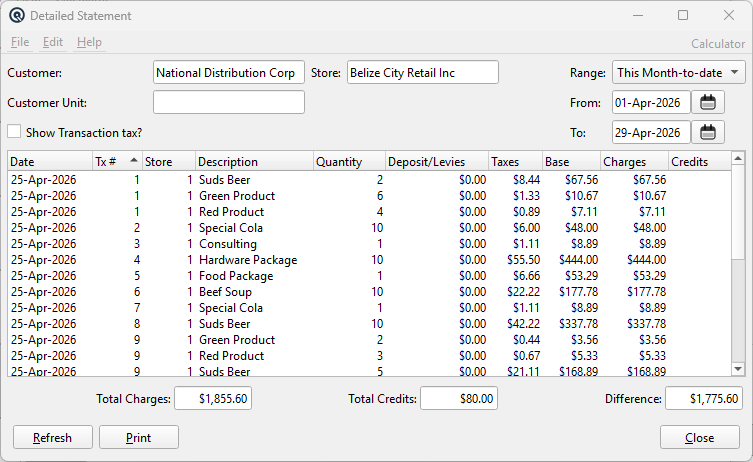
Filters
CustomerCustomer lookup (required). Selecting a customer automatically refreshes the results. Changing the customer clears the Customer Unit if it doesn't belong to the new customer. Customer UnitOptional. Filter to a specific customer unit (for multi-unit accounts). Selecting a unit before a customer auto-fills the customer. Only transactions posted against this unit are shown. StoreOptional store filter. When set, only transactions from this store are included. Defaults to the current store. RangeQuick date range preset (Today, This Week, This Month to Date, etc.). Defaults to This Month to Date. Selecting a range auto-fills the From and To dates. From / ToFromThe start date of the statement period. ToThe end date of the statement period. Explicit date range for the statement period. Transactions outside this range are excluded. Show Transaction tax?Checkbox. When checked, adds separate "Tx Tax" rows for each tax component on invoices and returns (e.g. "Tx Tax: GST", "Tx Tax: PST"). These rows show the total tax amount in the Charges or Credits column. When unchecked, taxes are only shown in the per-item Taxes column for reference but are not broken out as separate rows. Toggling this checkbox automatically refreshes the display. |
Results List
|
Each row represents one detail line from a transaction. Click column headers to sort. The list auto-refreshes when the customer, unit, or tax checkbox changes. Columns
|
Transaction Types
|
The statement displays seven different transaction types, each rendered with specific logic:
Any other transaction type that doesn't match the above shows the memo text (or the data type name if no memo) in the Description column. |
Transaction Drill-Down
| Double-click any row to open the original transaction in its master screen (Invoice, Customer Return, Customer Payment, Cheque, etc.) for viewing or editing. This lets you investigate any charge or credit directly from the statement. |
Totals
Total ChargesSum of all amounts in the Charges column. Represents the total value of invoices, adjustments, and other debits during the period. Total CreditsSum of all amounts in the Credits column. Represents the total value of payments, returns, and other credits during the period. DifferenceTotal Charges minus Total Credits. A positive value means the customer owes more than they paid during the period. A negative value means credits exceeded charges (overpayment or more returns than purchases).
|
Buttons
RefreshReloads all transaction data for the current customer and filters. The display also auto-refreshes when you select a customer, change the unit, or toggle the tax checkbox. Generates a printable report from the current display. The report includes a header with the customer name, unit, store, and date range, plus all visible rows and footer totals (Total Charges, Total Credits, Difference). CloseCloses the Detailed Statement window. |
Workflow
|
Investigate a customer's account: 1. Select the Customer. The statement loads automatically. Reconcile a payment dispute: 1. Select the customer and set the date range to cover the disputed period. |
Toolbar
Save / Undo / New / Delete / Copy / GroupsStandard master screen toolbar actions. OK / CancelSave and close, or discard and close. Inactive?Toggle to deactivate the record. |
Related Screens
| Print Statements | Aged Receivables | Customer Payment | Customer Master |
| Quasar Accounting 7.1 • © Linux Canada Inc. • Table of Contents |