
Accounts & Ledger
General Journal Entry
The General Journal Entry creates or edits a manual journal entry. Use this for adjustments, accruals, reclassifications, and any balanced debit/credit transactions that don’t originate from specialized modules (invoices, cheques, etc.). Each entry must balance — total debits must equal total credits. For a walkthrough of journal entries, see the Quasar Guide. Access from Ledger › General Journal or from the General Journal List.
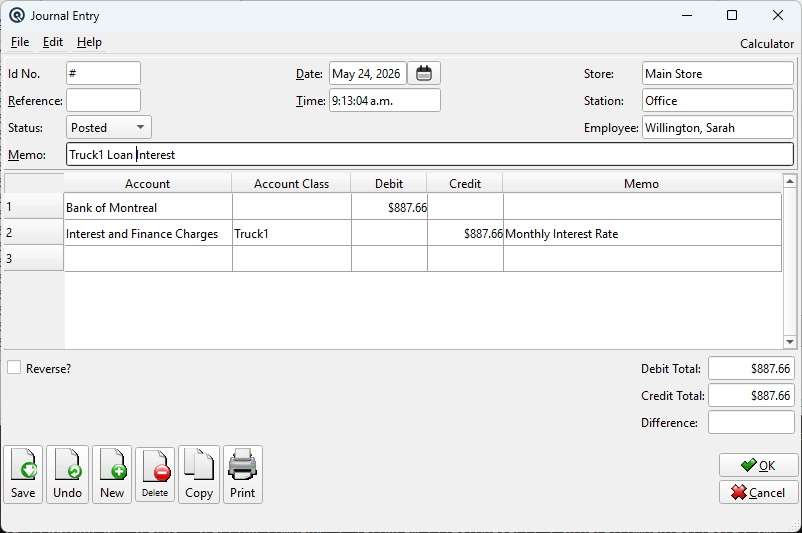
Header Fields
Id No.System-generated transaction number. Enter # to auto-generate the next available number, or type a specific number. Sequence numbering is by store. ReferenceOptional reference field for cross-referencing to external documents (e.g. a supporting document number or batch reference). StatusTransaction posting status: Posted (live, affects balances), Suspended (saved but not yet posted), or Voided (deleted, reversed out of balances). New transactions default to Posted. DatePosting date for the journal entry. Defaults to today. TimeTransaction time. Auto-filled from the system clock. StoreStore location for this entry. Determines the default posting context. StationThe workstation creating the entry. Auto-filled from the current session. EmployeeThe employee creating the entry. Auto-filled from the current session. MemoTransaction-level memo for the journal entry. Appears in the Journal report and Find Transaction screen. Work DateWork date for the transaction (may differ from posting date). ShiftShift assignment for labour or shift-based reporting. |
Line Items
|
Each row is one side of a balanced journal entry. You must have at least two lines — one debit and one credit — and the totals must balance. Add rows by entering a new account on the blank last row. Delete rows with the Delete key. Journal LinesThe entry table with Account, Account Class, Debit, Credit, and Memo columns. Each line posts to one GL account. AccountGL account (lookup). Only accounts with Allow Manual Journal enabled can be used. Control accounts (AR, AP, Inventory) are typically blocked to prevent sub-ledger imbalances. Account ClassOptional account class for this line. Account classes can only be assigned to revenue and expense accounts — selecting a balance sheet account will show an error and clear the class. Only visible when the Account Classes feature is enabled. See Account Class Master. DebitDebit amount for this line. Enter either a Debit or a Credit, not both. If the entry is out of balance when you tab past a blank Debit field, the remaining amount is auto-filled. CreditCredit amount for this line. Enter either a Debit or a Credit, not both. If the entry is out of balance when you tab past a blank Credit field, the remaining amount is auto-filled. MemoPer-line memo. Double-click to open a multi-line editor for longer notes (up to 4000 characters). |
Difference
Reverse?
When checked, saving the journal entry automatically creates a reversing entry dated the first day of the following month. All debit and credit amounts are swapped. This is commonly used for month-end accruals that need to be reversed at the start of the next period.
Debit Total
Running total of all debit amounts in the entry.
Credit Total
Running total of all credit amounts in the entry.
Difference
Difference between total debits and total credits. When zero, the entry is balanced and can be saved. A non-zero value (shown in red) indicates the entry is out of balance and cannot be saved.
Menu: Recurring
|
Available from the File menu. Opens the Recurring transaction dialog to set up this journal entry as a recurring entry (e.g. monthly accruals, depreciation entries, reclassifications). Prompts to save first. |
Workflow Examples
|
Reclassify an expense: 1. Debit the correct expense account. Record a monthly accrual: 1. Debit the expense account (e.g. Rent Expense). Record depreciation: 1. Debit the Depreciation Expense account. |
Toolbar
Save / Undo / New / Delete / Copy / Groups / Print / EmailStandard master screen toolbar actions. OK / CancelSave and close, or discard and close. Inactive?Toggle to deactivate the record. |
Related Screens
| General Journal List | Journal | Account List | Account Class Master |
| Recurring Transaction |
| Quasar Accounting 7.1 • © Linux Canada Inc. • Table of Contents |