
Customers & Sales
Invoice
The Invoice creates and edits customer sales invoices. An invoice is a posted financial transaction — it affects inventory, the general ledger, and the customer's accounts receivable balance. Invoices can originate from a Quote, a Sales Order, or be created directly. Payment can be applied immediately via tenders or left as an open receivable. Invoices support government e-invoicing certification for regulatory compliance. Access from Sales › Invoice or from the Invoice List.
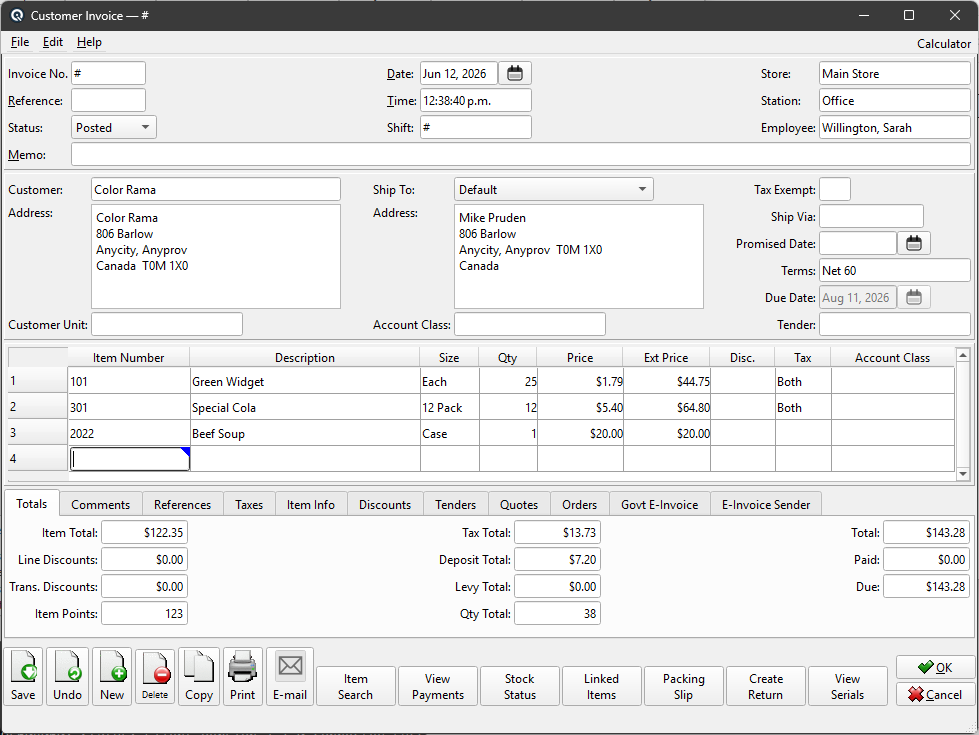
Header Fields
Invoice No.Unique identifier. Enter # to auto-generate. Once saved, the number is permanent. Sequence numbering is by store. ReferenceOptional external reference (e.g. customer PO number). DateInvoice date. Changing the date recalculates all item prices from active price schedules and promotional batches. TimeInvoice time. Used with date for audit tracking. StoreThe store posting the invoice. Changing the store clears employee/station, validates the customer, removes unstocked items, and recalculates prices. StationWorkstation where the invoice was created. EmployeeEmployee creating the invoice. Controls price override security — if the employee lacks SELLING_PRICE_OVERRIDE, Price and Ext Price columns are read-only. StatusTransaction status. Controls posting and visibility in lists. Work DateWork date for the transaction (may differ from posting date). ShiftShift assignment for labour or shift-based reporting. MemoFree-form memo or notes attached to the transaction. |
Customer & Shipping
CustomerThe customer being invoiced. Auto-populates address, tax exempt, terms, and customer discounts. An alert icon appears if the customer has an alert message. AddressBilling address, auto-filled from the customer. Editable per invoice. When e-invoice certification is requested without a customer, this field becomes required for name and address capture. Ship ToDropdown listing the customer's shipping addresses. Select a different ship-to location to override the default. The ship-to address auto-fills from the selected entry. Ship To AddressRead-only display of the selected ship-to address. Tax ExemptCustomer tax exemption. Overrides item-level tax for exempt items. Ship ViaFree-text shipping method (e.g. "FedEx Ground"). Promised DateThe date goods are promised to the customer. TermsPayment terms. Auto-populated from customer defaults. Changing terms recalculates the due date. See the Terms Master. Due DatePayment due date, automatically calculated from the invoice date plus the payment terms. Can be manually overridden. TenderDefault tender type for this invoice. When set, a tender line is automatically added in the Tenders tab. Commonly used for cash-and-carry sales. Customer UnitOptional customer unit the invoice applies to. Customer units are sub-entities of a customer — branches, departments, or service locations — each with its own address, delivery details, and warranty-tracked equipment. Selecting a unit fills in the customer from the unit (if no customer is set) and copies the unit's address into the ship-to address; the unit must belong to the invoiced customer. Units are defined in the Customer Unit Master. |
Item Table
Each row is a line item on the invoice.
|
Size
The Size column selects the selling size for the item (e.g. Each, Case, Pack). The dropdown is populated from the item's defined sizes. Changing the size updates the price and quantity relationship.
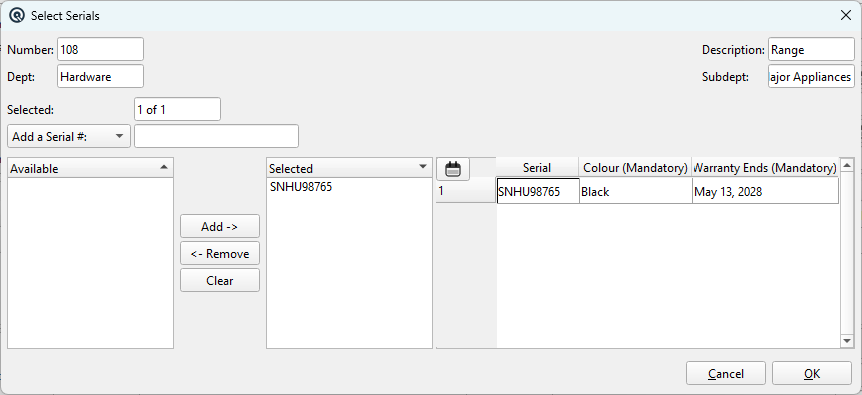
Serial Number Entry
|
When a serial-tracked item is entered with a quantity, Quasar automatically opens the Select Serial dialog to assign serial numbers. Available / Selected ListsThe left list shows serial numbers currently in stock. The right list shows serial numbers assigned to this invoice line. Use the arrow buttons to move serials between lists, or type a new serial number directly. Extra Data ColumnsIf extra info fields are defined for the item (e.g. Colour, Warranty Ends), they appear as additional columns directly in the selected serial table. Values are entered inline alongside each serial number. Date fields include a calendar icon for easy date selection. |
Totals Tab

|
Item Total — Sum of all extended prices before discounts/taxes. |
Comments Tab

|
Free-text comment area for internal notes or messages to print on the invoice. |
References Tab

|
Read-only table of reference name/data pairs. Populated by the system to track external references such as e-invoice UUIDs, government certification stamps, and POS transaction identifiers. |
Taxes Tab

|
Read-only tax breakdown by tax code: Tax — Tax code name. |
Item Info Tab

Detailed information for the currently selected item row. Updates as you move between rows.
From consignment (in)?Whether this item is sourced from consignment-in inventory. Visible only when the Consignment feature is enabled. From Consignment (out)?Whether this item is a consignment-out sale. Visible only when the Consignment feature is enabled. Discountable?Whether this line is eligible for discounts. Include Tax?Tax-inclusive pricing for this line. Toggling recalculates. Include Deposit?Whether the price includes the deposit. Toggling recalculates. DepositEditable deposit amount (e.g. container deposit). LevyEditable levy amount (e.g. environmental levy). Show On Hand?Toggle to display current on-hand inventory. On HandRead-only current stock quantity (when enabled). LocationRead-only warehouse location for the item. DiscountSelect a predefined line-level discount. Percent / DollarChoose discount method and enter the amount. Captured Disc IDIdentifier captured for the discount (used by Philippine statutory discounts for beneficiary tracking). Price Over-ride?Marks the price as manually overridden so it isn't recalculated. Sale Serial#Serial number for serialized items. Visible only when the Serial feature is enabled. Line Disc.Read-only total line discount. Line TotalRead-only line total after all adjustments. Trans. Disc.Read-only share of transaction discount for this line. PointsRead-only loyalty points earned for this line. Edit SerialsButton to open the serial number selection dialog for serialized items. |
Discounts Tab

|
Transaction-level discounts applied to the entire invoice. Discount — Transaction-type discount lookup. Auto-populated from system auto-apply and customer-specific discounts. |
Tenders Tab

|
Payment tenders applied to this invoice. Multiple tenders can be combined (split payment). Tender — Payment method (Cash, Credit Card, E-Wallet, etc.). |
Quotes Tab

|
Quotes fulfilled by this invoice. Shows Quote #, Reference, Date, and Amount. AddLink an additional quote. Items from the quote are merged into the invoice. RemoveUnlink a quote (does not delete the quote). ViewOpen the quote in the Quote Master. Double-click also opens. |
Orders Tab

|
Sales orders fulfilled by this invoice. Shows Order #, Reference, Date, and Amount. AddLink an additional sales order. Items are merged into the invoice. RemoveUnlink an order. ViewOpen the order in the Sales Order Master. Double-click also opens. |
Govt E-Invoice Tab

|
Government electronic invoicing for regulatory compliance (Mexico CFDI, Philippines BIR, Belize BTS). StatusRead-only certification lifecycle: General, Pending, Submitted, Sent, Received, Failed, Certified, Contingency, CancelPending, CancelFailed, Cancelled, GlobalCfdi, GlobalCfdiFailed. Require Invoice CertificationCheckbox to flag this invoice for government certification. Opens the Certification Capture Dialog to collect Tax ID, name, address, tax category, CFDI usage, email, and phone. Pre-populates from the customer if set. TIN ID / RFC / Tax IdCustomer's government tax identifier. Label varies by locale (TIN for Philippines, RFC for Mexico, Tax Id elsewhere). Tax CategoryMexico CFDI tax regime code (601–626). Selects the fiscal regime for the receiver. CFDI UsageMexico CFDI use code (G01–CN01). Indicates how the buyer will use the invoice for tax purposes. Customer email for automated e-invoice delivery. PhoneCustomer phone for e-invoice notifications. Error CodeRead-only error code shown when certification fails. Error MessageRead-only error message shown when certification fails. Retry CertificationButton to resubmit a Failed invoice for certification. Request CancellationButton to request cancellation of a Certified invoice. Only visible when status is Certified. Replaced ByRead-only reference to the replacement invoice (shown after cancellation). Cancel ReasonRead-only cancellation reason (shown after cancellation). |
E-Invoice Sender Tab

Delivery StatusRead-only PEPPOL/ETD delivery status for the e-invoice. Status MessageRead-only detailed delivery message. Retry SendButton to retry a failed PEPPOL delivery. Only visible when delivery status is Failed. |
Action Buttons
Item SearchSearch for items within the invoice by item number or description. View PaymentsOpens the payment history for this invoice, showing all payments and credits applied. Enabled only after the invoice is saved. Stock StatusOpens Stock Status for the selected item. Linked ItemsShows related items (substitutes, accessories). Selecting a linked item adds it to the invoice. Packing SlipCreates a Packing Slip from this invoice for warehouse picking and shipping. Create ReturnCreates a Customer Return from this invoice. Items, prices, discounts, tax, and e-invoice data are carried over. The return screen opens pre-populated with the invoice's line items. View SerialsOpens a read-only list of all serial numbers assigned across all invoice lines. |
Standard Buttons & Menu
SaveSaves and posts the invoice. After saving, you are prompted to print. DeleteVoids and deletes the invoice. Reverses all GL and inventory postings. CopyDuplicates the invoice with a new number and today's date. Prints using the invoice_print.xml template. Emails the invoice to the customer. File › RecurringCreates a Recurring transaction from this invoice for automatic re-posting on a schedule. |
Additional Field Reference
Customer AlertIcon button that appears beside the Customer field when the customer has an alert message defined. Click to view the full alert text. Hidden when no alert exists. Account ClassDefault account class for the invoice. Overrides the item-level account class for GL posting. Located in the header beside Ship To. Individual line items can also override this in the Account Class column of the item table. CommentMulti-line text field on the Comments tab. Use for internal notes or messages to print on the invoice. Supports free-form text entry. ReferencesThe References tab frame. Contains a read-only table of name/data pairs populated by the system for e-invoice UUIDs, government certification stamps, and POS identifiers. DiscountsThe Discounts tab frame. Contains the transaction-level discount table where discounts are applied to the entire invoice (as opposed to line-level discounts on individual items). Item TotalRead-only sum of all extended line prices before discounts, taxes, deposits, and levies. Displayed on the Totals tab. Line Discounts TotalRead-only total of all line-level discounts across all items. Displayed on the Totals tab. Trans. Discounts TotalRead-only total of all transaction-level discounts applied to the invoice. Displayed on the Totals tab. Item Points TotalRead-only total loyalty points earned across all line items. Displayed on the Totals tab. Tax TotalRead-only total tax amount for the invoice. Displayed on the Totals tab. Deposit TotalRead-only total of all container and item deposits on the invoice. Displayed on the Totals tab. Levy TotalRead-only total of all levies (e.g. environmental levies) on the invoice. Displayed on the Totals tab. Qty TotalRead-only sum of all line item quantities. Displayed on the Totals tab. TotalRead-only grand total of the invoice (items − discounts + tax + deposits + levies). Displayed on the Totals tab. PaidRead-only amount paid via tenders in the Tenders tab. Displayed on the Totals tab. DueRead-only remaining balance (Total − Paid). This amount is posted to the customer's accounts receivable. Displayed on the Totals tab. Percent AmountDiscount percentage amount field on the Item Info tab. Active when the Percent radio button is selected for line-level discounts. Enter the discount percentage to apply to the current line item. Dollar DiscountRadio button on the Item Info tab to select dollar-amount discounting for the current line item. When selected, the Dollar Amount field becomes active. Dollar AmountDiscount dollar amount field on the Item Info tab. Active when the Dollar radio button is selected. Enter the fixed dollar discount to apply to the current line item. E-Invoice NameCustomer name for government e-invoice certification on the Govt E-Invoice tab. Normally hidden — name and address are captured through the main Address field or the Certification Capture Dialog. E-Invoice Postal CodeCustomer postal code for government e-invoice certification on the Govt E-Invoice tab. For Belize (BZ), this field displays the province instead. Normally hidden — captured through the Certification Capture Dialog. |
Related Screens
| Invoice List | Customer Return | Customer Payment | Quote | Sales Order |
| Quasar Accounting 7.1 • © Linux Canada Inc. • Table of Contents |