
Customers & Sales
Sales Order
The Sales Order creates and edits customer sales orders. A sales order is a confirmed commitment to sell specific items to a customer, with delivery tracking and fulfillment management. Unlike a Quote, a sales order represents a firm order with delivery scheduling, job costing, and inventory commitment. Orders can be fulfilled (converted) into an Invoice — when the invoice is saved, the originating order is automatically set to inactive. Orders can originate from a quote or be created directly. Access from Sales › Sales Order or from the Sales Order List.
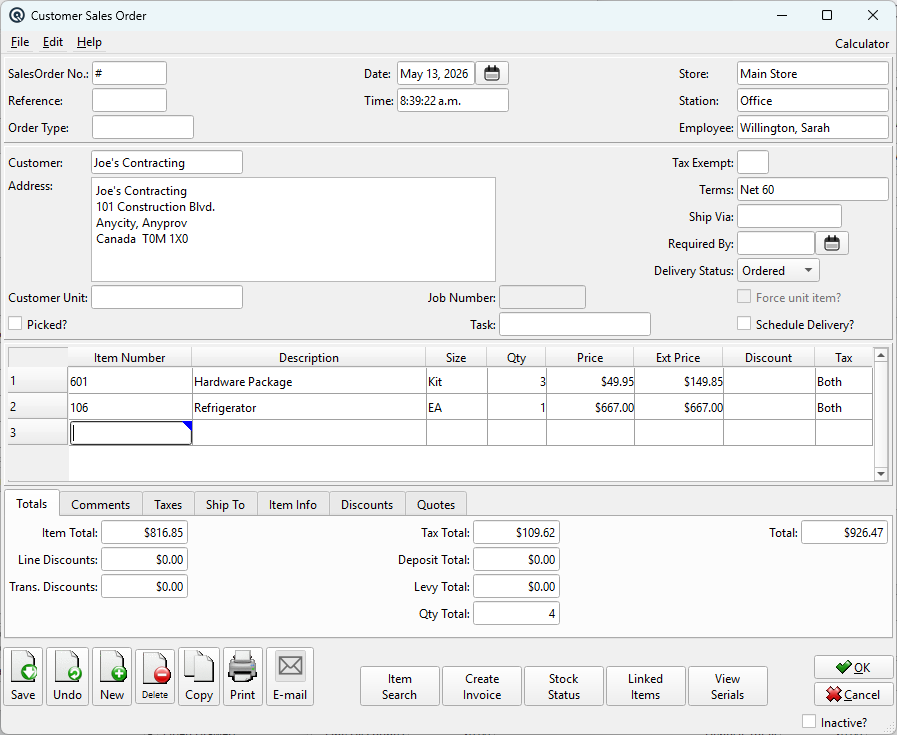
Header Fields
SalesOrder No.Unique identifier for the order. Enter # to auto-generate the next available number when saving. Once saved, the number is permanent. Sequence numbering is global (shared across all stores). ReferenceOptional external reference number (e.g. customer PO number). DateThe date the order was created. Defaults to today. TimeThe time the order was created. Used for audit tracking. StoreThe store fulfilling the order. Defaults to the current store. Changing the store will: clear the employee and station, validate the customer against the new store, remove any items not stocked in the new store (with a warning), and recalculate all prices. StationThe workstation where the order was created. Informational only. EmployeeThe employee creating the order. Controls the price override security check — if the employee's security type does not allow SELLING_PRICE_OVERRIDE, the Price and Ext Price columns become read-only. Order TypeThe Sales Order Type for this order. Order types control special behaviors: Standard — Normal order workflow (quote → order → invoice). Layaway #Displayed only when the order type is Layaway and a layaway has already been created. Shows the linked Layaway number (read-only). If no layaway exists yet, this field is hidden and the Process Layaway button appears instead (see Action Buttons below). StatusTransaction status. Controls posting and visibility in lists. Work DateWork date for the transaction (may differ from posting date). ShiftShift assignment for labour or shift-based reporting. MemoFree-form memo or notes attached to the transaction. |
Customer & Order Details
CustomerThe customer placing the order. Selecting a customer auto-populates: the address, tax exempt status, payment terms, and any customer-specific discounts. If the customer has an alert message, an alert icon appears — click it to view the alert. AddressThe customer's billing address, auto-filled from the customer master. Can be manually edited for this order. Tax ExemptIf the customer has a tax exemption, it is applied here. Overrides item-level tax so exempt items are not charged tax. Can be changed per order. TermsPayment terms from the Terms master. Auto-populated from the customer's default. Can be overridden per order. Ship ViaFree-text shipping method (e.g. "FedEx Ground", "Customer Pickup"). Carries over when the order is converted to an invoice. Required ByThe date by which the customer needs the order delivered. Used for delivery scheduling and prioritization. Delivery StatusTracks the order's fulfillment progress through four stages: Ordered — Order has been placed but not yet scheduled for delivery. Customer UnitOptional customer unit the order applies to. Customer units are sub-entities of a customer — branches, departments, or service locations. Cleared if the unit doesn't belong to the new customer when the customer is changed. See the Customer Unit Master. Job NumberRead-only display of the associated job number, if this order was created as part of a job costing workflow. The job is set programmatically when the order is originated from a task. TaskAssociates the order with a Task for project/job tracking. Changing the task updates the job context. Picked?Checkbox indicating whether the items on this order have been physically picked from warehouse locations. Used in warehouse management workflows. Schedule Delivery?Checkbox to flag this order for delivery scheduling. When checked, the order appears in delivery management screens. Force unit item?Read-only flag set when customer unit restrictions apply. When active, items are constrained to the customer unit's defined product list. |
Item Table
The main body of the order. Each row is a line item being ordered.
|
Item Number — Enter or look up an item number. Only sold items appear in the lookup. Selecting an item auto-populates description, size, price, and tax. |
Serial Number Entry
|
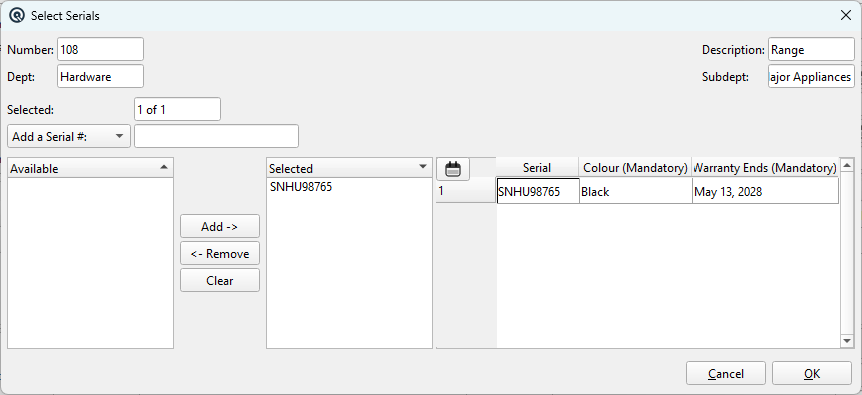
When a serial-tracked item is entered with a quantity, Quasar automatically opens the Select Serial dialog to assign serial numbers. Available / Selected ListsThe left list shows serial numbers currently in stock. The right list shows serial numbers assigned to this order line. Use the arrow buttons to move serials between lists, or type a new serial number directly. Extra Data ColumnsIf extra info fields are defined for the item (e.g. Colour, Warranty Ends), they appear as additional columns directly in the selected serial table. Values are entered inline alongside each serial number. Date fields include a calendar icon for easy date selection. |
Totals Tab

|
Item Total — Sum of all line extended prices before discounts and taxes. |
Comments Tab
|
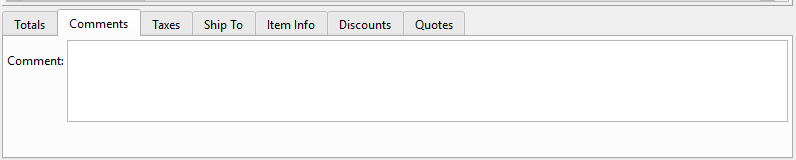
Free-text comment area for internal notes, special instructions, or messages to print on the order confirmation. |
Taxes Tab
|
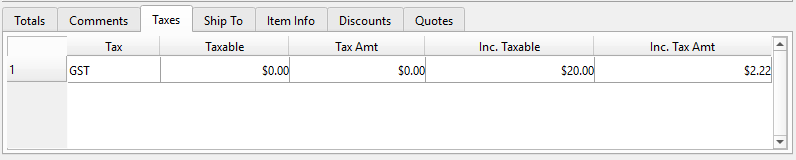
Read-only breakdown of all taxes on the order, grouped by tax code: Tax — The tax code name. |
Ship To Tab

Ship ToAn optional different customer as the delivery recipient. If goods are shipped to a different location than the billing customer, select the ship-to customer here. The address auto-populates from that customer's record. AddressThe shipping address, auto-filled from the Ship To customer. Can be manually edited for this order. |
Item Info Tab

Shows detailed information for the currently selected item row. Updates as you move between rows in the item table.
Include Tax?When checked, the price for this line includes tax (tax-inclusive pricing). Toggling recalculates the line total and tax breakdown. Include Deposit?When checked, the price includes the deposit amount. Toggling recalculates the line total. Discountable?Whether this line is eligible for discounts. Defaults from the item master. Uncheck to exclude from all discount calculations. Show On Hand?Toggles the On Hand field. When enabled, displays the current on-hand inventory for this item in the order's store. TaxRead-only calculated tax amount for this line. DepositDeposit amount for this line (e.g. container deposit). Editable — recalculates the line total. LevyLevy amount for this line (e.g. environmental levy). Editable — recalculates the line total. On HandRead-only current on-hand inventory (shown when "Show On Hand?" is checked). DiscountSelect a predefined line-level discount from the Discount master. Only line-type discounts are shown. Percent / DollarChoose percentage or dollar discount method via radio buttons, then enter the amount. Applied to the line's extended price. Price Over-ride?Marks the current line's price as a manual override. When set, the price is not recalculated when the date, customer, or store changes. Line Disc.Read-only total line discount for this item. Line TotalRead-only total for this line after discount, tax, deposit, and levy. Trans. Disc.Read-only display of this line's share of the transaction-level discount. LocationRead-only warehouse location for the item. InvoicedRead-only quantity that has already been invoiced from this order. As invoices are created from the order, this tracks the fulfilled quantity. |
Discounts Tab
|
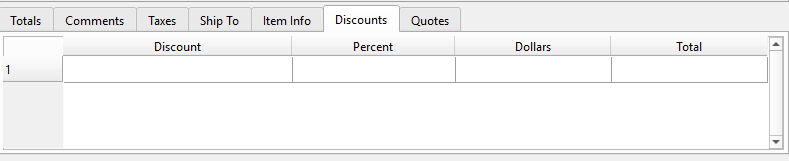
Transaction-level discounts applied to the entire order, separate from line-level discounts. Discount — Select a transaction-level discount. Only transaction-type discounts appear. Discounts are populated from three sources: (1) system auto-apply discounts, (2) customer-specific discounts, and (3) manually added discounts. When the customer changes, sources (1) and (2) are refreshed. |
Quotes Tab

|
Lists the Quotes that were converted to create this order. When a quote is converted to an order via the Quote Master's "Create Order" button, the quote is linked here automatically. Quote # — The originating quote number. AddManually link an additional quote to this order. Opens a quote lookup to select a quote. The selected quote's items are merged into the order, and the quote is linked. RemoveRemoves the selected quote link from this order. The quote is unlinked but not deleted. ViewOpens the selected quote in the Quote Master for viewing. Double-clicking a quote row also opens it. |
Action Buttons
Item SearchOpens a search dialog to find items within the order's line item table by item number or description. Use Next to find the next match. Use Start search at top? to restart. If no more matches are found, offers the option to start over. Create InvoiceConverts the order into a customer Invoice. Requires the order to be active (not voided). A dialog offers two options: Default item quantity from order — Pre-fills invoice quantities from the remaining order quantities (ordered minus already invoiced). A new Invoice screen opens with all data from the order. If the invoice is saved, the order is automatically set to inactive. If cancelled, the order remains active for future fulfillment. Stock StatusOpens the Stock Status screen pre-loaded with the currently selected item, showing on-hand, on-order, and min/max levels across stores. Linked ItemsOpens the Linked Items screen for the selected item, showing substitutes, accessories, and cross-sells. Selecting a linked item adds it to the order. Process LayawayOnly visible when the Order Type is Layaway, a customer is selected, items exist, and no layaway has been created yet. Clicking this button: 1. Saves any pending changes to the order. Once a layaway has been created, this button is hidden and the Layaway # field appears in the header instead. The Create Invoice button is disabled until the layaway reaches Paid in Full status. |
Layaway Order Lock
|
Security Feature: Once a Layaway has been created from a sales order, the order is automatically locked to prevent tampering with the reserved merchandise. The following controls become read-only: Item Table — Items cannot be added, edited, or removed. Quantities, prices, sizes, and line discounts are frozen. This lock ensures that the merchandise, pricing, and financial terms on the order remain exactly as they were when the customer agreed to the layaway contract. The order can still be viewed, printed, and emailed. The Create Invoice button becomes enabled only when the layaway reaches Paid in Full status. Fields such as Comment, Ship Via, Required By, and Picked? remain editable, as they relate to fulfillment logistics rather than the financial agreement. |
Action Buttons (continued)
View SerialsView serial numbers assigned to items on this order. |
Standard Buttons
SaveSaves the order. If auto-number (#) is used, a unique number is assigned. After saving, you are prompted to print the order. DeleteDeletes the current order. CopyCreates a duplicate of the order with a new auto-generated number and today's date. Prints the order using the sales_order_print.xml report template. Emails the order to the customer. InactiveMarks the order as voided/inactive. Inactive orders remain for historical reference but cannot be converted to invoices. |
| Quasar Accounting 7.1 • © Linux Canada Inc. • Table of Contents |