
More Topics
Packing Slip
The Packing Slip creates a shipment document for warehouse picking and shipping. A packing slip is linked to a customer Invoice and lists the items to be picked, packed, and shipped. Packing slips can be created directly or generated from the Invoice screen using the "Packing Slip" button, which pre-populates all line items from the invoice. The slip tracks shipment status through a lifecycle of Pending → Shipped, and supports serial number tracking for serialized items. Access from Sales › Packing Slip List › New or from the Invoice screen.
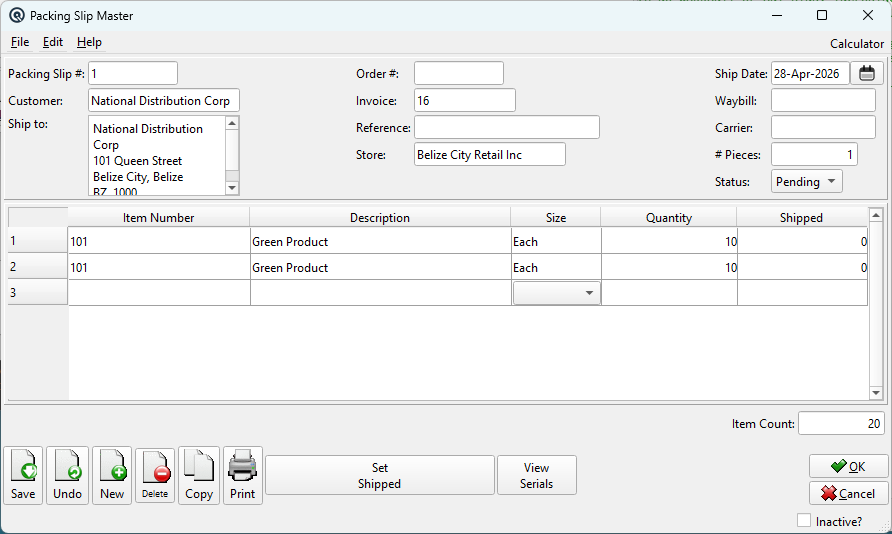
Header Fields
Packing Slip #Unique identifier. Enter # to auto-generate. Once saved, the number is permanent. CustomerThe customer for this shipment. Selecting a customer filters the Invoice lookup to show only that customer's invoices. An alert icon appears if the customer has a staff alert message — click it to view the alert. Alert IconClick the alert icon to view the customer's staff alert message. Ship toShipping address (multi-line, editable). Auto-populated from the linked invoice's ship-to address, or falls back to the customer's billing address if no ship-to is set. Order #Sales order number(s) associated with this shipment. Multiple orders are comma-separated. Read-only when populated from the invoice. InvoiceThe Invoice this packing slip fulfils. Selecting an invoice auto-populates all line items, the reference, carrier (from Ship Via), and the ship-to address. Changing the invoice reloads all items. ReferenceReference string for cross-referencing or notes (optional). StoreThe store shipping the goods. Changing the store validates that all items are stocked in the new store — unstocked items are automatically removed with a warning. |
Shipping Details
Ship DateThe date the goods are shipped. Defaults to today. WaybillCarrier waybill or tracking number (up to 20 characters). CarrierShipping carrier name (e.g. "FedEx", "Canada Post"). Auto-filled from the invoice's Ship Via field. # PiecesNumber of packages/pieces in the shipment. Defaults to 1. StatusShipment lifecycle status: Note: Once a slip is posted, its status cannot be changed. A posted slip cannot be set back to a non-posted status. |
Item Table
Each row is an item to be picked and shipped.
ItemsItem Number — Enter or look up an item. Only sold and stocked items are accepted. Discontinued items are rejected. When loaded from an invoice, items are pre-populated. SizeSelling size (Each, Case, etc.). Dropdown from the item's defined sizes.
Quantity — Quantity ordered/requested for this line. For serialized items, entering or changing the quantity opens the Add Serial dialog to select specific serial numbers from available inventory. |
Totals
Item CountRead-only sum of all item quantities across all lines. |
Action Buttons
Set ShippedMarks the packing slip as "Shipped". Prompts for confirmation. If the slip is already shipped, an error is displayed. The slip must be saved before setting to shipped. View SerialsOpens a read-only dialog showing all serial numbers assigned across all lines. For items with serialized tracking, displays each serial number alongside its item. Serial numbers that have not yet been assigned are shown as blank entries, allowing you to assign them. Click OK to save any serial changes. |
Standard Buttons
SaveSaves the packing slip. UndoReverts changes since the last save. NewOpens a blank packing slip. DeleteDeletes the packing slip. CopyDuplicates the packing slip. GroupsAssign the packing slip to security/data groups. Prints the packing slip. Emails the packing slip as a PDF. OKSaves and closes the screen. CancelCloses without saving changes. |
Workflow: Creating from an Invoice
|
The most common workflow is to create a packing slip from an existing invoice: 1. Open the Invoice and click the Packing Slip button. |
Related Screens
| Packing Slip List | Invoice | Sales Order | Stock Status |
| Quasar Accounting 7.1 • © Linux Canada Inc. • Table of Contents |