
Purchases
Vendor Master
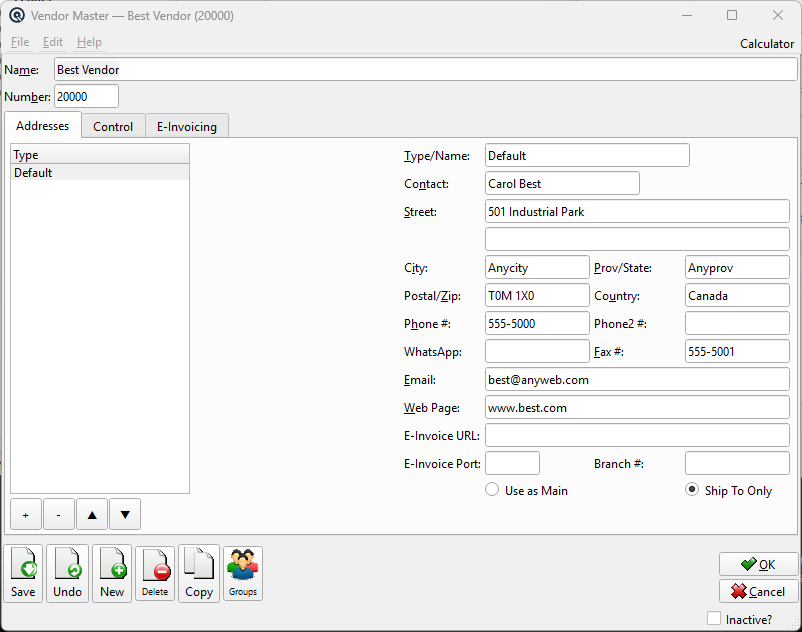
The Vendor Master creates or edits a vendor (supplier) record. The screen uses a three-tab layout: Addresses (multi-address editor), Control (AP account, terms, and patronage), and E-Invoicing (tax ID and mismatch item). Access from Purchases › Vendor or by editing from the Vendor List.
Header Fields
|
The header fields are always visible above the tabs.
NameThe vendor or company name (up to 62 characters). Used in lookups, purchase orders, and reports throughout Quasar. NumberUnique vendor number (up to 12 characters). Enter # to auto-generate on save. Used in lookups, reports, and cross-references. |
Addresses Tab
|
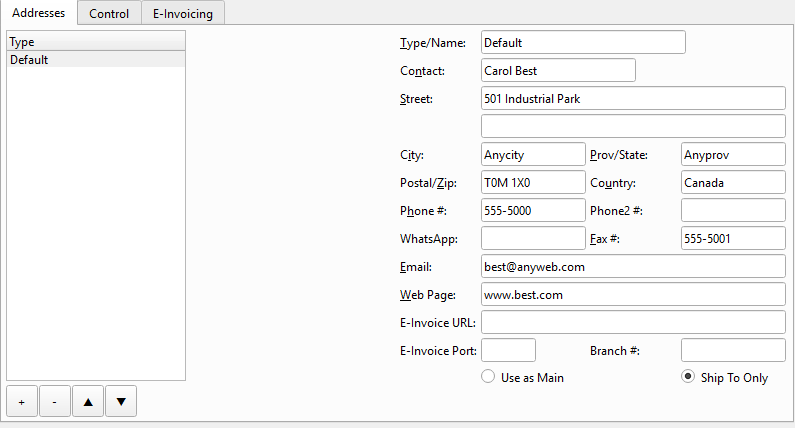
The Addresses tab uses the multi-address editor widget. The left side shows a list of addresses with a Type column. Select an address in the list to view and edit its details on the right. Use the + (Add), − (Delete), ▲ (Up), and ▼ (Down) buttons to manage and reorder addresses. The first address is used as the default on purchase orders and reports. Address EditorThe address list and detail panel. Click an address row on the left to load its fields on the right for editing. Type/NameAddress classification or label (e.g., “Main”, “Warehouse”, “Billing”). Displayed in the address list on the left. ContactContact person at this location. StreetStreet address (two lines available for suite, unit, or building information). CityCity name. Prov/StateProvince, state, or region. Postal/ZipPostal code or ZIP code. CountryCountry name. Phone #Primary phone number. Phone2 #Secondary phone number. Fax #Fax number. WhatsApp phone number for business messaging. Email address for this location. Web PageWebsite URL. E-Invoice URLElectronic invoicing endpoint URL for B2B e-invoice delivery. E-Invoice PortPort number for the e-invoice endpoint. Branch #Branch or location number identifier for multi-location reporting. Use as MainDesignate this address as the primary address for correspondence and invoicing. Only one address can be marked as Main at a time. Ship To OnlyMark this address as a shipping destination only (not used for billing). |
Control Tab
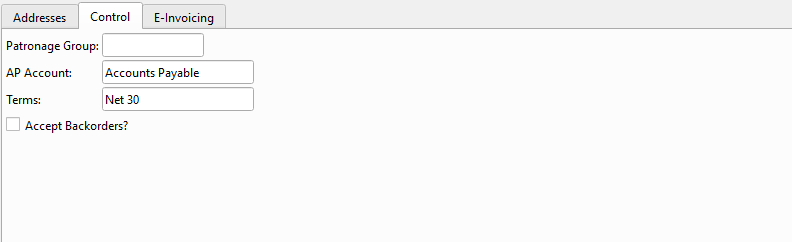
Patronage GroupCo-op patronage group membership for dividend calculations. See the Patronage Group Master. AP AccountDefault Accounts Payable GL account for this vendor. If this is the first vendor created and the store has no default vendor account, this account becomes the store default. TermsDefault payment terms for purchase orders and invoices. See the Terms Master. Accept Backorders?Whether this vendor supports partial shipments and backorders. |
E-Invoicing Tab

Tax ID (TIN/RFC)The vendor’s tax identification number for electronic invoicing compliance (e.g., RFC for Mexico, TIN for Philippines/Belize). Mismatch ItemDefault item to use when received goods don’t match the purchase order. This allows vendor invoices to be imported even when specific item numbers cannot be matched. |
Standard Buttons
SaveSaves the vendor record. DeleteDeletes the vendor record. NewClears the form to create a new vendor. Prints the vendor record. |
Related Screens
| Vendor List | Purchase Order | Vendor Invoice | Vendor Payment | Aged Payables |
| Quasar Accounting 7.1 • © Linux Canada Inc. • Table of Contents |