
Inventory
Item Build
Item Build assembles a kit item from its component ingredients. When executed, the build decreases the on-hand of every component and increases the on-hand of the finished kit — all in a single Item Adjustment transaction. The cost of the finished item is the sum of the component costs, plus any optional manufacturing expense. Access from Inventory › Item Build, or from the Kit tab of the Item Master.
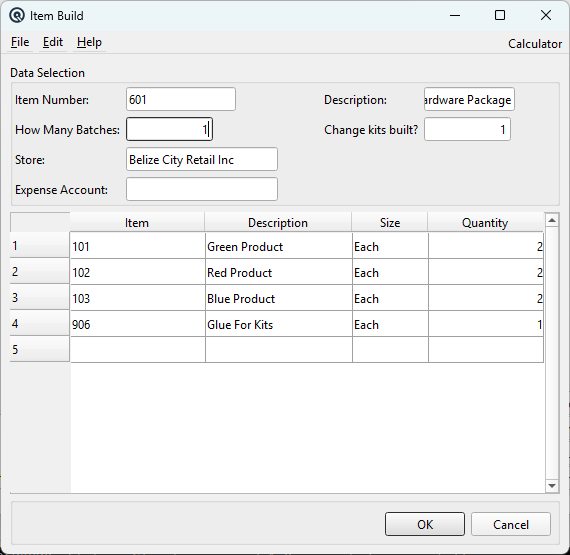
Data Selection
Item NumberSelect or scan the kit item to build. Only items that have components defined on the Item Master Kit tab are valid. If the selected item has no components, an error is displayed. When selected, the Description field, component table, and default build quantity are auto-populated. DescriptionRead-only. Displays the full description of the selected kit item. How Many BatchesThe number of times to build the kit's recipe. Defaults to 1. This is a multiplier applied to the component quantities defined on the Kit tab. For example, if a kit's recipe calls for 2 units of flour and you set batches to 3, the component table shows 6 units of flour. Changing this field recalculates all component quantities and updates the Change kits built field. Change kits builtThe total number of finished kit units produced. Calculated as: Batches × Build Qty (where Build Qty is the kit's defined yield per batch from the Item Master). This value is editable — you can override it to produce a different quantity of finished goods than the formula suggests. StoreThe store where the build occurs. Both the kit item and all its components must be stocked in this store. Changing the store validates all components; if any are not stocked, the selection is rejected. Expense AccountOptional. A GL account for allocating manufacturing overhead (labour, utilities, etc.) to the build. When an account is entered, the Percent Expense and Flat Rate Expense fields appear. Percent ExpenseVisible only when an Expense Account is set. A percentage markup applied to the total component cost. For example, entering 10% on a $100.00 total component cost adds $10.00 to the finished item's cost. Flat Rate ExpenseVisible only when an Expense Account is set. A fixed dollar amount added to the finished item's cost. Can be used alone or combined with a percent expense. At least one of Percent or Flat Rate must be non-zero when an Expense Account is specified. |
Component Table
|
The component table shows the bill of materials for the build: ItemThe component item number (read-only, populated from the kit recipe). DescriptionComponent item description (read-only). SizeUnit of measure for this component (read-only). QuantityThe number of units to consume. This column is editable and defaults to the recipe quantity multiplied by the batch count. |
|
How Batches, Kits Built, and Component Quantity Affect Inventory The build process creates a single Item Adjustment transaction that moves inventory in two directions: 1. Components are consumed (decreased). Each component row in the table generates a negative adjustment line. The Quantity column determines exactly how many units are removed from stock. Changing the How Many Batches field recalculates all component quantities proportionally (recipe qty × batches). However, you can also manually edit any component's Quantity to override the calculated value — for example, to account for actual waste, partial yields, or substitutions. 2. The finished kit is produced (increased). A single positive adjustment line is created for the kit item. The quantity produced equals the Change kits built value. The cost assigned to the finished kit equals the sum of all component costs (based on each component's FIFO/weighted average selling cost at the time of the build), plus any manufacturing expense (percent + flat rate). 3. Editing relationships: • Change Batches → Recalculates all component quantities proportionally and recalculates kits built. Example: A kit "Gift Basket" yields 1 unit per batch and requires 3 Chocolates + 1 Ribbon. Set Batches = 5: • Kits built = 5. Components show: Chocolates = 15, Ribbon = 5. |
Validation Rules
|
• The kit and all components must be stocked in the selected store. Inactive components are rejected. |
GL Posting
|
The build generates an Item Adjustment with these GL entries: • Each component: Credit the component's Asset Account by its extended cost (removes value). The adjustment memo is automatically set to: "Built from 'Build Kit': [item description]". |