
AI & Automation
AI Skill Master
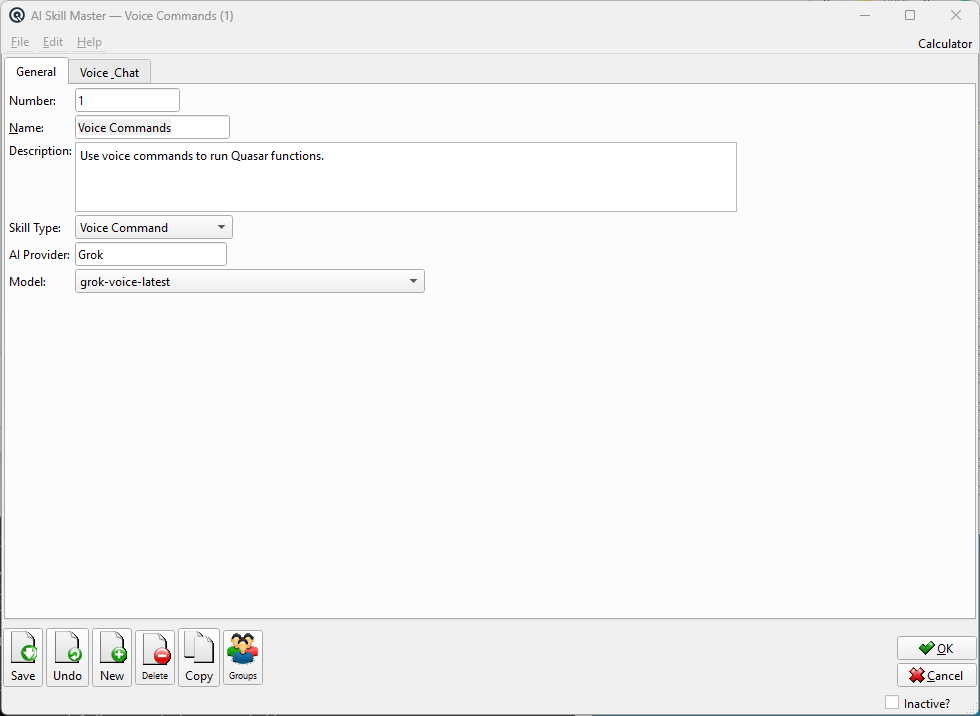
An AI Skill defines one AI job: what it does, which provider and model it uses, the instructions it is given, and what happens to the result. Skills are the only place this is configured — no prompt, model, or endpoint is hard-coded in Quasar. The Skill Type decides which fields matter: a Vendor Invoice skill uses the Input and Instructions tabs, while a Voice Command skill uses the Voice & Chat tab. Access from System › Setup › AI Skill Master, or from the AI Skill List.
Skill Types
When more than one skill of the same type exists, they are tried in Number order. |
General Tab
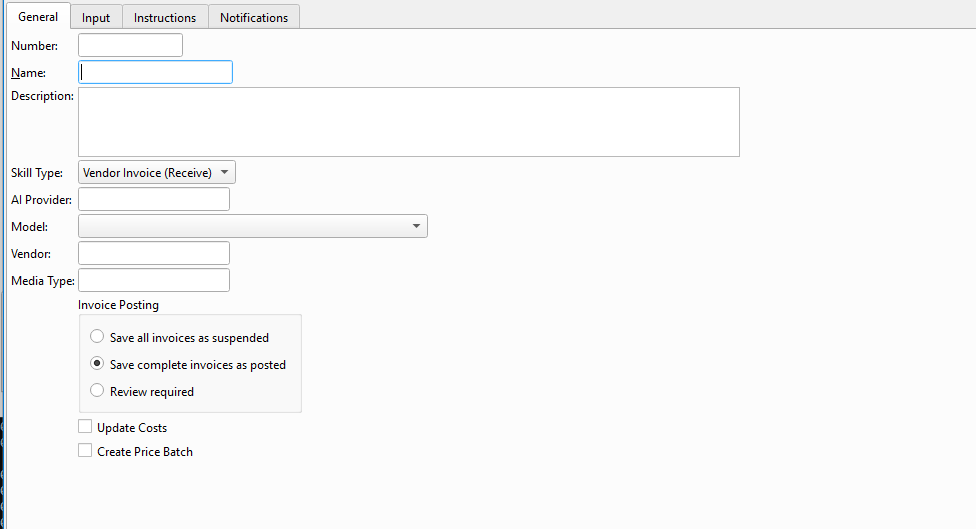
NumberThe skill number. Also sets the order skills of the same type are tried in. NameThe descriptive name shown wherever the skill is selected. DescriptionFree-form notes about what this skill is for. Skill TypeWhat the skill does. See the table above. AI ProviderThe AI service this skill uses (lookup). The provider must supply the URL the skill type needs. ModelThe model to use. Must be one of the provider's Allowed Models. Leave empty for voice skills to use the first voice-capable model the provider offers. VendorDefault vendor for invoices imported by this skill. Vendor Invoice skills only. AccountDefault account for bank reconciliation skills. Media TypeMedia type used when the source PDF is attached to the posted transaction. Posting ModeWhat the job does with a successfully extracted invoice. Complete and PostPost the Vendor Invoice automatically when every line resolves to an item. Save SuspendedCreate the Vendor Invoice but leave it suspended for someone to check and post. Stage for ReviewStage the invoice in AI PDF Invoices for line-by-line review. The safest setting, and the recommended default. Update CostsUpdate the item's cost record when the invoice cost differs from the stored cost. Create Price BatchCreate a price batch for items whose cost changed, so selling prices can be reviewed against the new cost. |
Input Tab

|
Where the job's documents come from. Used by server-side skills; ignored by voice and chat skills. Input SourceWatch Directory, Manual Upload, Email, or API. Watch DirectoryFolder the job polls for new documents. Processed files are moved to a processed subfolder, and failures to an error subfolder. File PatternWhich files to pick up, e.g. *.pdf. Poll Interval (ms)How often the watch directory is checked. Processing OrderOrder this skill runs in relative to other server-side AI skills. Sample DirectoryA sample document used by Analyze Sample to work out the column layout. BrowseChoose the sample file. Analyze SampleSends the sample to the provider and reports the columns and fields it found, so mappings can be set up without processing a live invoice. Analysis StatusProgress and result of the last analysis. Analysis ResultThe raw analysis returned by the provider. Generate InstructionsBuilds a starting extraction prompt from the analysis result, which can then be edited on the Instructions tab. Column MappingsMaps a column heading on the vendor's invoice to the Quasar field it feeds. Each row has the PDF column name and optional notes. |
Instructions Tab
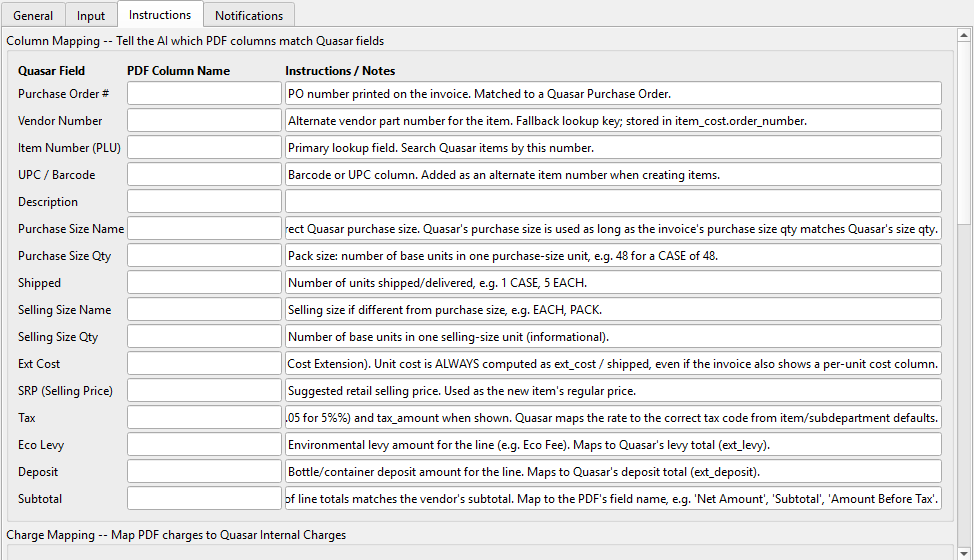
System PromptThe instructions given to the model on every request. For voice and chat skills this sets the assistant's behaviour; for extraction skills it sets the ground rules. Extraction PromptThe task instructions and the JSON schema the model must return. Extraction skills only. Validation RulesNotes describing checks to apply to the extracted data before it is used. Ignore ColumnsColumns on the source document the model should skip. Ignore TextText patterns the model should skip, such as promotional footers or page furniture. ResponsesSample or recorded responses, used to check the prompt behaves as intended. |
Voice & Chat Tab
|
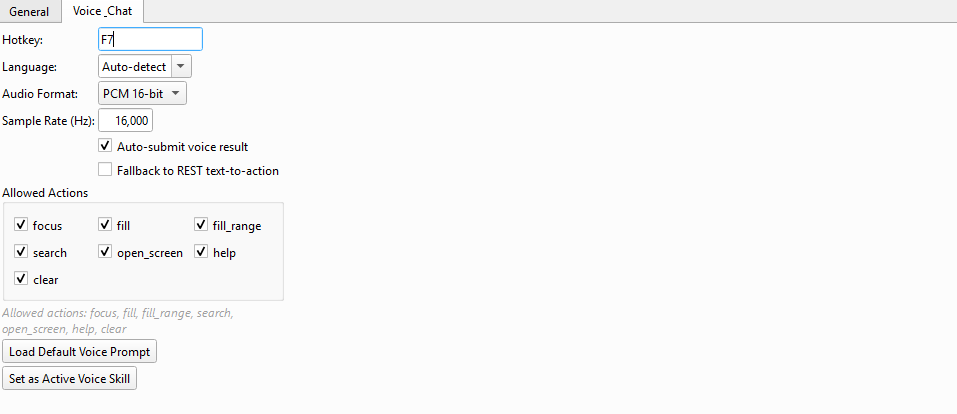
Settings for the workstation assistant. Applies to Voice Command, Voice Chat, and Text Chat skills. HotkeyKey that starts and stops listening. F7 by default. LanguageSpoken language for transcription, or Auto-detect. Auto SubmitAct on a command as soon as it is recognised, without waiting for confirmation. Fallback to RESTIf the streaming connection cannot be opened, fall back to sending a recorded clip over the REST API. Audio FormatMicrophone capture format sent to the provider, normally PCM 16-bit. Audio Sample RateCapture sample rate in Hz. 16000 suits speech recognition. Allowed ActionsWhich actions the assistant may perform — focus, fill, fill_range, search, help, open_screen, clear. Every action is still checked against the user's security rights when it runs; this list narrows what the assistant may ask for in the first place. Actions PreviewRead-only summary of the actions currently allowed. Provider WarningAppears when the selected provider lacks the URL this skill type needs, for example a Voice Command skill on a provider with no Voice Command URL. Load Default PromptFills the System Prompt with the shipped voice command template as a starting point. Set ActiveMakes this the skill the workstation assistant uses for its type. The choice is stored per workstation, so set it once on each workstation that uses voice. |
Notifications Tab
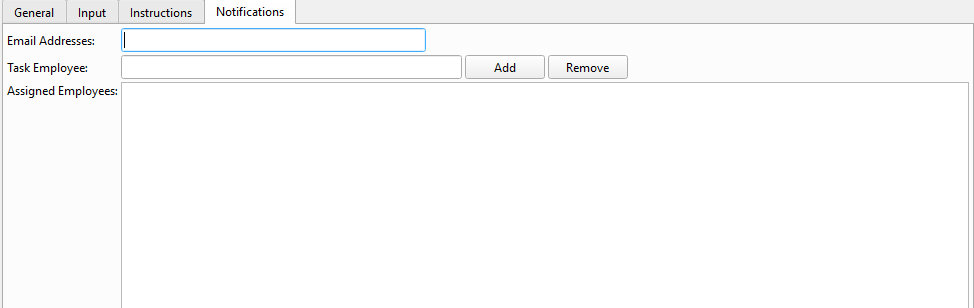
|
Who hears about the results of a server-side job. Email AddressesAddresses emailed when the job succeeds or fails. Separate multiple addresses with commas. EmployeeEmployee to receive a Quasar task (lookup). Use Add to put them on the list. AddAdds the selected employee to the notification list. RemoveRemoves the selected employee from the list. Employee ListEmployees who receive a task when this job runs. |
Toolbar Actions
Save / Undo / New / Delete / CopyStandard master screen actions. OK / CancelSave and close, or discard and close. Inactive?Toggle to deactivate the skill. Inactive skills are not run and are hidden from lookups. |
Related Screens
| AI Skills | AI Provider Master | AI PDF Invoices | Client Daemon Configuration |
| Quasar Accounting 7.1 • © Linux Canada Inc. • Table of Contents |