
Inventory
Item History
Item History displays a day-by-day breakdown of all inventory activity for a specific item: sales, purchases (received), adjustments, transfers, and builds. Each row represents one day's activity with running totals. The screen includes opening and closing balance rows, and supports drill-down into the Inquiry screen for detailed transaction-level investigation. Access from Inventory Info › Item History.
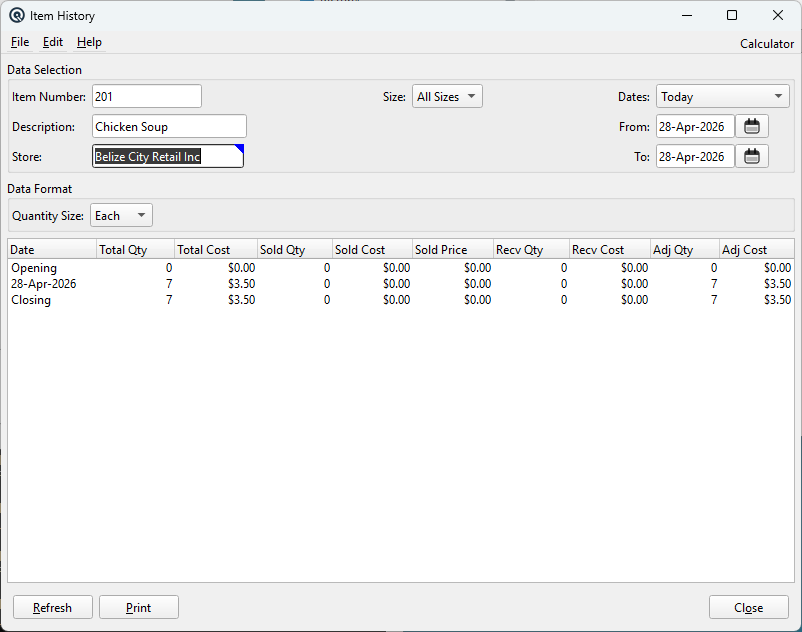
Data Selection
Item NumberEnter or scan the item to view history for. The lookup is filtered to stocked, sold items in the selected store. When an item is entered, the description is populated, the size dropdowns are loaded with the item's available sizes, and the history refreshes automatically. DescriptionRead-only. The item's description, populated automatically. StoreFilter history to a specific store. Changing the store clears the current item and resets the history, since inventory activity is store-specific. The item lookup is filtered to this store's stocked items. SizeFilter the history to a specific size or view all sizes combined. Options:
DatesA preset date range selector with common options (Today, This Week, This Month, This Year, etc.). Selecting a preset automatically fills the From and To date fields. FromThe start date for the history. When set, the history includes an Opening balance row showing cumulative activity up to (but not including) the From date. ToThe end date for the history. Changing either date immediately refreshes the data. |
Data Format
Quantity SizeControls the unit of measure for all quantity columns. The dropdown lists every size defined on the item. If the item is sold in "Each" but also has a "Case" size (e.g. Case = 12), selecting "Case" divides all quantities by 12, letting you view history in terms of cases rather than individual units. Changing this immediately refreshes the display. |
Results Columns
Each row represents one day within the selected date range. Two special rows bracket the data:
|
Date — The date of activity, or "Opening" / "Closing" for the balance rows. |
The Opening row shows cumulative totals from the beginning of time up to (but not including) the From date. The Closing row shows the running total through the end of the selected date range, giving you the final on-hand position.
For non-inventoried items (e.g. service items), Total Qty and Total Cost are shown as zero since these items do not track physical inventory. Sold and adjustment data is still displayed.
Drill-Down
|
Double-clicking any day row opens the Inquiry screen with the Item tab pre-set to the current item number and the date range set to that specific day. This lets you see every individual transaction that contributed to that day's totals. Double-clicking the Opening row opens the Inquiry screen with the date range set from the beginning (no start date) up to the day before the From date, showing all the transactions that make up the opening balance. The Closing row cannot be drilled into since it is a running total, not a distinct time period. The Inquiry screen inherits the current store filter from Item History. |
Action Buttons
RefreshReloads the history data from the database with the current filters. Generates a printable report of the current history view. The report header includes the item number, description, store name, and date range. CloseCloses the Item History window. |