
Customers & Sales
Customer Master
The Customer Master creates or edits a customer record. This screen uses a consolidated four-tab layout: Main (address, financial controls, and transaction permissions), Address & Loyalty (multi-address editor and loyalty points), Notes & Info (notes, alerts, and references), and Compliance & Fleet (e-invoicing, PAC/EFDR, and fleet cards). All financial defaults can be inherited from the Customer Type and overridden per customer. Access from Sales › Customer or by editing from the Customer List.
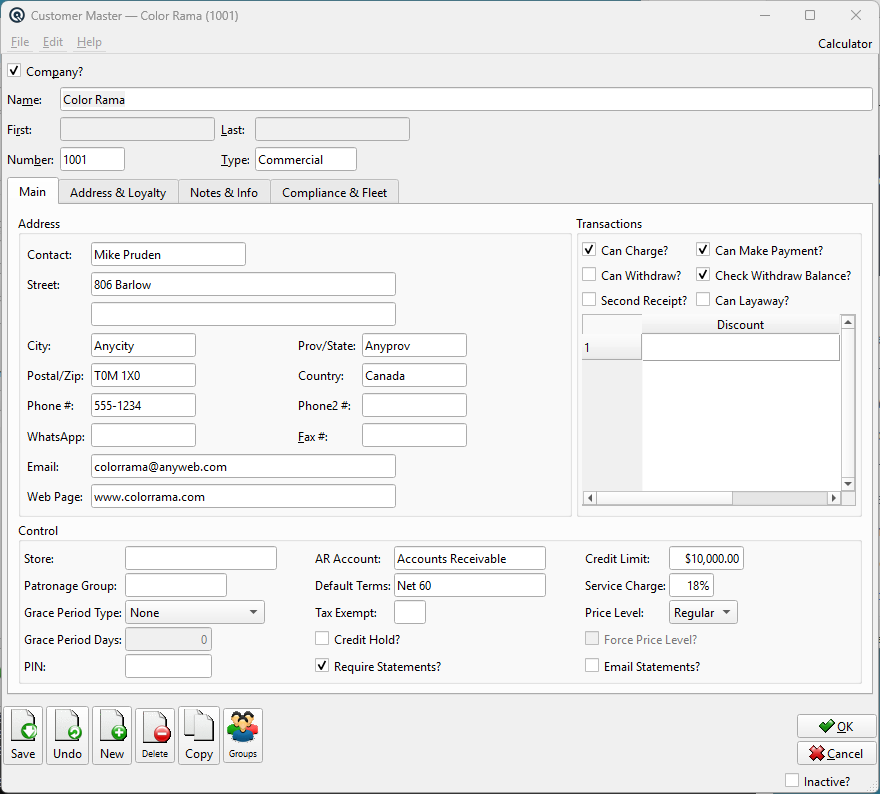
Header Fields
|
The header fields are always visible above the tabs.
Company?Check this box if the customer is a business entity. When checked, the Name field is used as the primary identifier. When unchecked, First and Last name fields are shown instead, and the Name field auto-fills as “Last, First”. NameThe customer's display name. For companies, enter the full business name (up to 62 characters). For individuals, the name is auto-generated as “Last, First”. FirstFirst name for individual (non-company) customers. LastLast name for individual (non-company) customers. NumberUnique customer number (up to 12 characters). Enter # to auto-generate on save. Used in lookups, reports, and cross-references throughout Quasar. TypeThe Customer Type classification. Changing the type copies all of the type's defaults (AR account, terms, credit limit, service charge, price level, statement flags, and transaction permissions) to this customer's record. You can then override any value individually. ReferenceReference string for cross-referencing or notes (optional). StatusTransaction status. Controls posting and visibility in lists. DatePosting date for the transaction. Defaults to today. TimeTime of posting. Auto-filled from the system clock. Work DateWork date for the transaction (may differ from posting date). ShiftShift assignment for labour or shift-based reporting. StoreStore where the transaction is posted. Defaults to current store. StationWorkstation or terminal where the transaction was entered. EmployeeEmployee who created or is responsible for the transaction. MemoFree-form memo or notes attached to the transaction. |
Tabs
Main Tab
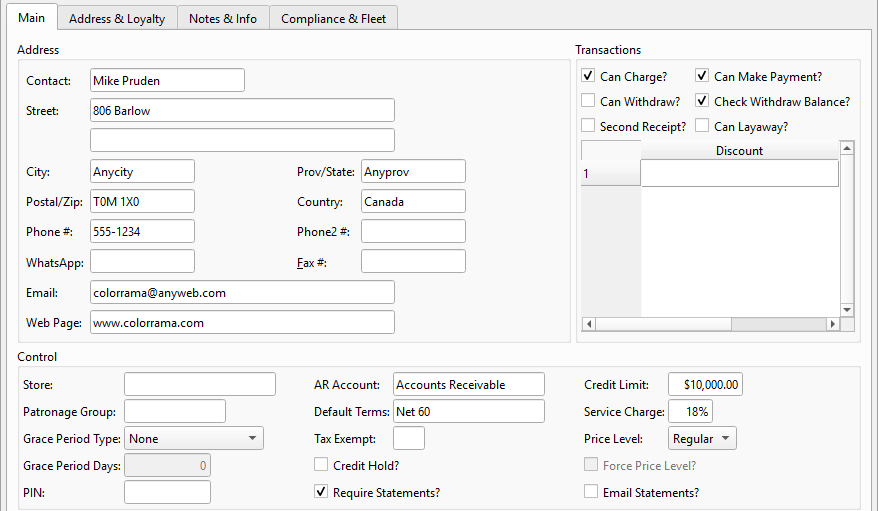
The Main tab provides a compact overview of the customer's primary address, financial controls, and transaction permissions — all on one screen.
|
Quick-edit fields for the customer's primary address (the first address in the address list). Changes here are automatically synced with the full address editor on the Address & Loyalty tab.
ContactContact person at the primary address. StreetStreet address. A second line is available for suite, unit, or building information. Street Line 2Second address line for suite, unit, apartment, or building information. CityCity name. Prov/StateProvince, state, or region. Postal/ZipPostal code or ZIP code. CountryCountry name. Phone #Primary phone number. Phone2 #Secondary phone number. Fax #Fax number. WhatsApp phone number for business messaging. Email address. Web PageWebsite URL. |
|
Financial controls and account settings. All fields here default from the Customer Type but can be overridden.
StoreThe store this customer belongs to. In a multi-store environment, restricts the customer to transactions at this store only. Patronage GroupOptional patronage group for co-op dividend tracking. Read-only if assigned at the group level. See the Patronage Group Master. AR AccountThe Accounts Receivable GL account for this customer. All invoices, payments, and returns post to this account. Inherited from the Customer Type. Grace Period TypeHow the grace period is calculated before service charges apply. Mutually exclusive with Terms: None — Uses payment Terms instead (Terms field enabled). Grace Period DaysNumber of grace days before service charges apply. Only enabled when Grace Period Type is not “None”. Default TermsPayment Terms (e.g. Net 30, 2/10 Net 30). Controls invoice due dates and early-payment discount calculations. Only enabled when Grace Period Type is “None”. Tax ExemptDefault tax exemption. When set, invoices for this customer auto-apply this exemption, zeroing the applicable tax lines. Leave blank for fully taxable customers. Credit LimitMaximum outstanding AR balance allowed. When Check Withdraw Balance is enabled, the POS warns or blocks transactions exceeding this limit. Set to $0.00 for no limit. Credit Hold?When checked, the customer is placed on credit hold. New charge transactions will be blocked until the hold is removed. Service ChargeAnnual percentage rate for overdue balance charges. Applied when the Service Charges routine is run. Set to 0% to exempt this customer. Require Statements?When checked, includes this customer in batch statement printing. Email Statements?When checked (only available when Require Statements is checked), sends statements via email instead of printing. PINOptional Personal Identification Number for POS customer verification. Entered as a masked password field. Price LevelPricing tier: Regular, Level 1–4. Each item can have different prices per level on the Item Master. Force Price Level?When checked, POS clerks cannot override this customer's price level. Only available when a level other than Regular is selected. |
|
Transaction permissions and automatic discounts.
Can Charge?Allows the customer to purchase on account (charge to AR). When unchecked, the customer must pay in full at the point of sale. Can Withdraw?Allows the customer to withdraw credit balances as cash via the Customer Withdraw screen. Can Make Payment?Allows the customer to make payments against outstanding AR balances via Customer Payment. Check Withdraw Balance?Verifies sufficient credit balance before allowing withdrawals. Prevents overdrawing the account. Second Receipt?Automatically prints a second receipt copy for charge transactions (store copy + customer copy). Can Layaway?When checked, this customer is eligible for Layaway transactions. The customer will appear in the customer lookup when creating layaway-type Sales Orders, and layaway payments can be processed via Customer Payment. Inherited from the Customer Type but can be overridden here. Discounts TableAssign automatic transaction-level Discounts that apply every time this customer makes a purchase. Only transaction-type discounts can be added. These are applied in addition to any item-level or promotional discounts. |
Address & Loyalty Tab
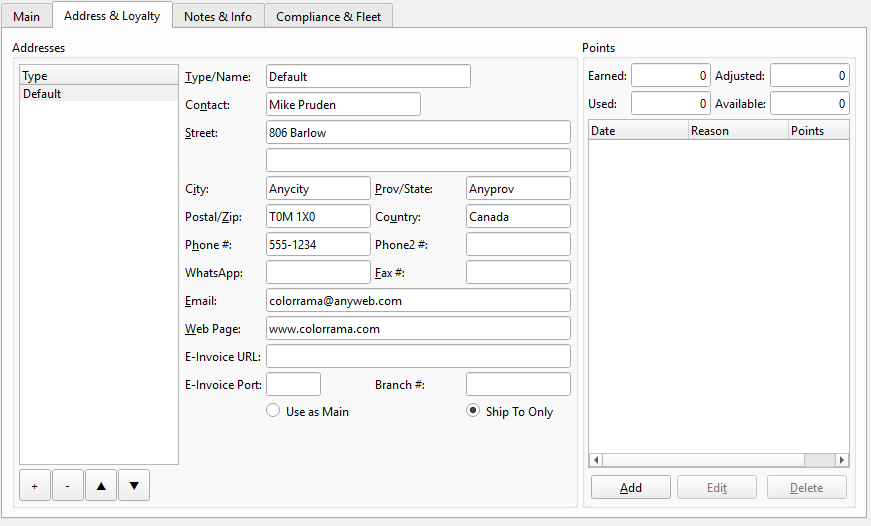
The Address & Loyalty tab has two side-by-side groups: a full multi-address editor on the left, and the loyalty points panel on the right.
|
Manages multiple addresses for the customer (e.g. billing, shipping, head office). Select an address from the list on the left to view and edit its details on the right.
Type/NameAddress classification or label (e.g., “Business”, “Shipping”, “Billing”). ContactContact person at this address. StreetStreet address. A second line is available for suite, unit, or building information. Street Line 2Second address line for suite, unit, apartment, or building information. CityCity name. Prov/StateProvince, state, or region. Postal/ZipPostal code or ZIP code. CountryCountry name. Phone #Primary phone number. Phone2 #Secondary phone number. Fax #Fax number. WhatsApp phone number for business messaging. Email address for this location. Web PageWebsite URL. E-Invoice URLElectronic invoice delivery endpoint URL for this address. E-Invoice PortPort number for the electronic invoice delivery endpoint. Branch #Branch or location number identifier. Address EditorUse the address editor to add, edit, delete, and reorder multiple addresses for this customer. The first address is used as the default on invoices, orders, and statements. Use as Main / Ship To OnlyDesignates whether this address is the main (billing) address or a ship-to-only address. Only one address can be marked as Main at a time. Use the + (Add), − (Delete), ▲ (Up), and ▼ (Down) buttons to manage and reorder addresses. The first address is used as the default on invoices, orders, and statements. |
|
Loyalty points balance and manual adjustment history.
EarnedTotal points earned from purchases (read-only, calculated from transactions). UsedTotal points redeemed (read-only). AdjustedNet manual adjustments (read-only, sum of all adjustments below). AvailableCurrent spendable balance: Earned − Used + Adjusted (read-only). Adjustments TableManual point adjustments with date, reason, and point amount. Use the Add, Edit, and Delete buttons to manage. Positive values add points; negative values deduct. Add AdjustmentAdd a new manual point adjustment. Edit AdjustmentEdit the selected point adjustment. Delete AdjustmentDelete the selected point adjustment. |
Notes & Info Tab
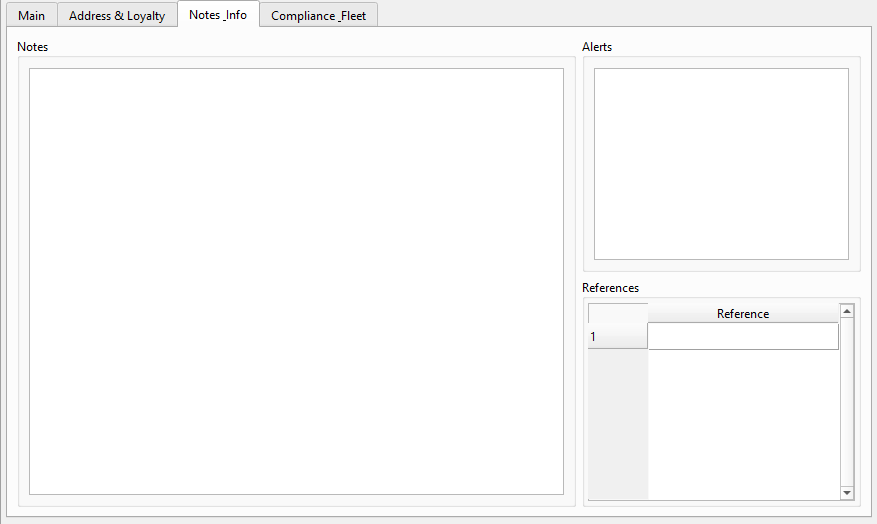
The Notes & Info tab has three groups: Notes (left), and Alerts and References (right).
NotesInternal free-text notes about the customer. Unlike Alerts, notes are not displayed automatically during transactions. Use this for internal information such as special delivery instructions, account history, contact preferences, or follow-up reminders. This field is visible only when editing the Customer Master directly. AlertsFree-text alert message that pops up whenever this customer is selected on any transaction screen (invoices, sales orders, payments, etc.). Use this for important warnings such as “Requires manager approval for returns”, “Cash only — cheques not accepted”, or “VIP customer — apply 10% courtesy discount”. An alert icon appears on the transaction screen when an alert is set, and clicking the icon displays the full message. ReferencesDefine named reference fields for this customer (up to 16 characters each). When this customer is selected on a Customer Payment or Invoice, the system prompts for each reference value. Common uses include purchase order numbers, contract IDs, membership numbers, or any customer-specific tracking data. Add references by typing on blank rows in the table. |
Compliance & Fleet Tab
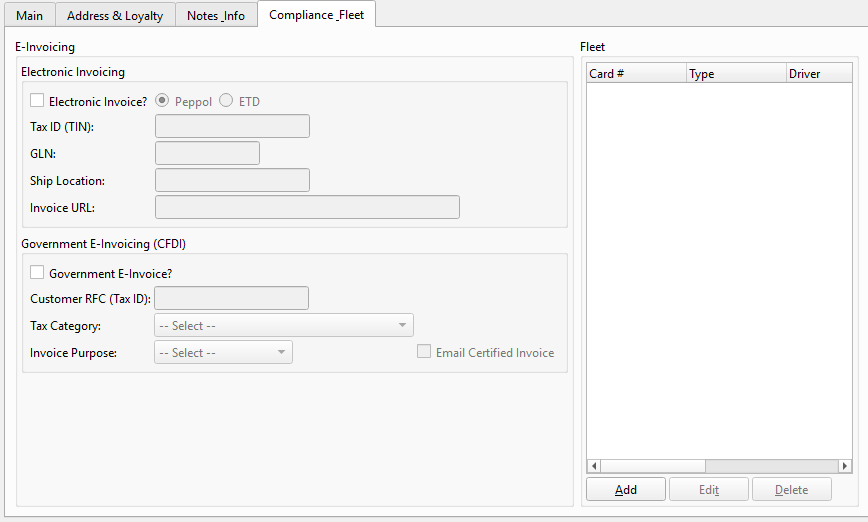
The Compliance & Fleet tab has three groups: E-Invoicing (left), and PAC/EFDR and Fleet (right).
|
Electronic invoicing configuration with two sub-sections.
Electronic Invoice?Enables e-invoicing for this customer. When checked, unlocks the format selection and fields below. PeppolPeppol e-invoicing format. Enables GLN and Ship Location fields. ETDElectronic Tax Document format. Tax ID (TIN)Customer's Tax Identification Number. Synced bidirectionally with the CFDI RFC field and the PAC group. GLNGlobal Location Number (Peppol only). Ship LocationShipping location identifier (Peppol only). Invoice URLDelivery endpoint URL for electronic invoices. Government E-Invoice?Enables CFDI compliance for this customer (Mexico/Belize). Customer RFC (Tax ID)Tax registry code. Synced with the TIN field above. Tax CategoryFiscal regime code (601–626, e.g. “601 - General Corporate”). Invoice PurposeCFDI usage code (G01–S01, e.g. “G03 - General expenses”). Email Certified InvoiceAuto-email the certified XML/PDF to the customer after PAC stamping. Benefit IDsCountry-specific statutory discount identifiers (Philippines: OSCA/PWD/Solo Parent IDs; Belize: Business Number). Hidden for countries that don't use them. |
|
PAC (Authorized Certification Provider) or EFDR (Electronic Fiscal Device Registry) configuration. This group is only visible when the PAC server is configured in the system.
TIN/RFCTax Identification Number. Synced bidirectionally with the E-Invoicing group's Tax ID field — editing either updates both. PAC API KeyAuthentication key for the PAC certification provider (Mexico). Entered as a masked password field. EFDR API KeyAuthentication key for the EFDR fiscal device registry (Belize). Shown in plain text for troubleshooting. |
FleetFleet card management for fuel customers.
Card #Fleet card number (swiped or entered at the pump). TypeCard type classification. DriverAssigned driver name. VehicleAssigned vehicle identifier (plate, unit number, etc.). Tax ExemptTax exemption applied to purchases on this card. ActiveWhether the card is currently active. Add Fleet CardAdd a new fleet card for this customer. Edit Fleet CardEdit the selected fleet card. Delete Fleet CardDelete the selected fleet card. Use Add, Edit, and Delete to manage fleet cards. Double-click a row to edit. |
Standard Buttons
SaveSaves the customer record. DeleteDeletes the customer record. CopyCreates a duplicate customer record with a new number. Prints the customer record. Emails the customer record. |
Related Screens
| Customer List | Customer Type | Customer Unit | Account Class | Invoice | Customer Payment | Aged Receivables | Layaway | Layaway List |
| Quasar Accounting 7.1 • © Linux Canada Inc. • Table of Contents |