
Assets & Depreciation
Asset Master
The Asset Master creates or edits an individual fixed asset or software license. It captures identity, purchase, depreciation, warranty/license, and deployment information. Selecting an Asset Type auto-populates GL accounts and the depreciation method. Access from Assets › Assets › New/Edit.
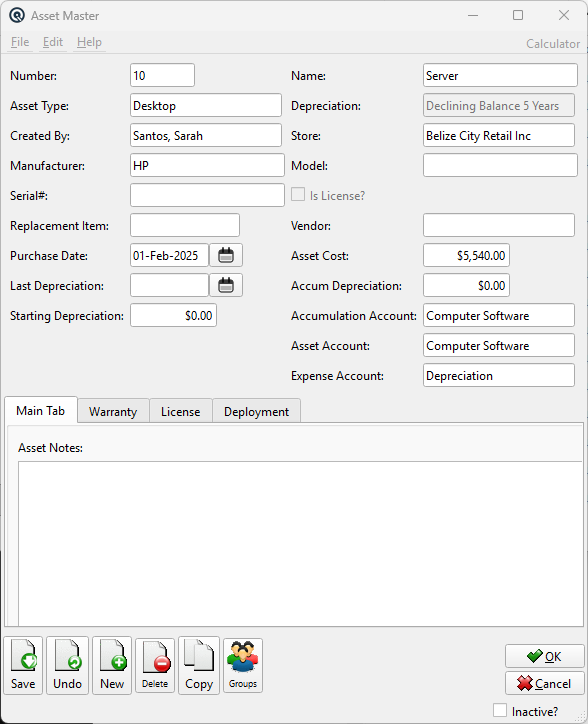
Header Fields
NumberAsset number (up to 12 characters). NameAsset name (up to 30 characters). Asset TypeAsset classification (lookup). When changed, auto-populates: DepreciationDepreciation method (read-only, set by Asset Type). Created ByEmployee who created the asset (lookup, defaults to current employee). StoreStore location (lookup, defaults to current store). Changing the store clears the employee. ManufacturerManufacturer name (up to 30 characters). ModelModel number/name (up to 30 characters). Serial #Serial number (up to 30 characters). Is License?Read-only checkbox, inherited from Asset Type. Controls which tabs are available (see below). Replacement ItemLinked inventory item for replacement ordering (item lookup). VendorVendor the asset was purchased from (lookup). Purchase DateDate the asset was acquired. Asset CostOriginal purchase cost of the asset. Last DepreciationDate of the most recent depreciation run. Accum DepreciationTotal accumulated depreciation to date. Starting DepreciationOpening depreciation balance for assets imported from another system. Asset AccountGL account for the asset's book value. Accumulation AccountGL contra-asset account for accumulated depreciation. Expense AccountGL account for depreciation expense. InactiveToggle to deactivate the asset. Inactive assets do not appear in dropdowns or lists. |
Detail Tabs
The lower section is organized into tabs: Main (notes), Warranty (physical assets), License (license-type assets), and Deployment (assignment history). The available tabs depend on the Is License? setting.
Main Tab
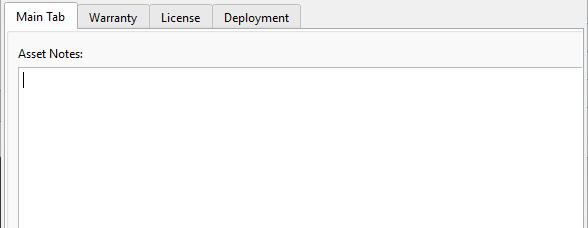
Asset NotesMulti-line free-text notes for the asset. In the Asset List, only the first line is displayed. |
Warranty Tab
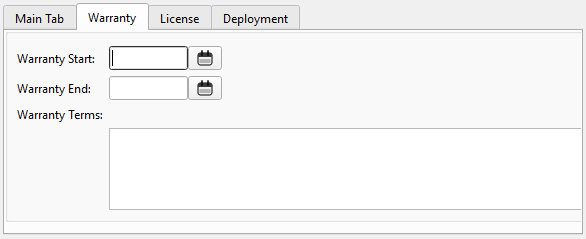
Warranty StartStart date of the warranty coverage period. Warranty EndEnd date of the warranty coverage period. Warranty TermsMulti-line text describing the warranty terms and conditions. |
License Tab
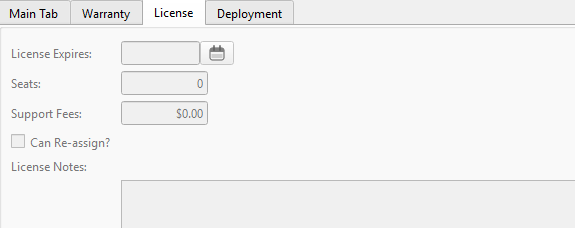
License ExpiresExpiration date of the software license. SeatsNumber of concurrent user seats allowed by the license. Support FeesAnnual or periodic support/maintenance cost for the license. Can Re-assign?Checkbox. Whether the license can be re-assigned to a different employee or workstation. License NotesMulti-line text for license keys, terms, or other licensing information. |
Deployment Tab
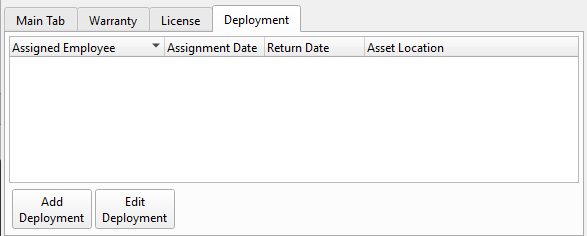
Add DeploymentOpens the Deployment Dialog to record a new assignment of the asset to an employee and location. Edit DeploymentOpens the selected deployment record in the Deployment Dialog for changes. Deployment List Columns
Deployment DialogThe Add Deployment and Edit Deployment buttons open a dialog with the following fields: • Assigned Employee — Employee lookup (security override enabled) |
Tab Visibility Logic
|
The Is License? flag (inherited from Asset Type) controls tab availability:
The Main Tab and Deployment Tab are always available regardless of the license flag. |
Related Screens
| Asset List | Asset Type Master | Depreciation Master |
| Quasar Accounting 7.1 • © Linux Canada Inc. • Table of Contents |