
Customers & Sales
Service Charges
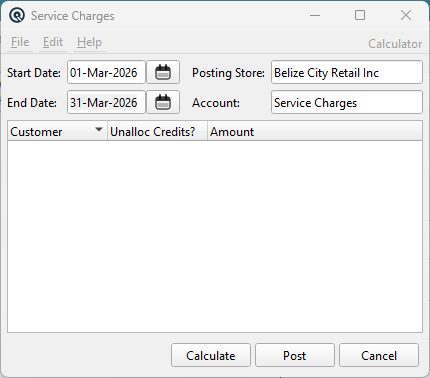
The Service Charges screen calculates and posts interest charges (late fees) on overdue customer invoices. It uses a daily compounding method based on each customer's service charge rate. The process is two-step: first Calculate to preview the charges, then Post to create the adjustment transactions. Access from Sales › Service Charges.
| Important: This is a batch operation. Clicking Post creates a CardAdjust (account adjustment) transaction for every customer listed, debiting their AR account and crediting the service charge income account. This action cannot be easily undone. Always review the calculated amounts before posting. |
Fields
Start DateFirst day of the service charge period. Auto-populated based on the store's last service charge date:
Changing the Start Date automatically recalculates the End Date based on the store's statement cycle. End DateLast day of the service charge period. Auto-calculated from the Start Date using the store's statement period length (e.g. monthly). Can be manually adjusted. Posting StoreThe store where the service charge transactions will be posted. Defaults to the current store. Changing the store refreshes the Start and End dates based on that store's last service charge history and statement cycle. AccountThe GL revenue account to credit for service charge income (e.g. "Service Charge Income" or "Interest Revenue"). Auto-populated from the store's configured charge account. If no default exists, you must select one. After posting, this account is saved as the store's default charge account for future runs. |
Calculation Logic
|
The calculation processes every active customer who has a non-zero Service Charge rate set in their Customer Master. Daily Interest FormulaFor each overdue invoice, the system calculates interest on a per-day basis across the service charge period:
What Transactions Are IncludedThe system selects transactions where: What Is Excluded• Credit transactions (negative card amounts) — unallocated payments/returns are not charged interest. Partial Payment HandlingThe system tracks payment allocations day-by-day. If a customer makes a partial payment during the period, the outstanding balance is reduced from the payment date forward. Interest for earlier days uses the higher balance; interest for later days uses the reduced balance. |
Results List
|
After clicking Calculate, the list shows one row per customer who has an interest charge:
The last row shows Total with the sum of all service charges. Column headers are clickable for sorting. |
Posting
|
Clicking Post creates one adjustment transaction per customer: Transaction Details• Type: Card Adjustment (increases the customer's AR balance).
• Memo: "Service Charges". After Posting• The store's Last Service Charge date is updated to the End Date, so the next run automatically starts from the correct date. |
Buttons
CalculateRuns the interest calculation for all active customers. Shows a progress dialog (cancellable). Results appear in the list. You can re-run Calculate with different dates without posting. PostPosts the calculated charges. Requires a valid Posting Store and Account. Prompts for confirmation before proceeding. Validates: CancelCloses the window without posting any charges. |
Workflow
|
Monthly Service Charge Run: 1. Open Service Charges. The Start and End dates auto-fill to the next unprocessed statement period. |
Prerequisites
|
For service charges to calculate correctly, ensure: • Each customer's Service Charge rate is set in their Customer Master (e.g. 1.5% per month = 18% annual rate, entered as 18). |