
Inventory
Subdepartment Master
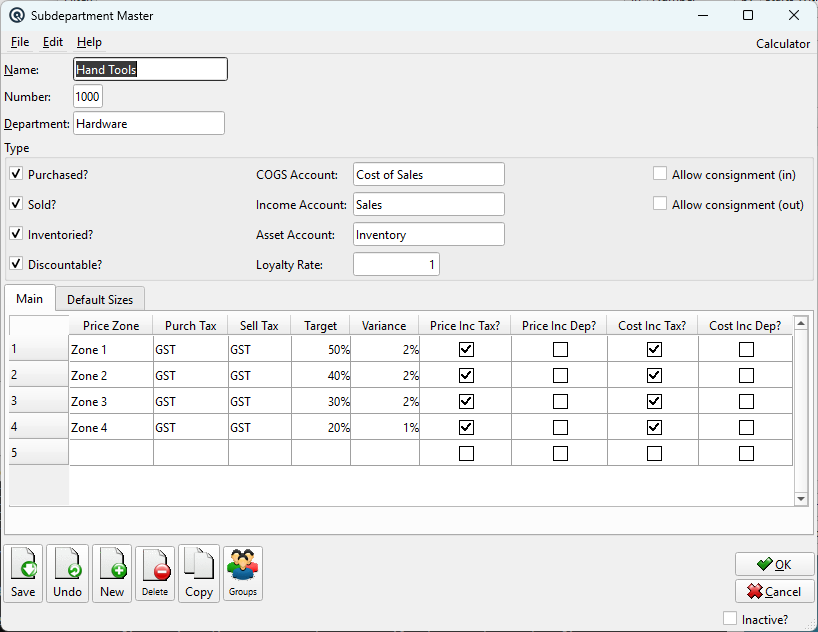
The Subdepartment Master is the most important setup screen for inventory. Every item belongs to a subdepartment, and the subdepartment defines the defaults that are automatically applied to new items created within it — including tax codes, GL accounts, target margins, pricing flags, sizes, and loyalty rates. More importantly, when you change a subdepartment's defaults, Quasar offers to push those changes to every existing item in the subdepartment, saving hours of manual editing. Access from Inventory › Subdepartment List.
Why This Screen Is Central to Inventory Setup
|
Setting up subdepartments correctly before entering items is the single most effective way to reduce setup time and ensure consistency. Here's what happens when you create a new item and assign it to a subdepartment:
Example: You set up a "Vitamins" subdepartment with Sell Tax = HST, COGS = 5100, Income = 4200, Asset = 1300, Target Margin = 40%, Default Sizes = [EA, BX]. Every new vitamin item you create is instantly configured with all of these values — you only need to add the description, vendor cost, and selling price. |
Updating Linked Items (Mass Change Power)
|
This is the most powerful feature of the subdepartment. When you change any subdepartment default and save, Quasar detects the change and asks if you want to update all linked items. This means you can change a tax code, margin target, or GL account for an entire product category — potentially hundreds or thousands of items — in a single operation. There are four independent triggers, each with its own update prompt:
All updates show a progress bar with an Abort button. If you abort mid-update, a warning confirms that only some items were updated and the operation cannot be resumed. Real-World Scenario: The government changes the tax rate on a product category. You update the Sell Tax on the subdepartment, choose "Update matching", and every item that still uses the old tax code is instantly updated. Items where you manually set a different tax (like a zero-rated exemption) are left untouched. |
General
NameSubdepartment name (up to 30 characters). E.g., "Dairy", "Frozen Foods", "Vitamins & Supplements", "Power Tools". NumberUnique subdepartment number (up to 5 characters). Used for reporting hierarchy and sorting. DepartmentThe parent department. Changing the department triggers an update prompt for all linked items (see above). |
Item Flags (Type)

|
These flags define the behavior of all items in this subdepartment. New items automatically inherit these flags: Purchased?Items can be purchased from vendors. Controls whether purchase costs and vendor invoice lines are accepted. When unchecked, the COGS Account is hidden. Sold?Items can be sold to customers. When unchecked, the Income Account is hidden. Inventoried?Items track on-hand quantities and inventory value. When unchecked, the Asset Account is hidden. When checked together with Sold, the Expense Account label changes to "COGS Account". Discountable?Items are eligible for discounts at POS. Uncheck for controlled-price items (e.g., lottery, stamps, regulated products). Allow consignment (in)Enables consignment receiving for items. Only available when Purchased, Sold, and Inventoried are all checked. Visible only when the Consignment business feature is enabled. Allow consignment (out)Enables consignment sending for items. Only available when Purchased, Sold, and Inventoried are all checked. Visible only when the Consignment business feature is enabled. |
Accounts & Rates
COGS AccountThe default cost-of-goods-sold or expense account. New items inherit this account. The label changes dynamically: "COGS Account" when both Inventoried and Sold, "Expense Account" otherwise. Income AccountDefault revenue account for sales. Only active when Sold is checked. Asset AccountDefault inventory asset account. Only active when Inventoried is checked. Loyalty RatePoints earned per dollar for loyalty program items. Changing this triggers an update prompt for all linked items. Visible only when the Loyalty business feature is enabled. |
Product Catalog (v7.1)
|
International product classification for e-invoicing compliance. Visible only for markets requiring UNSPSC product codes (Mexico, Belize, Philippines). SegmentTop-level UNSPSC hierarchy. Select a Segment to filter the Family dropdown. FamilySecond-level UNSPSC hierarchy. Select a Family to filter the Intl. Product Class dropdown. Intl. Product ClassThird-level UNSPSC classification. Changing the Product Class triggers an update prompt for all linked items. Intl. Product CodeThe specific government product code for electronic invoices. Filtered by the selected Class to narrow down options. |
Main Tab — Zone Defaults
|
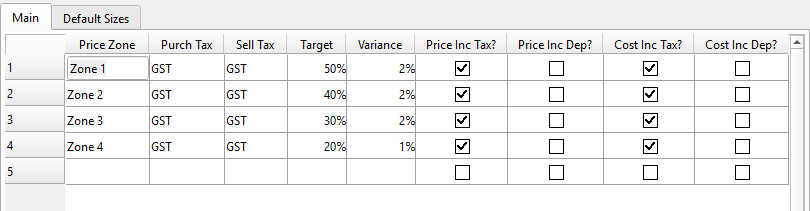
The Main tab contains per-zone defaults — the core tax and pricing rules that flow down to every item. You can define different defaults for different Price Zones (e.g., different tax rules for stores in different provinces). These columns auto-populate on new items assigned to this subdepartment: Price ZoneThe pricing zone this row of defaults applies to. Add one row per zone where your stores operate. Purch TaxDefault purchase tax code for vendor invoices (e.g., "GST" for 5% federal tax only, "HST" for harmonized). Sell TaxDefault selling tax code applied at point of sale (e.g., "HST", "VAT", "GST+PST"). TargetTarget gross margin percentage. Quasar uses this on the Item Master to warn when a price doesn't achieve the target. E.g., 35% means you aim for 35 cents profit on every dollar of revenue. VarianceAllowed deviation from the target margin before a warning appears. E.g., Target 35% with Variance 5% means margins between 30% and 40% are accepted without warning. Price Inc Tax?When checked, the selling price entered includes tax (tax-inclusive pricing). Common in markets like the Philippines and some European countries. Price Inc Dep?When checked, the selling price includes deposit (e.g., bottle deposits). The system backs out the deposit when calculating margins. Cost Inc Tax?When checked, the vendor cost entered includes tax. The system backs out the tax when calculating the net cost. Cost Inc Dep?When checked, the vendor cost includes deposit. The system separates the deposit from cost for proper GL posting. |
Default Sizes Tab
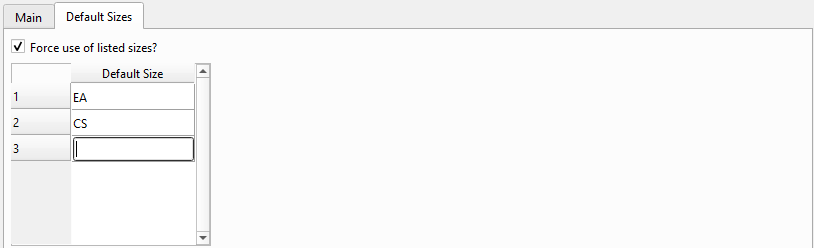
Force use of listed sizes?When checked, items in this subdepartment must use one of the sizes defined below. Prevents free-form size entry and ensures consistency across the category (e.g., a "Canned Goods" subdepartment only allows "EA" and "CS"). Default SizeEach row defines a standard size name (e.g., "EA", "CS", "BX", "LB", "KG"). When a new item is created in this subdepartment, these sizes are automatically added to the item's size list on the Item Master. Sizes are also central to Matrix Items — each size/color combination generates a separate item record. See the Quasar Guide — Chapter 9: Matrix Items for more on working with sizes in matrices. |