
Purchases
Receive List
The Receive List displays all vendor invoices (goods received).
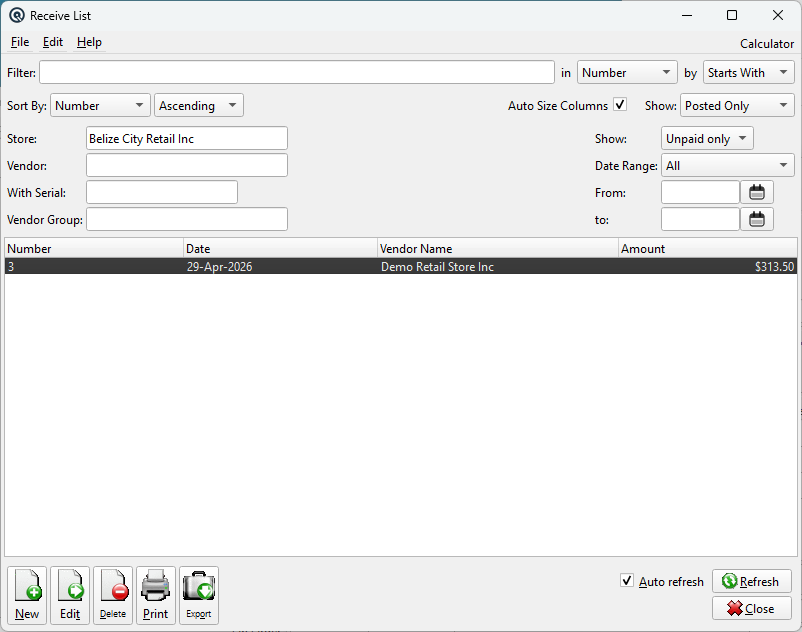
Default Columns
| Column | Description |
| Number | Receiving document number. |
| Date | Posting date. |
| Vendor Name | Vendor name. |
| Amount | Invoice amount. |
Available Columns
Additional columns configurable via list settings, in alphabetical order.
| Column | Description |
| Balance Due | Remaining balance. |
| Card Amount | Amount on vendor card. |
| Comments | Receiving comments. |
| Due Date | Payment due date. |
| Employee Name | Employee name. |
| Employee Number | Employee number. |
| Inv. Date | Vendor invoice date. |
| Memo | Transaction memo. |
| MIN Number | Machine ID Number. |
| Paid? | Whether fully paid. |
| Posted? | Whether posted. |
| Printed? | Whether printed. |
| Reference | Reference string. |
| Station Name | Station name. |
| Station Number | Station number. |
| Store Name | Store name. |
| Store Number | Store number. |
| Terms | Payment terms. |
| Time | Time of posting. |
| Vendor Number | Vendor account number. |
Filters
Filter
Quick-search the displayed list. Type text to instantly filter rows by matching against the selected column. Use the in dropdown to choose which column to search, and the by dropdown to switch between Starts With, Contains, or Exact Match.
Tip: If you do not see the column you want to search or view, go to File → Configure to customize which columns are displayed in the list. You can add, remove, and reorder columns to suit your workflow.
Sort Column & Method
Choose the column used to sort the list. The dropdown displays all columns you have chosen to view, including any custom column changes you have made. Use the second dropdown to switch between Ascending and Descending order.
Auto Size Columns
When checked, columns automatically resize to fit their contents each time the list refreshes. This ensures all data is visible without manual adjustment.
When unchecked, column widths are saved between sessions. You can drag column borders to set your preferred widths and they will be remembered the next time you open this screen. This is useful when you want a consistent layout regardless of the data displayed.
Store
Filter transactions by store. Defaults to the current store. Clear the field to show transactions from all stores.
Show
Filter by payment status:
• Unpaid only — Show transactions with outstanding balances.
• Paid only — Show fully paid or settled transactions.
• All — Show all transactions regardless of payment status.
Status
Filter by transaction posting status:
• Posted Only — Active, posted transactions (default).
• Voided Only — Voided or deleted transactions.
• Suspended Only — Unposted, suspended transactions.
• All — Show all transactions regardless of status.
Group
Filter by group membership. Select a group to show only transactions that belong to that group. Leave blank to show all.
Vendor
Filter by a specific vendor. Type part of a vendor name or number to search, or use the lookup button. Leave blank to show all vendors.
Vendor Group
Filter by vendor group membership. Select a group to show only records for vendors belonging to that group.
With Serial
Filter to show only transactions that include a specific serial number. Leave blank to show all transactions.
Date Range
Restrict the list to a specific date period. The dropdown offers these presets:
• All — No date filter (shows everything)
• Today / Yesterday
• This Week / This Week-to-date
• This Month / This Month-to-date
• This Year / This Year-to-date
• Last Week / Last Week-to-date
• Last Month / Last Month-to-date
• Last Year / Last Year-to-date
• Next Week / Next Month / Next Year
• Last 30 Days
• Custom — Enter specific From and To dates below
Date field shortcuts: Type a letter in any date field for quick entry: d = today, y = yesterday, t = tomorrow, w = first day of week, k = end of last week, m = first of month, eom = end of month, l = first of last month, h = end of last month, a = beginning of year, z = end of year, + / – = next / previous day.
From
The start date when using a custom date range filter.
to
The end date when using a custom date range filter.
Serial
Filter by serial number. Enter a serial number to find matching transactions.
Related Screens
| Vendor Invoice | Purchase Orders |
| Quasar Accounting 7.1 • © Linux Canada Inc. • Table of Contents |