
AI & Automation
AI Data List
An AI Data List is a live, interactive list of records produced by the AI Assistant in answer to a question such as "list all customers and their current balances, sorted by balance". You cannot open this screen from a menu — it appears when the assistant answers with a list. It behaves like any other Quasar list: sort by clicking a column heading, configure and resize columns, print, and export. Double-click a row (or press Enter) to open that record in its own screen.
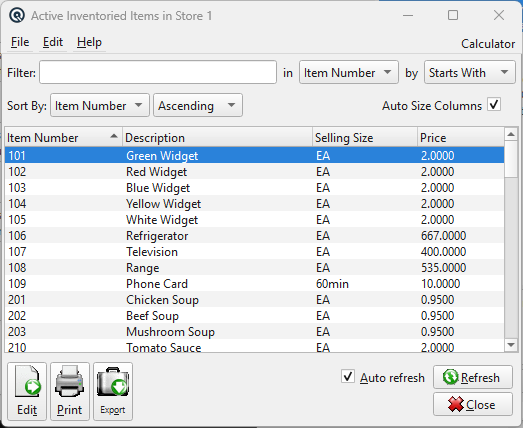
An AI Data List. The window title is the assistant's own description of the request. Filter, sort and column tools work as on any Quasar list; New and Delete are hidden because the list is read-only.
|
List or report? Ask to list something to get this window, which you can browse and drill into. Ask for a report, or for anything grouped or subtotalled, and the answer opens in the Report Viewer instead. See Reports and Data Lists. |
Columns
|
The columns are built fresh for every question — they are whatever you asked for, not a fixed layout — so an AI Data List never restores a saved column arrangement from a previous list. Headings use plain-language labels supplied by the assistant rather than raw database column names. Money, percent, and date columnsWhen the assistant declares a column as money or percent, it is rendered with standard Quasar formatting — currency to two decimals, percentages with a A column the assistant did not declare may therefore appear with the precision the database returned rather than as currency — a price showing Record identifiersEach row carries a hidden internal record identifier so drill-down can find the record. It is never shown as a column and never appears in column configuration, printing, or exports. |
Totals Footer
|
When the answer includes totals, a Totals: footer appears below the list, formatted with the same currency or percent style as the column it summarizes. The totals are calculated by the database over the complete result set, so they remain correct even when the list itself is truncated, and they do not change when you re-sort the list. Subtotals and grouping are not available here — the list is a flat grid you can re-sort, so subtotal rows would drift away from their groups. Ask for a report when you need grouped subtotals. |
Opening a Record
|
Double-click a row, or select it and press Enter, to open the underlying record in its normal Quasar screen — a customer opens in Customer Master, an invoice in Invoice Master, an item in Item Master, and so on. This works even in a mixed list of different transaction types, because each row knows what kind of record it is. Opening a record from here is subject to exactly the same security check as opening it from any other list: if your security type does not allow you to view that screen, it will not open. The list adds a shortcut, never a privilege. |
Large Result Sets
|
Very large answers are capped so the window stays responsive. When that happens the window title ends with (truncated), and the assistant's reply in the chat panel states the full number of matching records. The totals footer still reflects every matching record, not just the rows displayed. Narrow the question — add a date range, a store, or a status — to bring the list under the cap, or ask for a report if you need every row for printing. |
Toolbar Actions
View / EditOpens the selected record, the same as double-clicking it. The button reads View when your security type allows viewing but not changing the record. New / DeleteHidden. An AI Data List is a read-only view of a query result; create and delete records in their own screens. Print / ExportPrint the list or export it to a file, as on any Quasar list screen. Hidden columns are not included. RefreshRedraws the list from the answer that was returned. It does not re-run the query, so the figures are those from the moment you asked — ask the question again to get fresh numbers. |
Several Lists at Once
|
Each answer opens its own list window or tab, so you can keep an earlier list open while asking a follow-up question and compare the two. Ask a follow-up in plain language — "same list but only the Calgary store" — and the assistant refines the query rather than starting over. |
Security
|
Answering data questions requires the AI Data Assistant flag on your security type. Every query runs as you, so a list can only ever contain data your security type permits you to read; where it does not, the assistant says so instead of guessing or silently returning nothing. Users without the flag can still use the assistant for documentation and how-to questions. |
Related Screens
| AI Assistant | AI Skill Master | AI Provider Master |
| Quasar Accounting 7.1 • © Linux Canada Inc. • Table of Contents |