
Card File & CRM
Print Labels
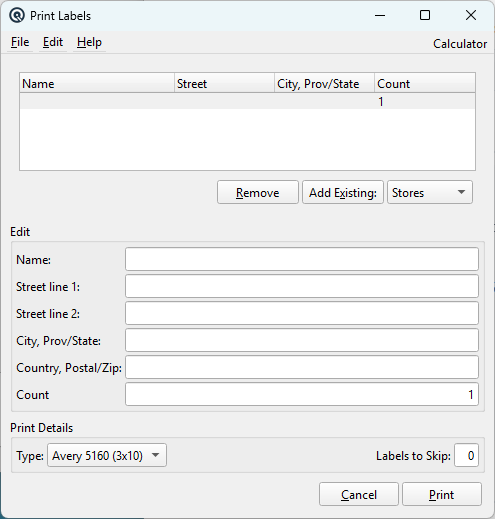
The Print Labels screen builds a list of addresses and prints them onto standard mailing-label sheets (for example, Avery 5160). You can type addresses manually, add existing card-file addresses from customers, vendors, employees, stores, or CRM records, and choose any label format defined in your report resources. Access from Card File › Print Labels.
Label List
Label ListDisplays the addresses that will be printed. Each row shows the addressee name, street address, city/province line, and the number of labels to print for that address. Click any row to edit it in the Edit section below. The last row is always blank so you can quickly add a new address. RemoveDeletes the currently selected address from the list. Add ExistingOpens a lookup to add addresses from your card files. Choose the type of record to pull from using the New Type dropdown, then click Add Existing to open the selection list. New TypeChoose the kind of record to add when clicking Add Existing: Stores, Customers, Vendors, Employees, or CRM contacts. |
Edit
NameThe addressee name as it should appear on the label. Street Line 1First line of the street address. Street Line 2Optional second street-address line (apartment, suite, unit, etc.). City, Prov/StateThe city and province or state line. Country, Postal/ZipThe country and postal or zip code. CountHow many copies of this label to print. Defaults to 1. |
Print Details
Label FormatSelect the label definition to use. Available formats come from report resources marked with the mailing label special-use flag. Choose the format that matches the label sheets loaded in your printer. Labels to SkipIf you are re-using a partially printed sheet, enter the number of labels already used. Quasar prints blank entries for that many positions before starting with the first address. |
Buttons
|
Generates the label report and sends it to the printer. After printing, confirm whether the labels printed correctly; if you answer Yes, the screen closes. CancelCloses the Print Labels screen without printing. |
Related Screens
| Customer List | Vendor List | Employee List |
| Quasar Accounting 7.1 • © Linux Canada Inc. • Table of Contents |