
Consignments
Consignment Out
The Consignment Out screen sends your goods to a customer on consignment. Items remain your property until the customer sells them, at which point a customer invoice can be generated. Tracks out, sold, returned, and invoiced quantities per item. Supports pricing, line and transaction discounts, serial tracking, tax exemptions, and shipping details. Access from Consignments › Consignment Out.
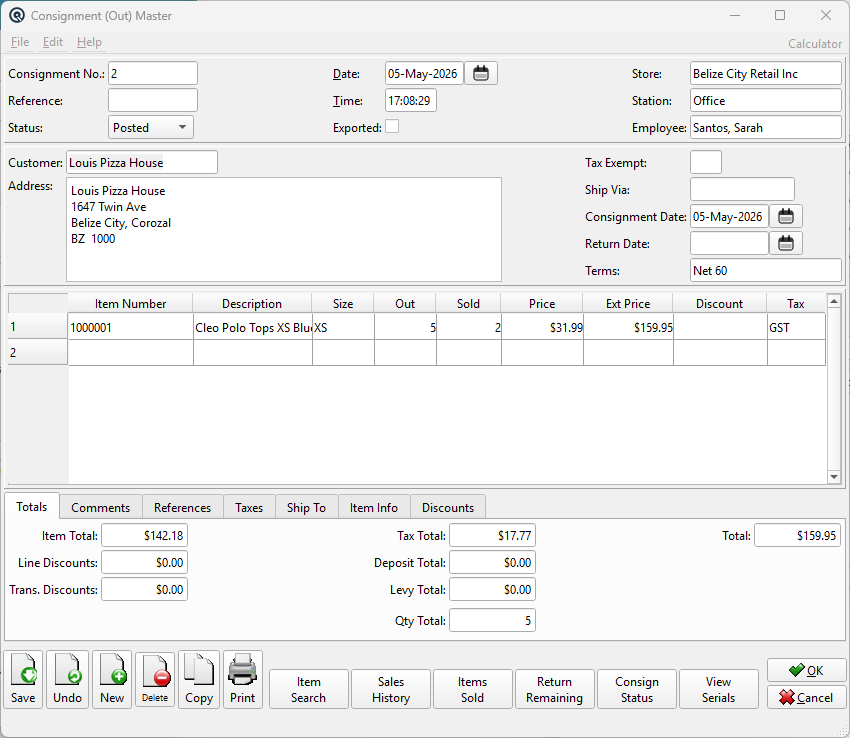
Header Fields
Consignment No.Auto-generated document number. Duplicate numbers trigger a confirmation warning. ReferenceOptional reference number. StatusDropdown: Posted, Suspended, or Voided. DateTransaction posting date. TimeTime of posting. ExportedCheckbox indicating the consignment has been exported to an external system. StoreStore where the transaction is posted. Changing the store validates item stocking. StationWorkstation or terminal. EmployeeEmployee responsible for the transaction. |
Customer / Terms
CustomerThe customer receiving the goods (lookup). Changing the customer updates the address, triggers tax exemption and terms lookup, and removes items the new customer cannot purchase. AddressCustomer billing address (auto-filled, editable). Tax ExemptTax exemption code (lookup). Recalculates taxes when changed. Ship ViaShipping method (free text, up to 20 characters). Consignment DateStart of the consignment period (defaults to today). Locked on filed records unless the user holds the ConsignOutEditDates security permission. Return DateOptional deadline for the customer to return unsold items. Locked on filed records unless the user holds the ConsignOutEditDates security permission. TermsPayment terms (lookup). Applied when the consignment is invoiced. Locked on filed records unless the user holds the ConsignOutEditDates security permission. |
Item Lines
Items TableItems sent on consignment. Lookup restricted to sold, consignment-out eligible items.
|
Tabs
|
The lower panel has tabs for Totals, Comments, References, Taxes, Ship To, Item Info, and Discounts. |
Totals Tab

|
Comments Tab

|
Free-text comments for the consignment shipment. |
References Tab

|
Name/Data pairs for tracking references (e.g. shipping tracking numbers, PO references). Customer-defined references are auto-prompted when selecting a customer. |
Taxes Tab

|
Read-only tax breakdown: Tax, Name, Taxable, Tax Amt, Inc. Taxable, Inc. Tax Amt. |
Ship To Tab

Ship ToCustomer lookup for the delivery destination (can differ from the billing customer). AddressShipping address (auto-filled from ship-to customer, editable). |
Item Info Tab

|
Detail for the currently selected item line.
|
Discounts Tab

|
Transaction-level discounts applied across all discountable items: Discounts Table
|
Action Buttons
Item SearchSearch within the consignment by Item Number or Description. Sales HistoryOpens the Sales History window for the selected item. Items SoldOpens the Items Sold popup dialog. Select the quantities the customer has sold for each item. On confirmation, sold quantities are saved and a Customer Invoice is automatically generated. Return RemainingAuto-generates a Consignment Out Return for all remaining unsold items on the consignment. Consign StatusOpens the Consignment Status screen pre-filtered to this consignment. View SerialsShows all serial numbers assigned across all consignment lines. |
Standard Buttons
|
Save — Saves the consignment. Optionally prompts to print. |
Related Screens
| Consignment Out List | Consignment Out Return | Consignment Status |
| Quasar Accounting 7.1 • © Linux Canada Inc. • Table of Contents |