
Cheques & Payments
Cheque List
The Cheque List displays all cheque transactions with filtering and sorting. Use it to browse, search, and manage cheques across all types — Quick Cheques, Vendor Cheques, and Customer Cheques. Double-click any row to open the Cheque Master for editing. Access from the Cheques panel report link.
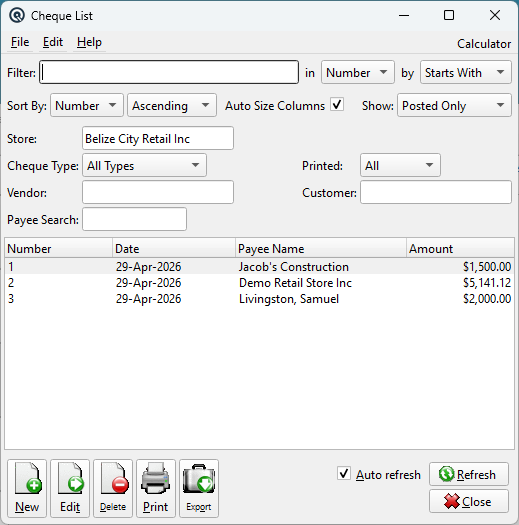
List Header
FilterFilter text to search for in the list. Find ColumnColumn to search within. Find MethodSearch method: Starts With, Contains, or Exact Match. Sort ColumnColumn to sort the list by. Sort MethodSort order: Ascending or Descending. Auto Size ColumnsWhen checked, columns auto-size to fit their contents. When unchecked, column widths are saved between sessions. Auto RefreshWhen checked, the list refreshes automatically when underlying data changes. ShowFilter by activity status: Active Only, Inactive Only, or Active & Inactive. GroupFilter the list by group. ListThe main list view showing all records. Double-click a row to edit. Right-click for options. NewCreate a new record. EditEdit the selected record. DeleteDelete the selected record. Print the list. ExportExport the list to a file. RefreshForce a refresh of the list data. CloseClose the list screen. |
Filters
Filter
Quick-search the displayed list. Type text to instantly filter rows by matching against the selected column. Use the in dropdown to choose which column to search, and the by dropdown to switch between Starts With, Contains, or Exact Match.
Tip: If you do not see the column you want to search or view, go to File → Configure to customize which columns are displayed in the list. You can add, remove, and reorder columns to suit your workflow.
Sort By
Choose the column used to sort the list. The dropdown displays all columns you have chosen to view, including any custom column changes you have made. Use the second dropdown to switch between Ascending and Descending order.
Auto Size Columns
When checked, columns automatically resize to fit their contents each time the list refreshes. This ensures all data is visible without manual adjustment.
When unchecked, column widths are saved between sessions. You can drag column borders to set your preferred widths and they will be remembered the next time you open this screen. This is useful when you want a consistent layout regardless of the data displayed.
StoreFilter cheques by store. Defaults to the current store. Clear to show cheques from all stores. Cheque TypeFilter by cheque category: PrintedFilter by print status: Payee SearchFree-text search field. Type part of a payee name and press Tab or Enter to filter the list. The search is case-insensitive and matches anywhere in the payee name — for example, typing "hard" would match "Hardware Supply Co." This searches the payee name stored on the cheque, which is the vendor name, customer name, or manually entered name depending on the cheque type. StatusThe standard transaction status filter: |
List Columns
|
The list supports configurable display columns. Right-click the column header to choose which columns to show. Available columns include: Number — Transaction number. By default, Number, Date, Payee Name, and Amount are displayed. |
Actions
NewOpens a blank Cheque Master to create a new cheque. Edit (Double-click)Opens the selected cheque in the Cheque Master for editing. DeleteVoids the selected cheque and reverses its GL postings. Prints the selected cheque using the cheque_print.xml report template. |
Tips
|
• To find unprinted system-generated cheques, set Printed to "Unprinted". These are cheques created with the "System generated cheque" method that still need to be sent to the printer via Print Cheques. |
Default Columns
| Column | Description |
| Payee Name | Payee Name. |
Available Columns
Additional columns configurable via list settings.
| Column | Description |
| Vendor Name | Vendor Name. |
| Customer Name | Customer Name. |
Vendor
Filter by a specific vendor. Type part of a vendor name or number to search, or use the lookup button. Leave blank to show all vendors.
Customer
Filter by a specific customer. Type part of a customer name or number to search, or use the lookup button. Leave blank to show all customers.
Related Screens
| Cheque Master | Print Cheques | Pay Bills | Reconcile |
| Quasar Accounting 7.1 • © Linux Canada Inc. • Table of Contents |