
Setup & Configuration
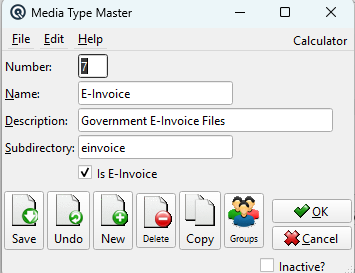
Media Type Master
The Media Type Master defines categories for files that can be attached to any record in Quasar — customers, vendors, employees, items, invoices, purchase orders, and more. By creating media types, you build a structured document management system directly inside your accounting software, eliminating the need for external file servers or paper filing cabinets. For a step-by-step guide on attaching files to records, see the Quasar Guide. Access from Setup › System › Media Type Master or from the Media Type List.
The Power of Attached Media
|
Quasar's media system lets you attach any file to any record. Files are uploaded to the Quasar server, stored in organized subdirectories, and accessible from any workstation connected to the server. This transforms Quasar from a transactional system into a complete business record. Real-World Examples:
|
Fields
NumberA short unique code for this media type (up to 5 characters). Used for quick identification in lookups. Examples: PDF, PHOTO, DOC, CERT, EINV. NameThe display name of the media type (up to 30 characters). This is what users see when selecting a media type during file upload. Examples: Vendor Invoice PDF, Employee Assessment, Product Photo, Collection Letter. DescriptionExtended description (up to 50 characters) explaining the purpose and expected content. Helps users choose the correct type when uploading. SubdirectoryThe folder name under the server's media storage path where files of this type are stored (up to 30 characters). Each media type gets its own folder, keeping the file system organized. Examples: invoices, employee_docs, product_photos, collections. Files are stored as Is E-InvoiceCheck this box if this media type is used for electronic invoice documents. When checked, files attached with this type are treated as e-invoice artifacts in the certification pipeline — for example, signed XML files returned from a PAC (Authorized Certification Provider) during CFDI or BIR compliance processing. InactiveCheck to mark this media type as inactive. Inactive media types no longer appear in lookups but existing attachments remain available. |
How Media Attachment Works
|
The media attachment system is available on most master and transaction screens through the Media button. The workflow is: 1. Open the Linked Media dialog — Click the Media button on any record (customer, vendor, employee, invoice, etc.). 2. Add a file — Click New Media. A file browser opens for you to select any file from your local computer. The selected file's name is shown with a unique timestamp appended (e.g., 3. Choose the media type — Select the appropriate media type from the lookup. This determines which subdirectory on the server the file is stored in. 4. Save — The file is uploaded to the Quasar server and a database record links it to the parent record. The file is now accessible from any workstation. 5. View attached files — Click Show Media (or double-click a file in the list) to view it. Text files open in a built-in viewer; all other files (PDFs, images, spreadsheets) open in the system's default application. 6. Delete — Click Delete Media to remove an attached file (with confirmation). |
Sample Media Types
|
Here is a recommended set of media types to get started:
|
Related Screens
| Linked Media Guide | Media Type List | Item Master | Customer Master | Employee Master |
| Quasar Accounting 7.1 • © Linux Canada Inc. • Table of Contents |