
Inventory
Count List
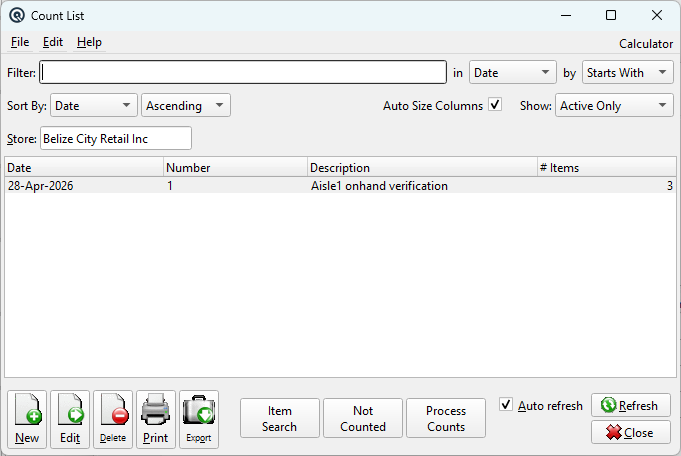
The Count List displays all physical inventory counts. Use the filters and action buttons to manage counts.
Filters
FilterQuick-search the displayed list. Type text to instantly filter rows by matching against the selected column. Use the in dropdown to choose which column to search, and the by dropdown to switch between Starts With, Contains, or Exact Match. Find ColumnChoose the column to search within. Find MethodSwitch between Starts With, Contains, or Exact Match. Sort ColumnChoose the column used to sort the list. Sort MethodSwitch between Ascending and Descending order. Auto Size ColumnsWhen checked, columns automatically resize to fit their contents. When unchecked, column widths are saved between sessions. ShowFilter records by status: Active Only, Inactive Only, or Active & Inactive. GroupFilter by group membership. Select a group to show only records that belong to that group. Leave blank to show all records. StoreFilter by store (defaults to current store). |
Results Columns
|
Action Buttons
Item SearchOpens a dialog to search for an item across all counts by item number. Lists every count that contains the item and the counted quantity. Not CountedRuns the not_counted.xml report showing inventoried items in the selected store that have on-hand stock but do not appear in any active count. Process CountsProcesses selected counts, generating Item Adjustments for any discrepancies between on-hand and counted quantities. |
Standard List Actions
|
New — Opens a blank Physical Count. |
Item Search Dialog
|
Opened by the Item Search button. Item NumberEnter the item number to search for across all counts. OKStarts the search. CancelCloses the dialog without searching. |
Related Screens
| Physical Count | Item Adjustment |
| Quasar Accounting 7.1 • © Linux Canada Inc. • Table of Contents |