
Pricing & Labels
Price Calculation Master
The Price Calculation Master defines automatic pricing rules that override an item's base price. A price calculation can set a fixed price, apply a markup on cost, apply a percentage or dollar discount off the base price, create quantity-based pricing (At/For deals like "3 for $10"), or define complex multi-item deals at the POS. Price calculations are the engine behind promotions, sales, vendor deals, and customer-specific pricing. They are applied automatically at sale time and during price batch updates. Access from Inventory › Price Calc List.
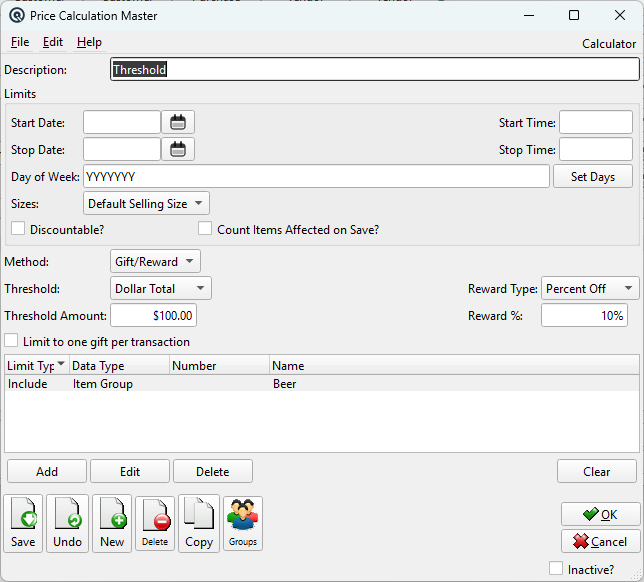
Description
DescriptionA descriptive name for this price calculation (e.g., "Summer Sale 20% Off", "Buy 3 Get For $10", "Cost Plus 30%"). This name appears in the Price Calc List and in audit trails. |
Limits
Limits define which items, stores, customers, and other entities the price calculation applies to. Without limits, the calculation potentially applies to all items. Limits can be combined to create precise targeting.
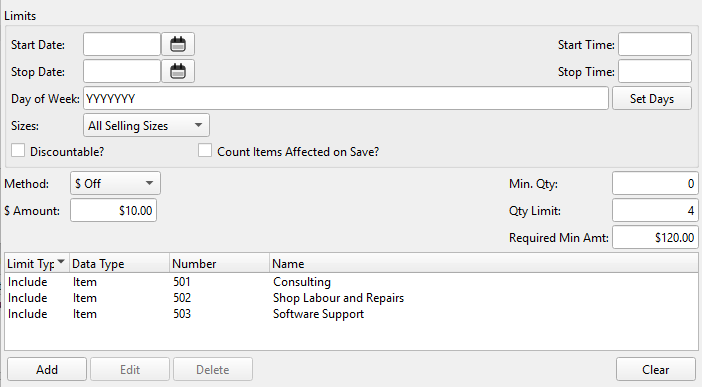
Start DateThe date this calculation becomes active. Leave blank for no start date restriction. Transactions before this date use the item's base price. Stop DateThe date this calculation expires. Leave blank for no end date. Transactions after this date use the item's base price. Set only a Stop Date for "until" pricing. Start TimeOptional start of a daily time window. Use with Stop Time for time-limited promotions (e.g., "Happy Hour starts 4:00 PM"). Stop TimeOptional end of a daily time window. Sales outside the Start Time / Stop Time window use the item's base price. Day of WeekRestrict the calculation to specific days of the week. Click Set Days to open a dialog with checkboxes for Sunday through Saturday. The field displays a 7-character string (e.g., "NYNNNYN" for Monday and Saturday only). Leave all days checked (YYYYYYY) for every day. Set DaysOpens the day-of-week selection dialog. 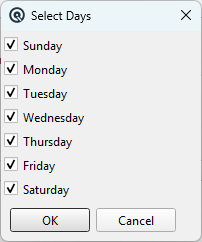 Size MethodControls which item sizes the calculation applies to:
Custom SizeThe custom size entry field that appears when Custom Size is selected. Discountable?When checked, the calculated price can be further reduced by discounts at point of sale. When unchecked, the calculated price is the final price and no additional discounts are applied on top of it. Count Items Affected on Save?When checked, Quasar counts how many items match the current limits before saving. If more than 20 items are affected, a warning is displayed with the count, giving you the option to add more limits to narrow the scope or proceed. Useful for preventing accidental broad price changes. The limits table shows all Include and Exclude rules: Limit TypeWhether this rule is Include (the calculation applies to these records) or Exclude (the calculation does not apply to these records). Use Include to define what the calculation targets, then Exclude to carve out exceptions. Data TypeThe kind of record this limit targets. Supported data types are:
NumberThe number (code) of the specific record targeted by this limit rule. NameThe name of the specific record targeted by this limit rule. 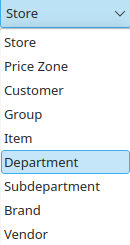 Include limits define what the calculation applies to. Exclude limits carve out exceptions. For example, you can include an entire department but exclude a specific brand within it. Note: For the Multi-Deal method, only Item and Item Group limits are valid. Department, subdepartment, brand, and vendor limits are ignored. Add / Edit / Delete / ClearManage the limits list. Add opens the limit dialog to create a new include or exclude rule. Edit modifies the selected limit. Delete removes the selected limit (with confirmation). Clear removes all limits (with confirmation). |
Pricing Methods — Detailed Guide
% Amount
Percentage amount used by the Cost+ and % Off methods.
$ Amount
Dollar amount used by the $ Off method.
Method
The method determines how the new price is calculated. The fields shown below the method selector change depending on which method is selected. There are seven methods, each suited to a different business scenario:
1. Price (Fixed Price)
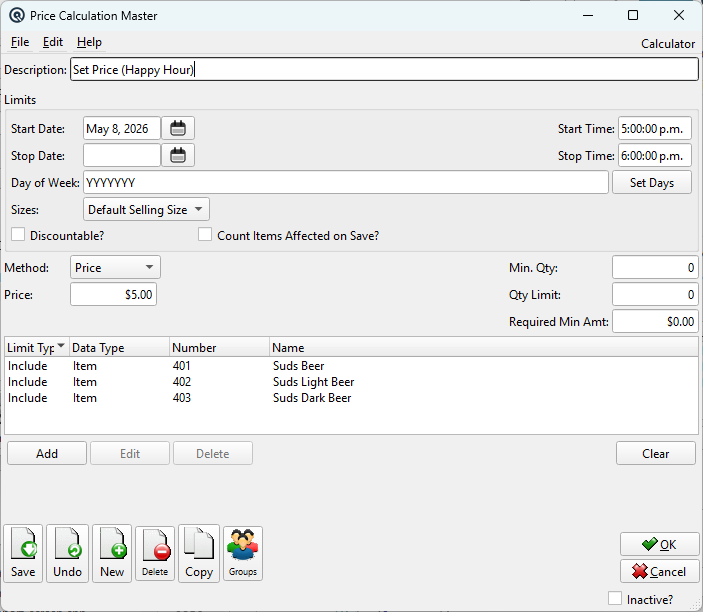 PriceField: Price Example: "All clearance T-shirts $9.99" — set Price to $9.99, add a limit for the "Clearance T-Shirts" item group. Every item in that group sells at exactly $9.99 regardless of its original price. Example: "Customer ABC always gets Widget X at $25.00" — set Price to $25.00, add limits for Customer "ABC Corp" and Item "Widget X". When ABC Corp buys Widget X, they always pay $25.00. |
2. Cost+ (Cost Plus Markup)
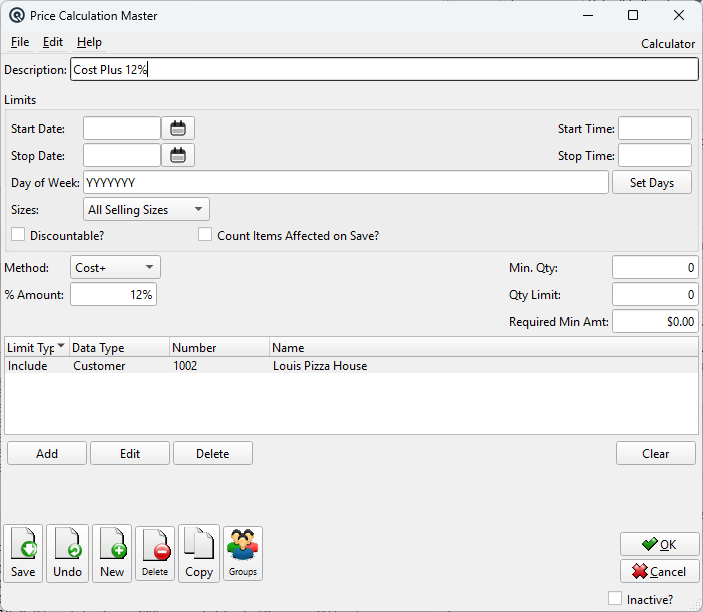 Field: % Amount Example: "Sell all items from vendor ProSupply at cost + 30%" — set % Amount to 30, add a limit for Vendor "ProSupply". An item costing $10.00 sells at $13.00. If the cost rises to $12.00, the sell price automatically becomes $15.60. Example: "Employee pricing at cost + 5%" — set % Amount to 5, add a limit for Customer Group "Employees". All employees buy at just above cost. Note: Requires items to have a valid cost on file. Items without a cost are skipped. |
3. % Off (Percentage Off)
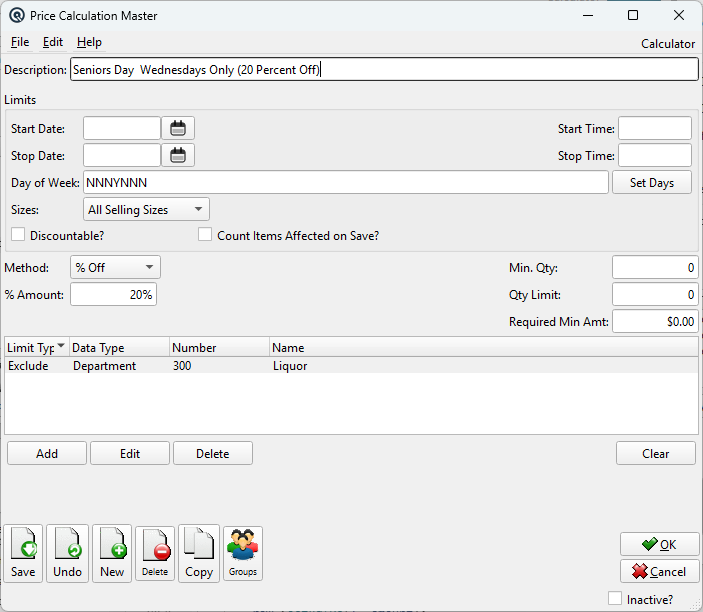 Field: % Amount Example: "Summer Sale — 20% off all Clothing" — set % Amount to 20, add a limit for Department "Clothing" with Start Date June 1 and Stop Date Aug 31. A $50.00 jacket sells at $40.00 during summer, then reverts to $50.00 on September 1. Example: "Loyalty members get 10% off everything" — set % Amount to 10, add a limit for Customer Group "Loyalty". No date limits needed (permanent). |
4. $ Off (Dollar Off)
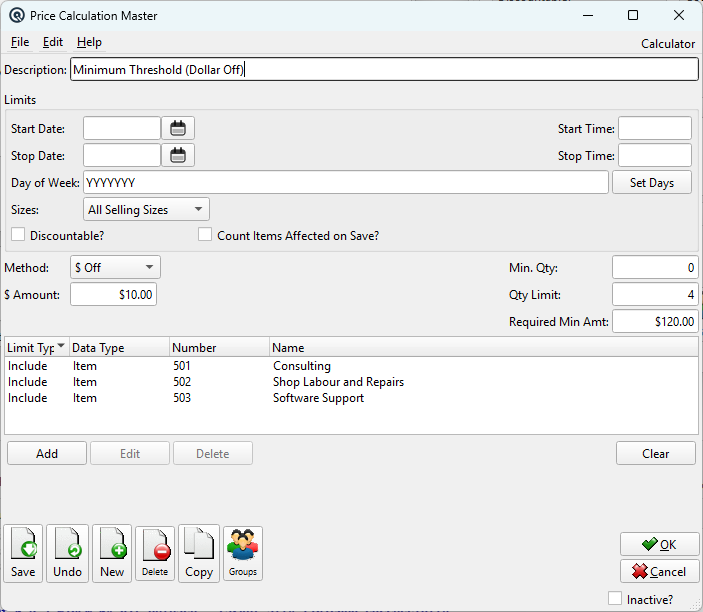 Field: $ Amount Example: "Save $5 on any Premium Dog Food" — set $ Amount to $5.00, add limits for Subdepartment "Premium Dog Food". A $29.99 bag sells at $24.99; a $44.99 bag sells at $39.99. Example: "This weekend only — $2 off all beverages" — set $ Amount to $2.00, add Department "Beverages", set Day of Week to Friday/Saturday/Sunday only. |
5. At/For (Quantity Deal)
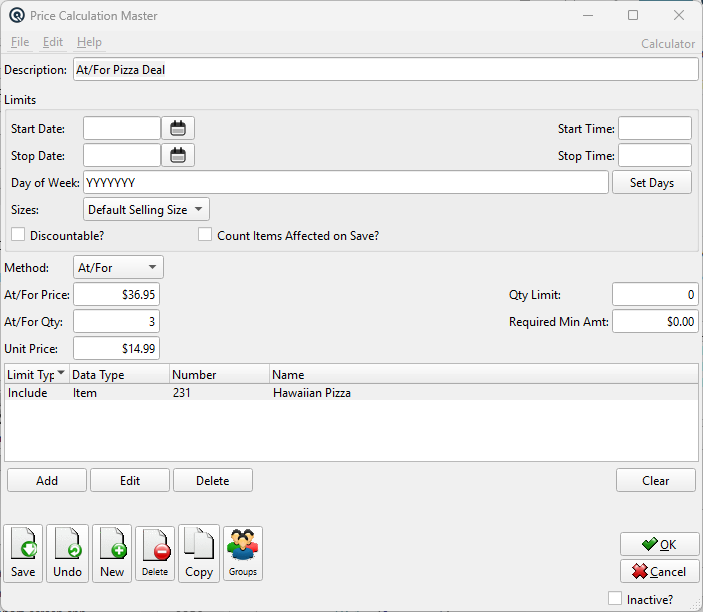 At/For QtyFields: Unit Price• Unit Price — Auto-calculated as At/For Price ÷ At/For Qty, rounded to the nearest cent. Read-only; updates automatically when you change the price or quantity.Formula: Each unit rings at Unit Price (At/For Price ÷ At/For Qty) Example: "3 for $10.00 on all canned soup" — set At/For Price $10.00, At/For Qty 3. Unit Price auto-calculates to $3.33. Add a limit for Subdepartment "Canned Soup". Each can rings at $3.33; buying 1 or 2 cans still uses $3.33 each. Example: "Buy 2 for $5 on energy drinks, limit 4" — set At/For Price $5.00, At/For Qty 2 (Unit Price = $2.50), set Qty Limit to 4. The first 4 energy drinks ring at $2.50; the 5th and beyond revert to the regular price. |
6. Multi-Deal
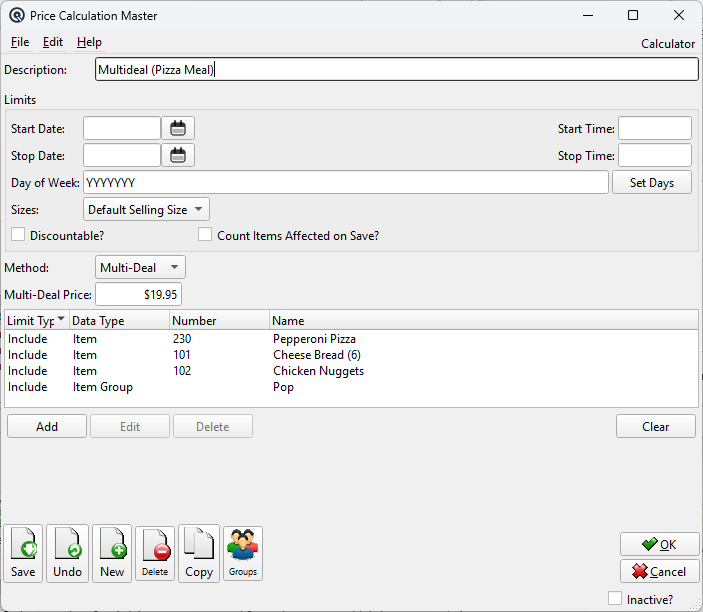 Field: Multi-Deal Price Example: "Burger + Fries + Drink for $8.99" — set Multi-Deal Price $8.99, add limits: Include Item "Burger", Include Item "Fries", Include Item "Drink". When all three items are scanned, the combined price becomes $8.99 instead of the sum of individual prices. Example: "Buy any 2 items from the Party Pack group for $15" — set Multi-Deal Price $15.00, add limits: Include Item Group "Party Pack" (twice, or with the group containing at least 2 qualifying items). Restrictions: Only Item and Item Group limits are valid for Multi-Deal. When you switch to Multi-Deal, a warning reminds you that Department, Subdepartment, Brand, and Vendor limits are ignored. The system enforces a minimum of 2 limits on save. |
7. Gift/Reward (Free Gift with Purchase)
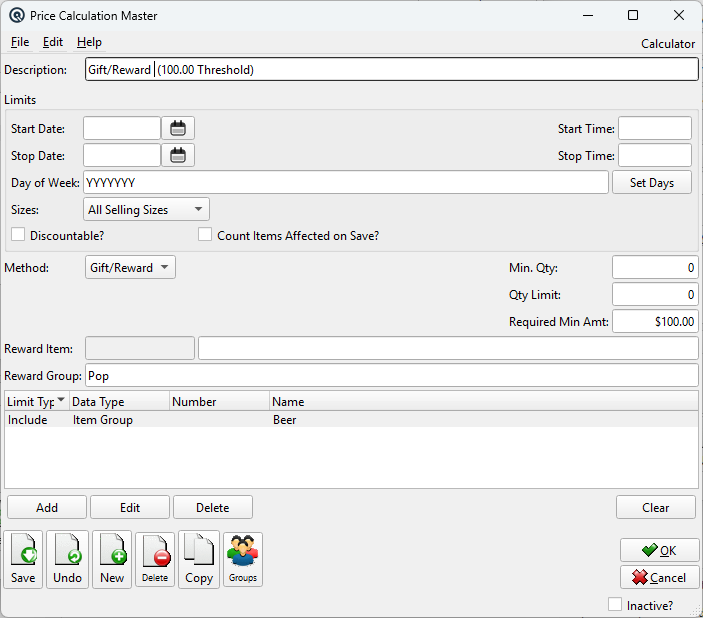 Behavior: Automatically adds a free gift item to the transaction when the qualifying conditions are met. The gift is awarded at a price of $0.00. If the customer no longer meets the requirements (e.g., by voiding items or reducing quantities below the threshold), the gift is automatically removed from the transaction in real time. Fields: Reward Item• Reward Item — The specific item to award as the free gift. Use the lookup (F9) or list (F12) to select. When a Reward Item is set, the Reward Group field is automatically disabled.Reward Group• Reward Group — An item group from which the gift is selected. If the group contains a single item, it is awarded automatically. If the group contains multiple items, the cashier is presented with a selection dialog at the POS. When a Reward Group is set, the Reward Item field is automatically disabled.• Required Min Amt — The minimum transaction dollar amount (of qualifying items) that must be reached before the gift is awarded. See the Required Min Amt section below for details. Example: "Free travel mug with any $50 coffee purchase" — set Reward Item to "Travel Mug", set Required Min Amt to $50.00, add a limit for Department "Coffee". When a customer's qualifying coffee items total $50.00 or more, the travel mug is automatically added to the transaction at $0.00. If the customer voids a coffee item and drops below $50.00, the travel mug is automatically removed. Example: "Free accessory with any $100 electronics purchase" — set Reward Group to "Free Accessories" (containing multiple choices), set Required Min Amt to $100.00, add a limit for Department "Electronics". The cashier picks from available accessories when the threshold is reached. Reward Item DescriptionRead-only description of the selected reward item. Updated automatically when a reward item is chosen. Note: Gift/Reward operates in real time on both the POS and the Quasar GUI Invoice screen. Gifts are added and removed dynamically as the transaction total fluctuates around the threshold. The Min. Qty and Qty Limit fields are hidden for this method. |
Set Days Dialog
Day SelectionUse the checkboxes to choose which days of the week the calculation is active. SundayInclude Sunday. MondayInclude Monday. TuesdayInclude Tuesday. WednesdayInclude Wednesday. ThursdayInclude Thursday. FridayInclude Friday. SaturdayInclude Saturday. OKSave the selected days and close the dialog. CancelClose the dialog without saving changes. |
Quantity Controls
Min. QtyThe minimum quantity that must be purchased before this calculation takes effect. For example, set to 6 to create a "buy 6 or more" deal. Quantities below this threshold use the item's regular price. Combine with Cost+ to offer volume discounts: "buy 12+ at cost + 15%". Qty LimitThe maximum quantity that can be sold at the calculated price per transaction. Once the limit is reached, additional units revert to the item's regular price. Set to 0 for no limit. Useful for restricting promotional pricing (e.g., "limit 2 per customer" or preventing staff from buying unlimited stock at cost). |
Required Min Amt (Threshold Amount)
Required Min AmtThe Required Min Amt field sets a minimum dollar threshold that must be reached by qualifying items in the transaction before the price calculation takes effect. This field is available for all pricing methods, but it is most commonly used with Gift/Reward. The threshold is evaluated against the sum of extended prices of all non-voided items in the transaction that match the price calculation's limits. Only items that pass the include/exclude limit rules are counted toward the threshold. How it works: Example: A "10% off when you spend $75 or more on clothing" promotion — set Method to % Off at 10%, Required Min Amt to $75.00, add Department limit "Clothing". The discount applies only when the customer's clothing subtotal reaches $75.00. |
Method Comparison
|
Real-World Scenarios
|
Scenario 1: Vendor-funded promotion Scenario 2: Tiered customer pricing Scenario 3: Happy Hour Scenario 4: Qty deal with limit |
Pricing Priority & Best-Deal Engine
Quasar uses a three-layer pricing model. Each layer operates independently and feeds into the next. Understanding how these layers interact is essential for setting up promotions that behave correctly.
The Three Pricing Layers
|
Evaluation Order
|
The layers are applied in strict sequence — each layer builds on the result of the previous one: Step 1 — Price Calculations (Base Price). When an item is added to a transaction, Quasar evaluates all active price calculations. The item’s regular price, customer level price, quantity level price, and promotional price are all candidates. Price calculations (this screen) add additional candidates. The lowest qualifying price becomes the item’s base price. If a multi-deal produces a lower combined total than individual calculated prices, the multi-deal wins. The price calculation’s Discountable? checkbox determines whether further discounts (Layers 2 and 3) can reduce this price further. Step 2 — Line Discounts (Per-Item Reduction). After the base price is determined, line discounts are applied — but only to items whose price calculation marked them as discountable. By default, a discount’s Allow discount on other discounts checkbox is unchecked (exclusive). This means that once a line discount is applied to an item, no further discounts — including transaction discounts — can be applied to that line. To permit stacking, the user must explicitly check Allow discount on other discounts on the Discount Master. Step 3 — Transaction Discounts (Whole-Sale Reduction). Transaction discounts are applied last. They only affect lines where the price calculation allows discounts (Discountable? = checked) and any existing line discount also allows further discounts (Allow Other = checked). The system calculates the discountable remainder for each qualifying line (base price minus line discounts) and applies the transaction discount proportionally. When multiple transaction discounts compete, the Best-Deal Tournament (see below) determines which one wins. Default Behavior: Because discounts default to exclusive (Allow Other = unchecked), a line discount will block all transaction discounts on that line unless the user explicitly enables stacking. Similarly, a price calculation with Discountable? unchecked blocks all discounts entirely. This “off by default” approach prevents accidental discount stacking that could erode margins. |
The Discountable Flag
|
The Discountable? checkbox on this screen controls whether items priced by this calculation can receive further discounts in Layers 2 and 3. • Checked (default): The calculated price can be reduced by line and transaction discounts. Use this for most promotions (e.g., “20% Off Summer Sale” items can still receive a loyalty discount on top). • Unchecked: The calculated price is final. No line or transaction discounts will reduce it further. Use this for cost-plus pricing strategies (e.g., employee pricing at cost + 5%) where further discounts would erode the margin below acceptable levels. Example: A contractor gets “Cost + 10%” pricing. You create a Price Calculation with Cost+ at 10% and uncheck Discountable?. Now, even if a storewide 20% transaction discount is active, the contractor’s items stay at cost + 10% because the discountable flag protects them. |
Best-Deal Tournament (Transaction Discounts)
|
When multiple transaction discounts compete for the same items, Quasar runs a Best-Deal Tournament to ensure the customer always receives the lowest price. This applies to both the back-office Invoice screen and the POS. How the tournament works: • Phase 1 — Dry Run: Each transaction discount is evaluated independently, as if it were the only discount on the transaction. Quasar calculates the theoretical savings (total_amt) for each discount without actually applying any of them. • Phase 2 — Compare: The discount with the highest savings wins. Specifically: • Phase 3 — Apply: Only the winning discount(s) are distributed across the transaction lines. Example: A store has two exclusive transaction discounts — a 10% Auto-Apply Sale and a 20% VIP Discount linked to a customer. With the tournament engine, the 20% VIP discount wins because it produces higher savings, regardless of which discount was added first. The customer always gets the best deal. Tiebreaker: When two discounts produce identical savings, the one evaluated later takes precedence. |
Price Calc vs. Multi-Deal Arbitration
|
When a price calculation (e.g., “20% Off Fridays”) and a multi-deal (e.g., “Burger + Fries for $8.99”) both apply to the same items, Quasar compares the resulting totals: • If the multi-deal produces a lower combined total than the individual calculated prices, the multi-deal wins and replaces the calculated prices. • If the calculated prices are already lower, the multi-deal is skipped. This ensures that the customer always receives the best price, whether it comes from a percentage-off promotion or a combo deal. |
Low Price Floor
|
If an item has a Low Price set on its Prices tab, no combination of price calculations, line discounts, or transaction discounts can reduce the effective price below that floor. The discount amount is automatically capped so the final price equals the Low Price. This protects against selling below cost or below a regulatory minimum price. |
Related Screens
| Price Calc List | Price Batch | Promo Batch | Item Master | Discount Master | Price Zone Master |
| Quasar Accounting 7.1 • © Linux Canada Inc. • Table of Contents |