
Purchases
Purchase Order
The Purchase Order screen creates and manages vendor purchase orders for inventory replenishment. It supports multi-size items, serial number tracking, order templates, drop-ship delivery, internal/external charges, and direct conversion to vendor invoices. The order can be printed, emailed to the vendor, or used to generate price batch updates. Access from Purchases › Purchase Orders.
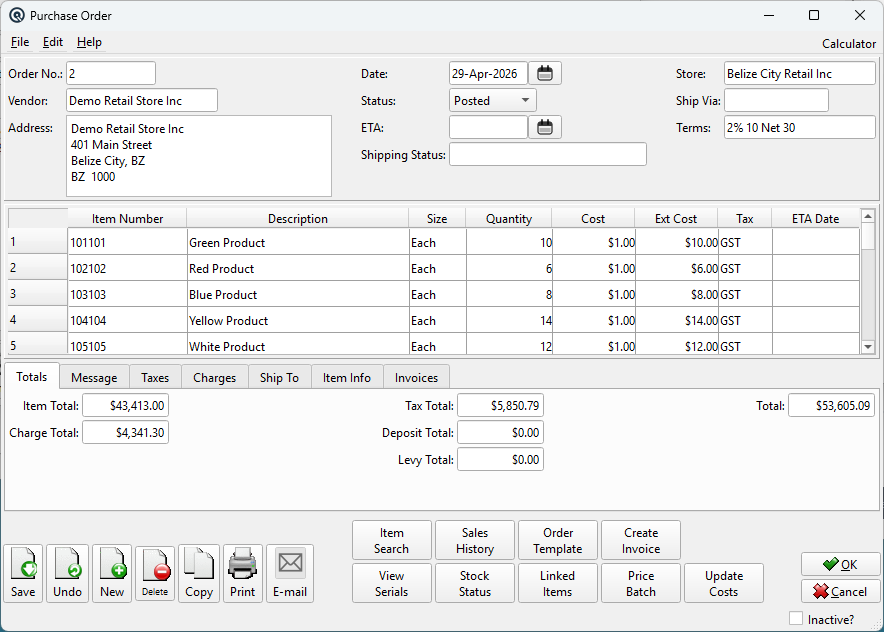
Header Fields
Order No.Purchase order number. Enter # for auto-numbering. Duplicate numbers are allowed with a warning prompt. Sequence numbering is global (shared across all stores). VendorThe supplying vendor (lookup). Changing the vendor auto-fills the address and payment terms, and removes any items that the new vendor cannot supply (no cost record for that vendor/store combination). Costs for remaining items are recalculated. AddressVendor's mailing address. Auto-populated from the vendor master; can be edited for this order. DateOrder date. Defaults to today. StatusOrder lifecycle status:
ETAExpected arrival date. Setting this auto-fills the ETA Date column for all item lines that don't already have an individual ETA. Shipping StatusFree-text field for tracking shipment status (e.g. "Shipped", "In Transit", "Backordered"). StoreReceiving store. Changing the store removes items not stocked at the new store (with a warning per item) and recalculates costs. Also updates the item lookup, Sales History, and Stock Status windows to reflect the new store. Ship ViaShipping method or carrier name (free text). TermsPayment terms (lookup). Auto-populated from the vendor's default terms. |
Item Lines
|
The main table lists items being ordered. The item lookup is restricted to purchasable items only.
|
Totals Tab

|
Read-only summary of the order value. All values update automatically as items and charges change. Item TotalSum of all line item extended costs. Charge TotalSum of all internal and external charges. Tax TotalTotal tax amount (excluding tax-inclusive items). Deposit TotalTotal container deposits across all items. Levy TotalTotal environmental or other levies. TotalGrand total: Items + Charges + Tax + Deposits + Levies. |
Message Tab

MessageFree-text message field. Text entered here is printed on the purchase order when sent to the vendor. Optionally carried over to the vendor invoice when using Create Invoice (if the "Include order comments" option is selected). |
Taxes Tab

|
Read-only breakdown of taxes on the order, grouped by tax code: Taxes TableLists all tax codes applied to the order with taxable amounts and calculated tax.
|
Charges Tab

|
Two side-by-side tables for additional charges: Internal ChargesCosts absorbed by the company (e.g. freight-in, customs duties). These are allocated across item lines and increase the landed cost of inventory. Each charge has a Charge lookup, Amount, and Tax code. External ChargesCosts passed to the vendor invoice but not allocated to item costs (e.g. vendor-billed shipping). Each charge has a Charge lookup and Amount (no tax code — tax is handled at the invoice level). |
Ship To Tab

Drop ShipOptional customer lookup. When set, the order is a drop-ship order — the vendor ships directly to the customer instead of to the store. Selecting a customer auto-fills the Ship Address from the customer's address. AddressDelivery address. Defaults to the store's address. Auto-updated when a drop-ship customer is selected. Editable. |
Item Info Tab

|
Detail panel for the currently selected item line. Updates automatically as you move between rows. ReceivedQuantity already received against this line (from vendor invoices). Include TaxCheckbox. When checked, the line cost is treated as tax-inclusive. TaxCalculated tax for this line. Include DepositCheckbox. When checked, the line cost includes deposit amounts. DepositContainer deposit amount for this line. LevyEnvironmental or other levy amount. Line CostExtended base cost (before deposits/levies/charges). Internal ChargeAllocated internal charge amount for this line. External ChargeAllocated external charge amount for this line. Edit SerialsOpens the serial number assignment dialog for serial-tracked items. If you add more serials than the order quantity, the quantity is automatically increased to match. |
Invoices Tab

|
Lists all vendor invoices (receives) created from this purchase order. Shows the Vendor Invoice # and Date. Double-click or click View to open the receive/vendor invoice in its master screen. ViewOpens the selected vendor invoice in the Receive master screen. |
Action Buttons
|
The Purchase Order screen has an extended button bar with specialized purchasing actions: Item SearchOpens a search dialog to find items within the order. Search by Item Number or Description (case-insensitive, partial match). Navigates to the matching row. Use Next to find subsequent matches; Start Over restarts from the top. View SerialsOpens a dialog showing all serial numbers assigned across all order lines. Displays each serial with its item number and description. Items without serial tracking are excluded. Serial assignments can be modified from this dialog. Sales HistoryOpens the Sales History window pre-loaded with the currently selected item and store. Stays open as you navigate between order lines — automatically updates to show the new item's history. Useful for reviewing demand before setting order quantities. Stock StatusOpens the Stock Status window pre-loaded with the currently selected item and store. Like Sales History, it stays open and updates as you navigate between items. Shows current on-hand, on-order, and minimum/maximum stock levels. Linked ItemsOpens the Linked Items window for the currently selected item. Shows related, substitute, or companion items. Select a linked item and it is automatically added to the order. Order TemplateImports items and charges from a pre-defined Order Template. Opens a dialog to select the template (filtered to the current vendor). The template's items are appended to the order with zero quantity and current vendor costs. Charges from the template are also imported. If no vendor is set, the template's vendor is applied automatically. Price BatchCreates a new Price Batch pre-loaded with the items from this order. Prompts to save the order first. Use this to update selling prices based on new vendor costs received on the order. Create InvoiceConverts the purchase order into a vendor invoice (receiving). This is the primary fulfillment action:
Update CostsCompares the order's unit costs against the item master's vendor cost records. If any costs differ, opens a Cost Update dialog listing old vs. new costs. You can select which items to update. Approved updates are written back to the item master. Requires ItemMaster Update security permission. Prompts to save first. |
Standard Buttons
SaveSaves the order. UndoReverts changes since the last save. NewOpens a blank order. DeleteInactivates the order. CopyCreates a duplicate order. GroupsAssign the order to security/data groups. Prints the purchase order. Emails the purchase order as a PDF. OKSaves and closes the screen. CancelCloses without saving changes. |
Security
|
• POST_PURCHASE_ORDERS permission is required to save an order with Posted status. |
Related Screens
| PO List | Receive | Auto Order | Order Template |
| Quasar Accounting 7.1 • © Linux Canada Inc. • Table of Contents |