
Accounts & Ledger
Ledger Transfer
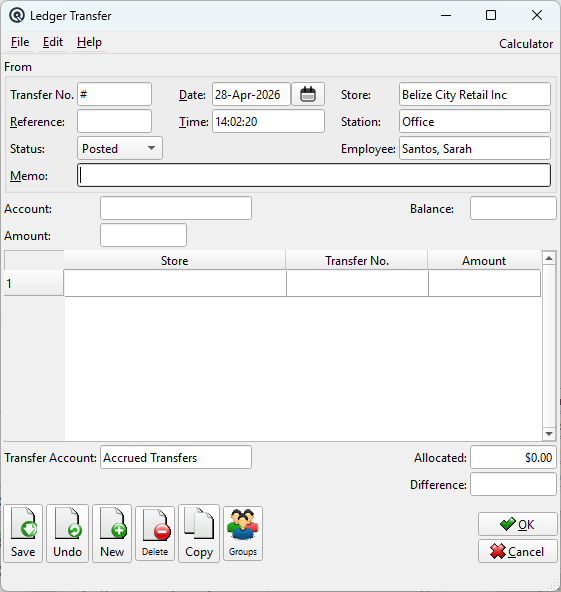
The Ledger Transfer moves GL account balances between stores. Unlike a General Journal entry (which posts to a single store), the Ledger Transfer creates linked transactions across multiple stores, with a clearing account ensuring that the overall GL remains in balance. This is the correct tool for inter-store accrual transfers, expense allocations, and balance reclassifications. Access from Ledger › Ledger Transfer.
Why Use Ledger Transfer?
|
When a General Journal Entry Is Not Enough In a multi-store environment, each store maintains its own set of GL balances. A General Journal entry posts to only one store. If you need to move value between stores — for example, to allocate head-office expenses to branches, transfer accrued liabilities, or reclassify balances across locations — a simple journal entry cannot do this because it would only affect one store's books. The Ledger Transfer solves this by creating a pair of linked transactions: • From side (sending store): Credits the source account and debits the Transfer Account (clearing). The Transfer Account acts as an inter-store clearing account. When both sides are posted, the clearing account nets to zero across all stores, and the balance has effectively moved between locations. Common Use Cases: • Accrual transfers — A head office accrues an expense (e.g., insurance, rent) centrally, then distributes the cost across branch stores. |
From (Sending Side)
Transfer No.Auto-generated transaction number for the sending side. Sequence numbering is by store. DatePosting date for the transfer. Both the sending and all receiving transactions share this date. StoreThe sending store — the store from which the balance is being moved. EmployeeAuto-filled from the current session. StationAuto-filled from the current session. MemoFree-text reason for the transfer (e.g., "Q1 insurance allocation" or "IT cost share — March"). Appears on the GL detail for both sides. AccountThe GL account being transferred. When selected, the Balance field shows the current balance of this account in the sending store as of today. This helps confirm you are transferring from the correct account and that sufficient balance exists. BalanceRead-only. The current balance of the selected account in the sending store. Updated in real-time when the account is changed. AmountThe total amount to transfer out of the sending store. This is the value that must be fully allocated across the receiving stores in the table below. ReferenceOptional cross-reference or note for the transfer. StatusPosting status: Posted (live), Suspended (draft), or Voided (inactive). TimePosting time. Defaults to the current time. |
Allocation Table (Receiving Stores)
|
The allocation table specifies which stores receive portions of the transferred balance. Each row creates a separate linked transaction in the receiving store. Columns: Store — The receiving store. Select from the store lookup. You can allocate to multiple stores — for example, sending $3,000 from Head Office to three branches at $1,000 each. Each receiving store gets its own linked transaction. |
Transfer Account & Balancing
Transfer AccountThe GL clearing account used to bridge the inter-store movement. Defaults from the store's Transfer Account setting (configured on the Store Master). If the store does not have a Transfer Account set, this field must be filled manually; it will be saved back to the store for future use. AllocatedRead-only. The sum of all amounts in the allocation table. This must equal the Amount field above. DifferenceRead-only, displayed in red. Shows Amount minus Allocated. The transfer cannot be saved unless the difference is zero. This ensures that the total leaving the sending store exactly matches the total arriving at the receiving stores. |
GL Posting Logic
|
Sending store (From): • Credit the source Account by the Amount (removes balance). Each receiving store (To): • Debit the same Account by the allocated amount (adds balance). Net effect: The Transfer Account nets to zero across all stores. The source account's balance has moved from the sending store to the receiving store(s). Example: Head Office (Store A) transfers $5,000 of accrued Rent Expense to Store B ($3,000) and Store C ($2,000):
Transfer Account across all stores: $5,000 Dr − $5,000 Cr = $0. |
Rules & Restrictions
|
• The transfer must balance to zero (Difference = 0) before saving. |
Related Screens
| Account List | General Journal | Store Master |
| Quasar Accounting 7.1 • © Linux Canada Inc. • Table of Contents |