
Card File & CRM
Send Email
The Send Email screen composes and sends email to customers, vendors, employees, or CRM contacts directly from Quasar. It can also send personalized mass mail to groups of customers. Access from Card File › Send Email, or automatically when emailing invoices, statements, or other transaction documents.
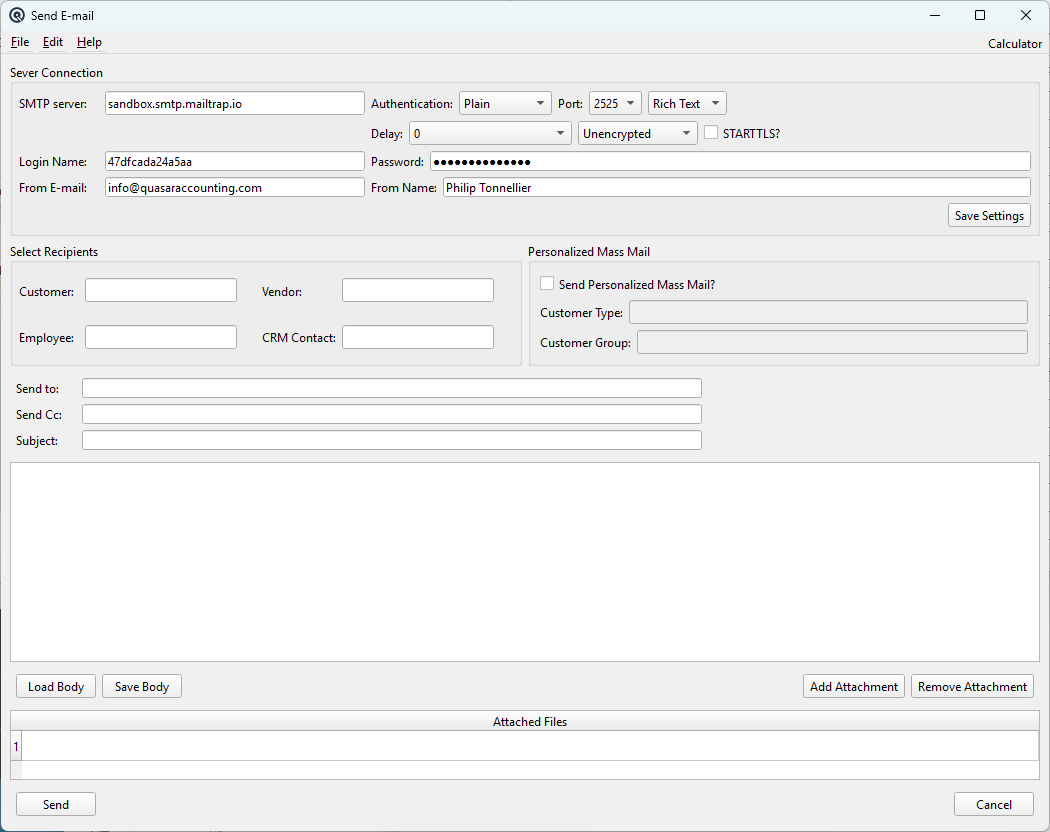
Server Connection
SMTP ServerHostname or IP address of the outgoing mail server (e.g. smtp.gmail.com or mail.yourcompany.com). PortSMTP port number. Common values: 25 (standard unencrypted), 465 (SSL/TLS), 587 (STARTTLS submission), or 2525 (alternate). AuthenticationMethod used to authenticate with the SMTP server: Plain, Login, or CRAM-MD5. Most providers use Plain or Login. Encrypted / UnencryptedWhether to use an encrypted (SSL/TLS) or unencrypted connection. Use Encrypted for ports 465 and 587. STARTTLS?Enable STARTTLS upgrade on an initially unencrypted connection. Typically used with port 587. DelayPause between sending each email in a batch. Helps avoid rate-limiting by the mail server. Set to 0 for single emails. Rich Text / Plain TextChoose whether the email body is sent as Rich Text (HTML formatted) or Plain Text. Login NameUsername for SMTP authentication. Often your full email address. PasswordPassword for SMTP authentication. Stored locally and in the database for convenience. From E-mailThe sender email address that recipients will see (e.g. billing@yourcompany.com). From NameThe sender display name that recipients will see (e.g. Your Company Accounting). Save SettingsSaves the current SMTP configuration to the database so all workstations share the same settings. |
Select Recipients
CustomerLook up a customer by name or number. When selected, Quasar retrieves the customer's email from their address record and prompts you to add it to the Send to or Send Cc field. VendorLook up a vendor. Works the same as Customer — retrieves the vendor's email address on file. EmployeeLook up an employee to retrieve their email address. CRM ContactLook up a CRM contact to retrieve their email address. |
Personalized Mass Mail
Send Personalized Mass Mail?Enable to send individual emails to all customers matching the filters below. Each email is personalized with the customer's name. Customer TypeFilter mass mail recipients by customer type (e.g. Retail, Wholesale). Only enabled when mass mail is checked. Customer GroupFilter mass mail recipients by customer group. Only enabled when mass mail is checked. |
Message
Send toRecipient email address(es). Multiple addresses can be separated by commas. Populated automatically when selecting a customer, vendor, employee, or contact above. Send CcCarbon copy email address(es). Recipients in Cc can see all other recipients. SubjectThe email subject line. Auto-populated when sending transaction documents (e.g. "Invoice #1234"). BodyThe email message text. Compose your message here, or use Load Body to import text from a file. |
Attachments
Attached FilesLists all files attached to the email. When sending invoices or statements, the PDF is automatically attached. Load BodyImport the email body text from a saved text file on disk. Save BodySave the current email body text to a file for reuse. Add AttachmentBrowse for one or more files to attach to the email. Remove AttachmentRemove the currently selected attachment from the list. |
Actions
SendSend the email to all recipients. A progress bar displays during batch sends. CancelClose the Send Email window without sending. |