
AI & Automation
AI Assistant & Voice Commands
Quasar's AI Assistant lets you control the application by voice or by typing plain-English commands. You can open screens, fill fields, search lookups, navigate lists, press buttons, manage windows, and ask questions about Quasar. All chat — typed or spoken — is answered by the Quasar server: how-to questions are answered from the help documentation shipped with Quasar and, if your security type permits it, from live company data such as counts, lists, and reports. The assistant says when it is not sure instead of guessing. The assistant is configured in AI Skill Master and works through an AI provider such as xAI, OpenAI, or Anthropic.
|
Quick start: Press |
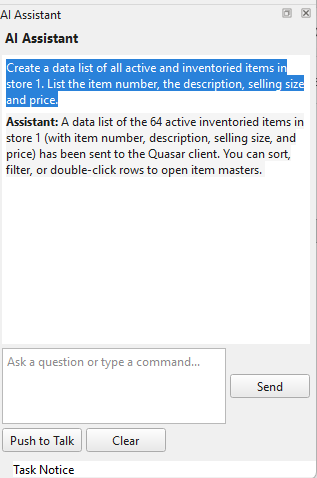
The AI Assistant panel answering a data-list request. Type in the box at the bottom, or hold Push to Talk to speak; Clear empties the box and starts a fresh conversation.
Two Modes: Commands and Chat
The AI Assistant panel always opens in text mode: choosing View › AI Assistant, clicking the dock toggle, or navigating by voice ("Click View", then "Toggle AI Assistant") opens the panel with the text input focused — even when voice is configured. Voice chat starts only when you ask for it with Quasar chat.
| Mode | What it does | How to start | How to exit |
|---|---|---|---|
| Voice/Chat Commands | Executes one command at a time: open screens, fill fields, navigate, search, press buttons. | Press F7 or click the microphone button in the navigation sidebar. | Say/click close, press Escape, or say Quasar command. |
| AI Assistant (text mode) | Typed chat with the AI. Text that starts with a command keyword (such as open or set) runs as a command, shown with a Command: prefix; anything else is answered by the server AI — from the shipped help documentation and, if your security type permits, from live company data. | Choose View › AI Assistant, click the dock toggle, or navigate by voice ("Click View", then "Toggle AI Assistant"). | Close the panel, or say Quasar command. |
| Voice Chat | Holds a spoken conversation with the AI. Speech is transcribed through the same speech-to-text stream used for voice commands; each utterance is answered by the Quasar server and the answer appears as text in the panel. Answers come from the shipped help documentation and, subject to your security permissions, from live company data. On request the assistant can also open screens, open help pages, and focus fields — subject to your security permissions and the skill's allowed actions. With hands-free mode on, speech is transcribed continuously and builds up one request in the input line: pause, think, and keep talking — each sentence is added to what is already there rather than replacing it. Say click send (or click Send) when the request is complete, or clear to throw it away and start over. With hands-free off (economy, the default), no stream is open: hold Push to Talk to speak, release to send. | Say or type Quasar chat. If no voice-capable skill is configured, Quasar chat opens the panel in text mode instead. | Say Quasar command or close as a complete utterance (a trailing period, as in "Close.", is fine), or close the panel: command-mode transcription resumes. |
Speech-to-text runs on the workstation; everything else runs on the server. Voice command listening and voice chat share the provider's Voice Command URL (streaming speech-to-text, derived from the Text Chat URL when left blank). If the transcription connection drops during voice chat, Quasar reconnects automatically. Chat questions — typed or spoken — are sent as text to the Quasar server, which resolves the skill and provider, enforces your security permissions, and can answer from the live company database. The provider's Text Chat URL is used by the server AI for chat and by server-side skills for PDF invoice extraction. There is no per-workstation AI bridge or Python setup.
Panel window behavior. Closing or floating the AI Assistant panel restores the main Quasar window to its original size — the same behavior as the Field Help panel. The panel has three buttons: Send submits what is in the input line, Push to Talk opens the speech-to-text stream while held and sends the utterance when released (the cheapest way to talk to the assistant, since speech-to-text is billed only while the button is held), and Clear empties the input line and starts a fresh conversation.
Building a request out loud. In hands-free voice chat the input line accumulates everything you say until you send or clear it, so a long request can be dictated in pieces — "list all customers in Alberta", pause, "with their balances and phone numbers", pause, "sorted by balance". Quasar drops repeats and reworded overlaps as the transcript is revised, so restating a phrase does not duplicate it. Saying clear, click clear, or press clear is a full reset: it empties the input line and forgets the conversation so far, so the next question is not interpreted as a follow-up.
Turning the mic on with the panel open puts you in voice chat, not command mode — if the AI Assistant panel is visible and you press F7 or click the mic button, what you say goes to the assistant as a question.
Asking Questions
In voice chat or typed chat you can ask the assistant how Quasar works — what a field means, what a screen does, or how to complete a task — or ask about your own company data, such as "count active customers" or "list customer accounts for Mary Ball*". How-to questions are answered from the help pages and user-guide chapters that ship with Quasar; data questions are answered live from the company database by the server, subject to your security permissions. The assistant tells you when it is not sure rather than inventing an answer.
- "How do I …" questions. For workflows such as running dayend, selling a gift card, or creating price batches, the assistant fetches the relevant user-guide chapter and walks you through it step by step, one step at a time.
- Live data questions. Counts, lists, and AI reports come from your company database and require the AI Data Assistant flag on your security type. The assistant can also draft job proposals (AI Action Assistant flag); proposals are drafts only and nothing is executed without human review. Users without these flags get documentation help only.
- Reports open in the Report Viewer. When an answer is a table or a longer list — sales by department, vendor balances, invoice listings — the assistant opens it in the Quasar Report Viewer instead of dumping it into chat, so you can print, PDF, or export it. Totals and subtotals in the viewer are computed by Quasar. Chat keeps a one-line headline of the result.
- Acting on request. In chat the assistant can open screens, open help pages, and focus fields when you ask it to. These actions respect your Quasar security permissions and the actions allowed on the AI skill.
- Typed input. Text that starts with a command keyword (such as
open,set, orgoto) runs as a command and is shown with aCommand:prefix. Anything else is sent to the AI and answered as a question.
Reports and Data Lists
Data answers come back in two forms, chosen from how you ask:
- Interactive data lists. Ask to list something — "list all customers and their current balances, sorted by balance", or "list the transactions created by Mary Ballantyne on January 23, 2026, with the time, type, and total". The answer opens as an interactive AI Data List window: click a column header to sort, and double-click a row to open that record (customer, transaction, item) in its own screen. Money and percent columns follow the usual Quasar formatting, and a totals footer sums the money columns.
- Reports in the Report Viewer. Ask for a report, or for anything with totals or subtotals — "create an AR report for 2025 subtotalled by customer by month, with beginning balance, debits, credits, and month-end balance". The report opens in the Quasar Report Viewer, grouped and subtotalled the way you asked, ready to print, PDF, or export.
Rule of thumb: anything needing totals or subtotals becomes a report; anything you would want to browse and drill into becomes a list. You can steer the choice with your wording — "list … to drill down" versus "create a report …". Both respect your security permissions: you only ever see data your security type allows you to view.
Follow-ups. Refine in plain language — "same report but only customer 527", "sort by balance descending" — and the assistant adjusts the query instead of starting over. Reports and lists reflect the database at the moment you ask; ask again for fresh numbers.
Edit request. An AI-generated report opens in the Report Viewer with an Edit request button beside Regenerate. Clicking it reopens the AI Assistant panel with the original request text already in the input line, so you can correct a wrong month, add a column, or change the grouping and resubmit without retyping the whole question. You can also dictate the change instead of typing it: an addendum that does not repeat the original wording is sent together with the original request, so the assistant keeps the full context. The button appears only for reports the assistant produced — ordinary Quasar reports do not have it.
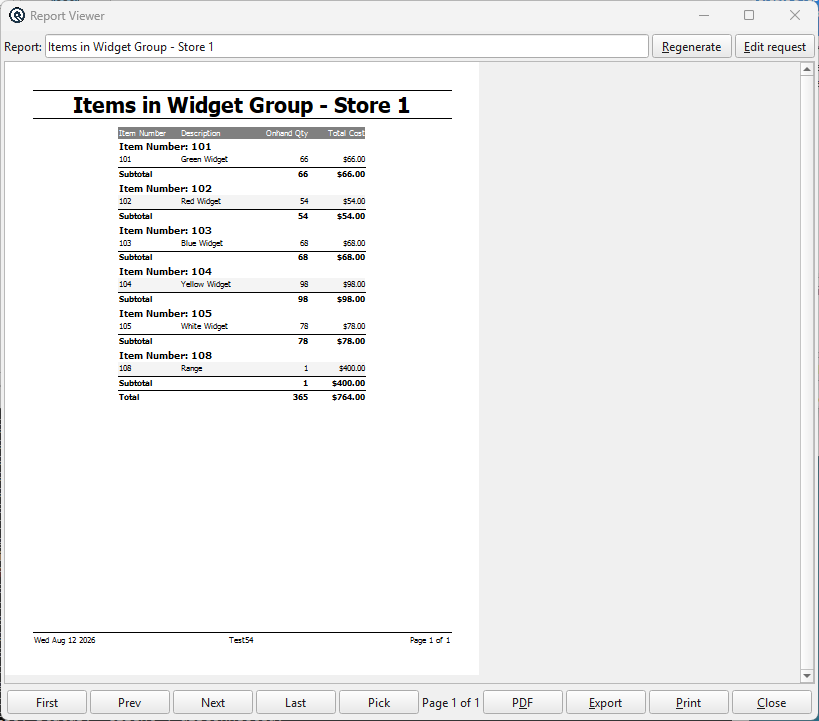
An assistant-generated report. Edit request sits beside Regenerate; the report title, columns, subtotals and grand total all come from the way the question was worded. Print, PDF and Export work as on any Quasar report.
Column formatting. The assistant declares which columns are money and which are percentages, and the list or report renders them with standard Quasar formatting. When a declaration is missing, Quasar infers it from the column name or label — but quantity and count columns are never treated as money, so "total quantity sold" and "sales count" stay plain numbers even though their names contain "total" and "sales".
Starting, Stopping, and Muting
| Say or type | Result |
|---|---|
F7 (key) | Toggle listening on/off. Right-click the mic button in the navigation sidebar and choose Voice/Chat Settings... for the settings dialog (hands-free mode, spoken replies). |
start listening | Begin capturing voice commands. |
stop listening | Stop capturing voice but keep the assistant enabled. |
mute | Stop acting on commands. Hands-free mode: the microphone keeps streaming so Quasar wake is still heard. Economy mode (default): the voice stream closes and speech-to-text billing stops — resume with F7 or the mic button. |
unmute | Resume acting on commands (reopens the voice stream in economy mode). |
Quasar wake | Same as unmute (hands-free mode only — in economy mode the stream is closed and the wake word cannot be heard; press F7). |
Quasar sleep | Same as mute. |
| (5 minutes silence) | Economy mode only: the voice stream pauses automatically. Press F7 or the mic button to resume. |
Quasar chat | Start voice chat. Hands-free mode: continuous transcription into the input line; click Send or say click send. Economy mode: hold Push to Talk to speak, release to send. If no voice-capable skill is configured, the panel opens in text mode instead. |
Quasar command / Quasar commands | End voice chat and return to command mode: the panel closes and command-mode transcription resumes. If the panel was open in text mode, it simply closes. |
clear (in voice chat) | Empty the input line and start a fresh conversation, discarding both the request being dictated and the earlier exchange. click clear and press clear do the same. |
click send (in voice chat) | Send the request that has accumulated in the input line. press send does the same. |
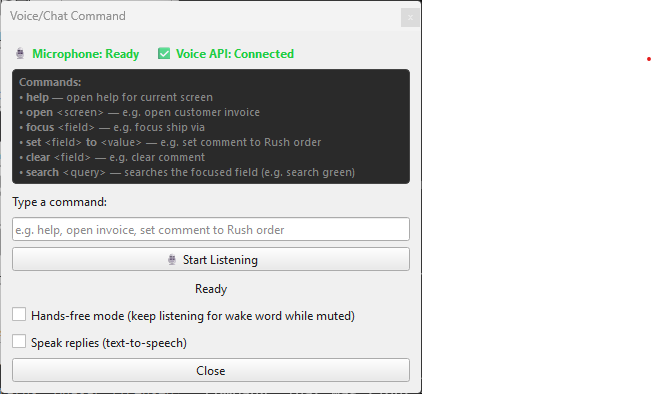
The Voice/Chat Command dialog — right-click the microphone button in the navigation sidebar and choose Voice/Chat Settings...
The dialog is both a status window and a place to work without the microphone:
- Microphone and Voice API show whether the microphone was found and whether Quasar can reach the provider's speech service. Both must be green before voice commands will work; a red Voice API line usually means the provider's Voice Command URL or API key is wrong in AI Provider Master.
- Commands lists the core commands as a reminder — the full set is documented on this page.
- Type a command runs any command by typing it, with no microphone and no AI provider involved — useful for testing a command, and for working when the room is too noisy for speech. It is a command box, not a chat box: a question typed here answers
Unknown command. Ask questions in the AI Assistant panel instead. - Start Listening begins voice capture, the same as pressing
F7or clicking the microphone button. - Hands-free mode and Speak replies are the two per-workstation settings described below.
Economy vs. hands-free. The Voice/Chat Command dialog — right-click the mic button in the navigation sidebar and choose Voice/Chat Settings... — has a Hands-free mode checkbox, stored per workstation. Leave it unchecked (economy, the default) to stop speech-to-text charges whenever you mute or go quiet for 5 minutes — resume with F7 or the mic button. Check it if you cannot reach the keyboard: the microphone keeps streaming while muted so Quasar wake is always heard, and there is no idle auto-pause.
Spoken replies. The same dialog has a Speak replies checkbox (off by default, per workstation). When checked, the assistant's final answer to each chat question is also spoken aloud through the speakers, using the provider's text-to-speech service. While a reply is playing the microphone ignores everything it hears, so the speakers cannot trigger a new question.
Navigation and Screens
| Command | Example | Result |
|---|---|---|
help | help | Open the help page for the current screen. |
help <topic> | help price batches, help customer units | Open the help page matching the topic. |
open <screen> | open customer invoice, open vendor list, open item master | Open the requested screen. Names are matched loosely and common aliases are built in — open customer invoice opens Invoice Master, open vendor invoice opens Vendor Invoice / Receive. |
open (in a tree) | open | Expand or collapse the selected navigation node, or activate a leaf node. |
nav / navigate | nav | Show and focus the navigation sidebar. |
nav <node> | nav sales, navigate inventory | Find and highlight a node in the navigation tree. |
nav search <query> | nav search customer | Put the query into the navigation search box. |
focus <window> | focus customer invoice, focus main window | Switch to an already-open tab or detached window. |
goto <field> | goto customer, go to ship via | Move the cursor to a field on the current screen. |
goto tabbar <tab> | goto tabbar tenders, goto tabbar spell G O V T E | Switch to a tab inside the current screen. |
goto table | goto table, goto table items | Move focus into the first (or named) table on the screen. |
goto list | goto list | Focus the first list view on the current screen. |
goto menu | goto menu, goto menu file | Focus or open a menu on the menu bar. |
tabbar <tab> | tabbar general, tabbar taxes | Same as goto tabbar; switches tabs. |
tab / next | tab | Move to the next field. |
back tab / tab back / previous | back tab | Move to the previous field. |
enter / return | enter | Press Enter on the focused field or open the selected navigation item. |
select | select | Choose the highlighted item in a list or popup. |
select <query> | select customer 123 | Search a lookup field and automatically pick the first result. |
Data Entry
| Command | Example | Result |
|---|---|---|
set <field> to <value> | set comment to rush order, set quantity to 12 | Fill a named field with a value. Works for text, numbers, dates, lookups, and combos. |
fill <field> <value> | fill customer Acme | Alternate form of set. |
type <value> | type 123 Main Street, type 49.95 | Enter text or a number into the focused field. |
text <value> | text approved | Alias for type, useful when speech-to-text hears "text" instead of "type". |
clear | clear | Clear the focused field. |
clear <field> | clear comment | Clear a named field. |
check | check | Check the focused checkbox. |
uncheck | uncheck | Uncheck the focused checkbox. |
toggle | toggle | Flip the focused checkbox. |
check <field> | check active | Check a named checkbox, or a checkable column in a list. |
uncheck <field> | uncheck taxable | Uncheck a named checkbox or column. |
toggle <field> | toggle view | Toggle a named checkbox or column. |
filter <text> | filter green | Set the first search/filter field on a list screen and refresh it. |
search | search | Search the focused lookup using the text already in it. |
search <query> | search Acme, search spell A C M E | Search the focused lookup for the given value. |
List and Table Navigation
Use these when focus is in a list, table, navigation tree, or popup.
| Command | Result |
|---|---|
up | Move up one row/item. |
down | Move down one row/item. |
left | Move left, collapse a node, or go to parent in a tree. |
right | Move right or expand a node. |
back | Same as left. |
expand | Expand the selected tree node. |
collapse | Collapse the selected tree node. |
page up | Scroll up one page. |
page down | Scroll down one page. |
enter table | Move into the first (or named) Quasar table. |
move up, move down, move left, move right | Move the active MDI window 50 pixels in the given direction. |
Buttons, Keys, and Dialogs
| Command | Example | Result |
|---|---|---|
ok / okay | ok | Click the OK button in a dialog. |
cancel | cancel | Click Cancel. |
yes | yes | Click Yes. |
no | no | Click No. |
save | save | Click Save. |
close | close | Click Close. As a complete utterance during voice chat ("Close" or "Close."), it ends voice chat and closes the panel instead. |
button <name> | button add line | Click a button, toolbar button, or menu action by name. |
press <name> | press print | Same as button. |
click <name> | click post | Same as button. |
spacebar / space bar / space | space | Press the Space key on the focused control. |
backspace / back space | backspace | Press Backspace. |
delete | delete | Press Delete. |
escape | escape | Press Escape. |
refresh | refresh | Refresh the current list screen. |
Window Management
| Command | Example | Result |
|---|---|---|
maximize | maximize | Maximize the active window. |
minimize | minimize | Minimize the active window. |
restore | restore | Restore the active window to normal size. |
restore <name> | restore customer invoice | Find and restore a specific open window or tab. |
full screen | full screen | Toggle full-screen mode. |
snap <direction> | snap left, snap right, snap top left | Snap the active window to half or quarter screen. |
wider <N> | wider 50, wider one hundred | Increase window width. |
narrower <N> | narrower 50 | Decrease window width. |
taller <N> | taller 30 | Increase window height. |
shorter <N> | shorter 30 | Decrease window height. |
width +<N> | width plus fifty | Increase width. |
width -<N> | width minus fifty | Decrease width. |
height +<N> | height plus twenty | Increase height. |
height -<N> | height minus twenty | Decrease height. |
horizontal <+/-N> | horizontal plus twenty | Same as width; useful when speech-to-text mishears "width". |
vertical <+/-N> | vertical minus fifty | Same as height. |
move left <N> | move left 100 | Move window left. |
move right <N> | move right 100 | Move window right. |
move up <N> | move up 100 | Move window up. |
move down <N> | move down 100 | Move window down. |
Spelling and Numbers
| Command | Example | Result |
|---|---|---|
spell <letters> | spell A C M E | Type "acme" into the focused field (lowercase by default). |
spell upper <letters> | spell upper G S T | Type uppercase letters, e.g. "GST". |
spell lower <letters> | spell lower abc | Type lowercase letters. |
written <number> | written 101 | Type the number as English words, e.g. "one hundred and one". |
digit <number> | digit nine, digit twenty five | Type the number as digits. |
number <number> | number one hundred | Same as digit. |
type <number words> | type one hundred and five | When a numeric field is focused, spoken numbers are converted to digits. |
AI-Parsed Commands
When a typed or spoken command is not a built-in command, it may be sent to the server AI, which returns one of these structured actions for the workstation to execute. Your administrator chooses which actions are allowed on the Voice & Chat tab.
| Action | Example command | Result |
|---|---|---|
open_screen | open customer invoice | Open the requested screen (subject to security). |
focus | focus customer | Move focus to a field. |
fill | set customer to Acme | Fill a field with a value. |
fill_range | set date range from 2024-06-01 to 2024-12-31 | Fill a date range. |
clear | clear customer | Clear a field. |
search | search Acme | Open a lookup search. |
help | help | Open help or answer a question. |
Report Viewer Commands
When a report is the active window — whether the assistant produced it or you ran it yourself — these commands drive the Report Viewer directly. The Report Viewer is not a data-entry screen, so it has its own command set; these take priority over the general commands of the same name while it has focus.
| Say or type | Result |
|---|---|
next / next page / page down / down page | Go to the next page. |
previous / prev / previous page / prev page / page up / up page | Go to the previous page. |
first / first page | Jump to the first page. |
last / last page | Jump to the last page. |
print | Print the report. |
pdf / export pdf | Export the report as a PDF. |
export | Open the export dialog (CSV and other formats). |
zoom in | Zoom in. |
zoom out | Zoom out. |
close | Close the Report Viewer. |
The viewer also responds to the keyboard directly: Home and End for first and last page, Page Up / Page Down and the arrow keys to move through pages and lines, + / - to zoom, and A to auto-scale to the window.
Calculator Commands
When the Calculator is open, you can speak numbers and operators directly. The calculator understands digits, spoken numbers, and words such as plus, minus, times, divide, equals, percent, dot, and clear.
| Say | Result |
|---|---|
one hundred plus twenty five equals | Calculates 100 + 25 and shows the result. |
two dot five times four equals | Calculates 2.5 x 4. |
clear | Clears the calculator (when the calculator has focus). |
Tips for Best Results
- You do not need exact wording. Quasar matches screen names, field names, buttons, and tabs loosely. "ship via", "shipvia", and "ship_via" all work.
- Security still applies. The assistant can only open screens and perform actions your Quasar user is allowed to do.
- Use "spell" for codes. Say
spell S K U 1 2 3when the speech recognizer struggles with part numbers or abbreviations. - Use "digit" or "number" for spoken quantities. Say
set quantity to digit twenty fiveto make sure the value is treated as a number. - Pause after the wake phrase. Say "Quasar" clearly, then say your command. If the transcript misspells "Quasar" as "Quazar", Quasar corrects it automatically.
- American "check" becomes Canadian "cheque". Quasar normalizes spelling so lookup searches match your locale.
- Muting is safe. Say
muteorQuasar sleepwhen you want the microphone to stay on but ignore everything exceptQuasar wake. - Ask how things work. The assistant answers from the shipped help pages and user guide — and, with the AI Data Assistant flag on your security type, from live company data — and says when it is not sure instead of guessing.
- Ask "How do I …" for walkthroughs. Questions like "How do I run dayend?" or "How do I sell a gift card?" are answered step by step from the matching guide chapter.
- Voice chat answers appear as text. Replies are shown in the AI Assistant panel. They are spoken aloud as well only if you turn on Speak replies in the Voice/Chat Command dialog (off by default). If the transcription connection drops, voice chat reconnects automatically.
- Dictate long requests in pieces. In hands-free voice chat the input line keeps everything you say until you send it, so you can pause mid-thought. Say
click sendwhen you are done, orclearto start over. - Fix a report without retyping it. Use Edit request in the Report Viewer to reopen the question that produced the report, then adjust it and resubmit.
- Chat can act on request. Ask the assistant to "open the customer invoice" or "show the help for price zones" and it will — if your security permissions and the skill's allowed actions permit it. Typed commands still work directly: anything starting with a command keyword runs immediately as a command.
Setup and Configuration
The assistant is set up in these screens:
- AI Skill Master — create Voice Command, Voice Chat, and Text Chat skills, choose the provider and model, and select allowed actions.
- AI Provider Master — configure the AI service, API key, and endpoint URLs.
- AI Skill List — review and manage all AI skills.
Voice requires a Voice Command skill whose provider has a Voice Command URL (derived from the Text Chat URL when left blank), set as the workstation's active voice skill with Set Active in AI Skill Master — the choice is stored per workstation, so set it once on each workstation that uses voice. Chat is answered by the Quasar server, which resolves the skill and provider itself: the server-side AI services start automatically with quasard, and administrators configure /etc/quasar-http.conf (a template ships as quasar-http.conf.example). No Python or AI bridge setup is needed on workstations.
Related Screens
| AI Data List | AI Skill Master | AI Skills | AI Provider Master | AI Providers |
| Quasar Accounting 7.1 • © Linux Canada Inc. • Table of Contents |