|
The Configuration screen allows you to set personal display preferences
and internationalization options for your Quasar client. These settings
affect only your workstation and do not change the company data.
Access this screen from File › Configuration.
Display
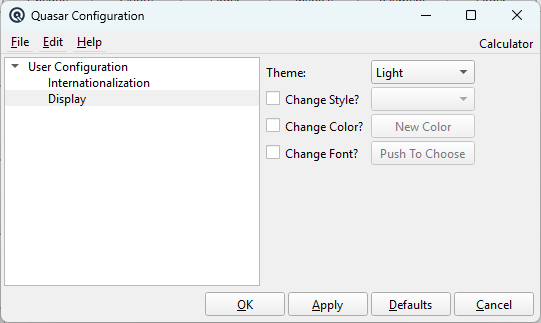
Select "Display" in the navigation tree to define the look and feel
of your Quasar interface.
|
Navigation Tree
The tree on the left side of the screen selects the configuration area
to edit. Choose Internationalization for locale and formatting
options, or Display for visual preferences.
|
|
Theme
Select the visual theme for Quasar. Options are System (Auto)
which follows your operating system light/dark setting,
Light for a light background, or Dark for a dark
background. The change takes effect immediately when you click Apply.
|
|
Window Mode
Choose how Quasar screens are displayed. Classic (Separate Windows)
opens each screen in its own window. Tabbed (Single Window) opens
screens as tabs inside a single main window.
|
|
Change Style?
Check this box and select a Qt style from the dropdown to change
the visual widget style of all Quasar windows. Available styles
depend on your operating system (e.g., Fusion, Windows). Uncheck
to restore the default style on next startup.
Style
The Qt widget style applied to all Quasar windows. Select a style
and check Change Style? to apply it.
|
|
Change Color?
Check this box and click New Color to select a custom
background color for Quasar windows using the color picker dialog.
Uncheck to return to the default color.
|
|
Change Font?
Check this box and click Push To Choose to select a custom
font family and size for all Quasar text. Useful for accessibility
or high-DPI displays. Uncheck to return to the system default font.
|
Internationalization
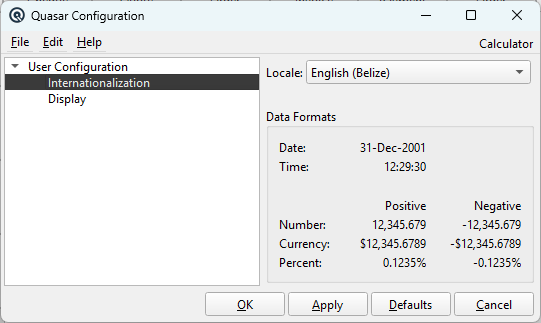
Select "Internationalization" in the navigation tree to configure
regional formatting.
|
Locale
Select the locale that matches your region. The locale controls
date formats, number formatting, currency symbols, and which
translation files are loaded. Choose System Default to use
your operating system locale, or select a specific locale such as
English (Canada), French (Canada), Filipino, or Inuktitut.
You must log out and log back in for locale changes to take full effect.
|
|
A preview panel showing how the selected locale formats dates, times,
numbers, currency, and percentages. Both positive and negative values
are displayed so you can verify the formatting before applying.
|
Action Buttons
|
OK
Apply all changes, save settings, and close the Configuration window.
|
|
Apply
Apply changes without closing. Useful for previewing theme, style,
or color changes before committing.
|
|
Defaults
Reset all settings to their saved values (the last values you applied with OK).
|
|
Cancel
Discard all changes, restore previous settings, and close the window.
|
Related Screens
|