
Customers & Sales
Customer Center
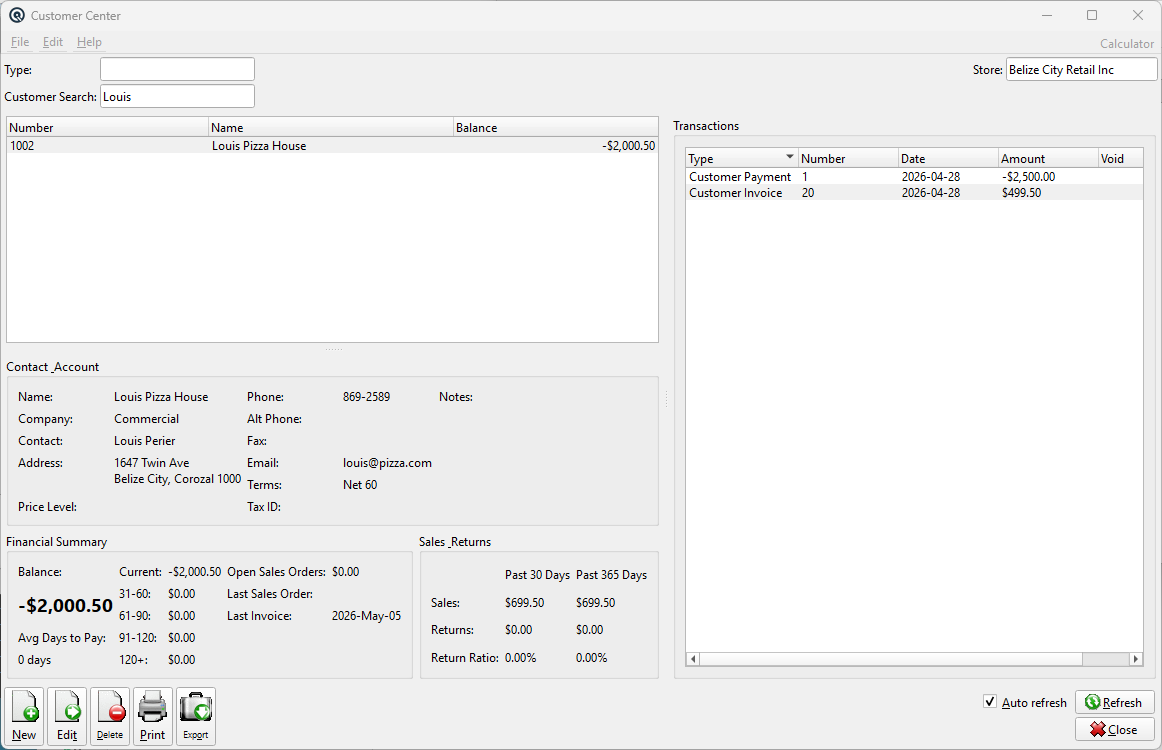
The Customer Center is a dashboard-style screen that combines a customer list, detailed contact and financial information, and a full transaction history into a single view. Select any customer in the list to instantly see their contact details, aging summary, sales performance, and every transaction on record.
Access from the Sales panel › Customer Center button, or via Setup › Sales menu.
Screen Layout
The Customer Center uses a resizable three-panel layout:
| Panel | Location | Contents |
|---|---|---|
| Customer List | Top-left | Filterable grid showing Number, Name, and Balance columns |
| Details Dashboard | Bottom-left | Contact & Account, Financial Summary, and Sales & Returns panels |
| Transactions | Right | Complete transaction history for the selected customer |
All three panels are connected by splitters, so you can drag the dividers to resize them to your preference.
Filters
The filter bar at the top of the screen narrows the customer list:
| Filter | Description |
|---|---|
| Type | Show only customers of a specific customer type |
| Store | Filter by assigned store (defaults to your current store) |
| Customer Search | Free-text search across name, number, address, phone, fax, email, contact, and web page fields. Multiple words narrow the search further (AND logic). |
Contact & Account
When you click a customer in the list, the Contact & Account panel shows their master record details:
| Field | Description |
|---|---|
| Name | Customer name |
| Company | Customer type name |
| Contact | Primary contact person |
| Address | Full mailing address (street, city, province, postal) |
| Phone / Alt Phone | Primary and secondary phone numbers |
| Fax | Fax number |
| Email address | |
| Terms | Payment terms (e.g. Net 30, 2% 10 Net 30) |
| Price Level | Assigned price level for this customer |
| Tax ID | Tax identification number (TIN) |
| Notes | Free-form notes from the customer master record |
Financial Summary
The Financial Summary panel provides a real-time aging breakdown and key account metrics:
| Field | Description |
|---|---|
| Balance | Total outstanding balance (displayed in large bold text) |
| Current | Amount owing within the first 30 days |
| 31–60 | Amount overdue 31 to 60 days |
| 61–90 | Amount overdue 61 to 90 days |
| 91–120 | Amount overdue 91 to 120 days |
| 120+ | Amount overdue more than 120 days |
| Avg Days to Pay | Average number of days this customer takes to pay invoices |
| Open Sales Orders | Total dollar value of unfulfilled sales orders |
| Last Sales Order | Date of the most recent sales order |
| Last Invoice | Date of the most recent posted invoice |
Sales & Returns
The Sales & Returns panel compares activity over two time periods:
| Metric | Past 30 Days | Past 365 Days |
|---|---|---|
| Sales | Total invoiced amount for the period | |
| Returns | Total credit memo / return amount for the period | |
| Return Ratio | Returns as a percentage of sales (Returns ÷ Sales × 100) |
Transactions Panel
The right-hand Transactions panel displays every posted transaction for the selected customer in the current store, including:
| Column | Description |
|---|---|
| Type | Transaction type (Invoice, Payment, Return, Journal Entry, etc.) |
| Number | Transaction number |
| Date | Posting date |
| Amount | Transaction amount |
| Void | Shows “Yes” if the transaction has been voided |
Double-click (or press Enter) on any transaction row to drill down into the original master screen — the Invoice Master, Customer Payment, Customer Return, Journal Entry, or whichever screen created the transaction. This lets you review or edit the full details without leaving the Customer Center.
Right-Click Actions
Right-click a customer in the list to access these shortcuts:
| Action | Description |
|---|---|
| Customer Statement | Open the Print Statement screen for this customer |
| Aged Receivables | Open the Aged Receivables report filtered to this customer |
| Inquiry | Open the Account Inquiry for this customer’s card |
| Card Adjustment | Create a card adjustment for this customer |
| Customer Sales | Open the Sales Report filtered to this customer |
Related Screens
| Customer List | Customer Master | Aged Receivables | Sales Report |
| Quasar Accounting 7.1 • © Linux Canada Inc. • Table of Contents |