
Setup & Configuration
Group Manager
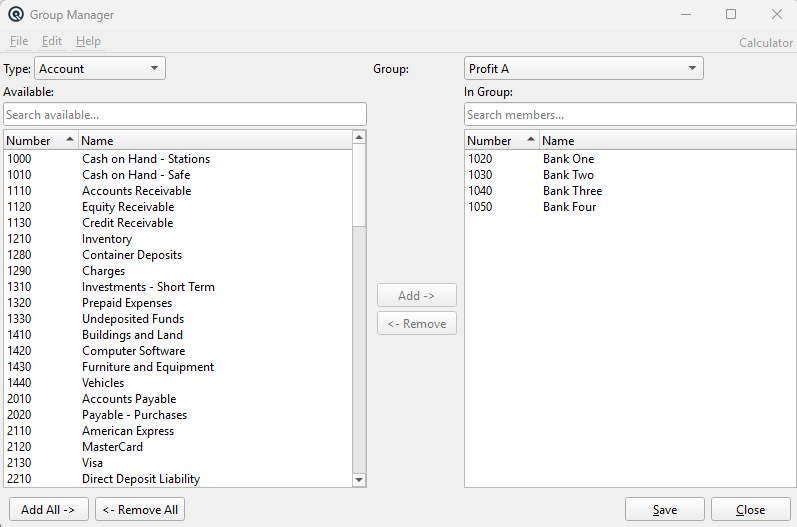
The Group Manager is a bulk membership tool for managing Quasar groups. Instead of opening each record individually and assigning it to a group on its master screen, you can select a group and transfer hundreds of records in or out at once using a dual-list interface. This is the fastest way to populate or reorganize groups — especially useful during initial setup, seasonal reclassifications, or when restructuring discount/pricing rules that depend on group membership. Access from Setup › System › Group Manager.
Why Groups Matter
|
Groups are the primary mechanism for applying business rules to collections of records. Throughout Quasar, groups drive: Discount Limits — A Discount can include or exclude entire item groups, customer groups, or store groups. This lets you create promotions that target specific product families or customer segments without listing every item individually. The Group Manager eliminates the tedious process of opening each record's master screen to add or remove group membership. A task that would take hours one-by-one can be completed in seconds here. |
Selectors
TypeThe kind of record to manage. Dropdown lists all non-transaction entity types in Quasar, including: Account, Asset, Brand, Color, CRM, Customer, Customer Type, Department, Discount, Employee, Expense, Item, Location, Station, Store, Subdepartment, Tax, Tender, Vendor, and more. Changing the type reloads the Group dropdown with groups defined for that type. GroupThe specific group to manage. Only groups matching the selected Type are listed. Selecting a group loads the Available and In Group lists. If you have unsaved changes, a warning prompts you to discard or cancel. |
Dual-List Interface
Available (Left)Use the search box (available filter) above the list to filter by number or name. All active records of the selected type that are not currently in the group. Each row shows Number and Name. Multi-select is enabled — hold Ctrl to select individual records or Shift to select a range. Use the search box above to filter by number or name. Double-click a row to move it to the group immediately. In Group (Right)Use the search box (members filter) above the list to filter by number or name. Records currently assigned to the selected group. Same multi-select and search capabilities. Double-click to remove a record from the group. |
Action Buttons
Add →Moves the selected records from Available to In Group. ← RemoveMoves the selected records from In Group back to Available. Add All →Moves every record from Available into the group in one click. ← Remove AllRemoves every record from the group, returning them all to Available. SaveCommits the membership changes to the database. Only the differences are written — new members are inserted and removed members are deleted. The data cache is automatically invalidated for all affected records so other open screens reflect the changes immediately. CloseCloses the Group Manager. If there are unsaved changes, you are prompted to discard or cancel. |
Related Screens
| Group List | Group Master | Discount Master | Price Calculation |
| Quasar Accounting 7.1 • © Linux Canada Inc. • Table of Contents |