
Inventory
Item Adjustment
The Item Adjustment creates or edits an inventory quantity and/or cost adjustment. Use it to correct on-hand quantities after a physical count, write off damaged goods, record shrinkage, or adjust the cost value of inventory without changing quantities. Each adjustment posts offsetting entries to the General Ledger. Access from Inventory › Item Adjustment or from the Item Adjustment List.
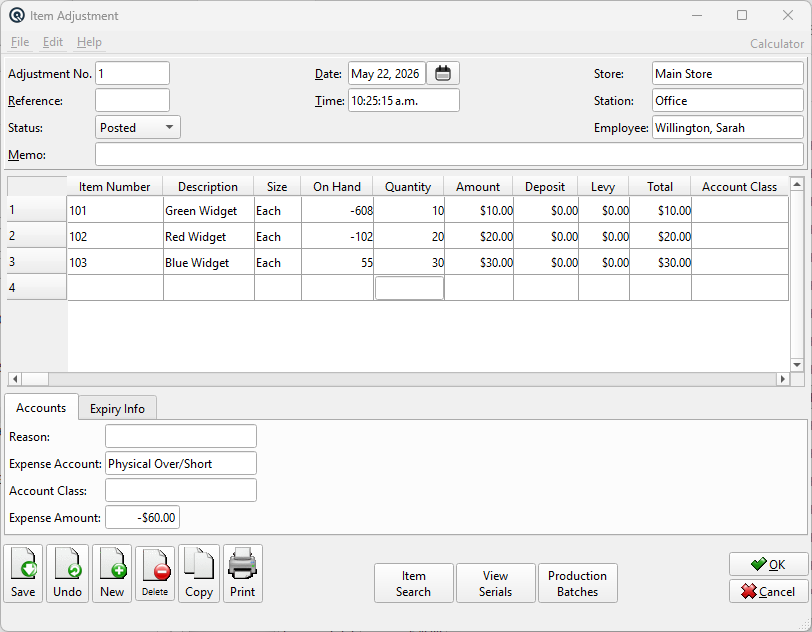
Header Fields
Adjustment No.Auto-generated transaction number. Can be overridden if sequence numbers allow manual entry. DatePosting date for the adjustment. Defaults to today. StoreThe store whose inventory is being adjusted. Changing the store validates that all items in the table are stocked at the new store — items not stocked are automatically removed with a warning. EmployeeAuto-filled from the current session. Recorded for audit trail purposes. StationAuto-filled from the current session. Recorded for audit trail purposes. ReferenceReference string for cross-referencing or notes (optional). StatusTransaction status. Controls posting and visibility in lists. TimeTime of posting. Auto-filled from the system clock. Work DateWork date for the transaction (may differ from posting date). ShiftShift assignment for labour or shift-based reporting. MemoFree-form memo or notes attached to the transaction. |
Items Table
|
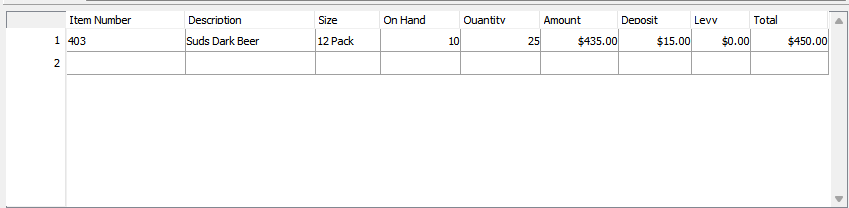
Item Number — Scan or type an item number/barcode. The item lookup opens on partial matches. |
|
Understanding On Hand, Quantity, and Amount On Hand — Displays the current on-hand quantity for this item at the selected store, expressed in the line's size. This is always the live on-hand balance at the time you open the screen, not the on-hand at the time the adjustment was originally posted. If you review a saved adjustment days later, On Hand reflects today's stock level (including all transactions since the original adjustment). Quantity — The number of units to adjust. Use positive values to increase stock (e.g. found inventory) and negative values to decrease stock (e.g. shrinkage, damage). When you enter a quantity, the system automatically calculates the Amount using the item's selling cost (FIFO/weighted average). You can leave Quantity at zero to make a cost-only adjustment. Amount — The total cost value of the adjustment line, not the per-unit cost. For example, if you adjust 5 units at $2.00 each, the Amount shows $10.00. The Amount is auto-calculated from the Quantity but can be manually overridden — this allows cost-only adjustments (change the value of inventory without changing quantities) or corrections to unit cost that differ from the system's average. Editing the Amount does not change the Quantity. |
|
Deposit — Container deposit amount for this line (auto-calculated from item cost record, editable). |
|
Common Adjustment Scenarios Quantity adjustment (standard) — Enter a Quantity; Amount is auto-calculated. Use for physical count corrections, shrinkage, or damage write-offs. |
Accounts Tab

ReasonAdjustment reason (from Adjustment Reason setup). Selecting a reason auto-fills the Expense Account from the reason's default account. Expense AccountThe GL account debited (or credited) for the adjustment amount. This is the offsetting entry against the inventory asset account. Requires the ITEM_ADJUST_ACCOUNT security permission to change. Typical accounts: Inventory Shrinkage, Damaged Goods, Cost Adjustment. Account ClassDefault account class applied to the expense account posting for all item lines that do not have their own class set in the items table. Only visible when the Account Classes feature is enabled. Expense AmountRead-only total of all line items (negated for display). Shows the net impact on the expense account. A positive number means a debit to the expense account (inventory decreased). |
Expiry Info Tab

Batch NumberLot or batch identifier for the selected item line. Used for traceability of perishables, pharmaceuticals, or regulated products. Expiry DateExpiration date for this batch. When adjusting items that have expiry tracking enabled at the store, a dialog prompts for the expiry date automatically when quantity is entered. |
Action Buttons
Item SearchOpens a search dialog to find items within the adjustment by number or description. Supports iterative "Next" searching from the current row or from the top. View SerialsOpens a read-only list of serial numbers associated with items in this adjustment. Production BatchesOpens the Production Batch screen for manufacturing-related adjustments. Prints the adjustment document. After saving, a prompt asks whether to print. |
GL Posting Logic
|
Each item line generates two GL entries: Inventoried items: Debit/Credit the item's Asset Account by the Amount (no class). The offsetting entry goes to the Expense Account with the line's account class. |