
Inventory
Item List
The Item List displays all inventory items. Filter by department, subdepartment, group, or status.
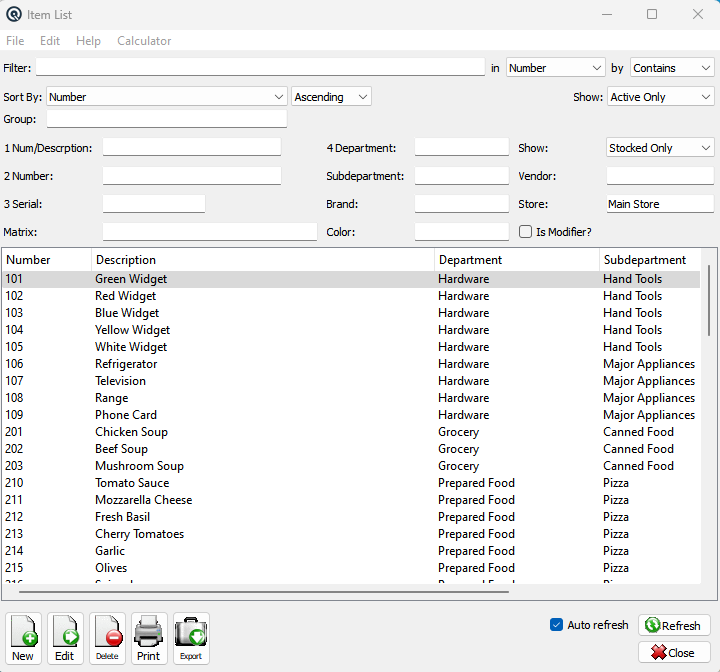
Default Columns
| Column | Description |
| Number | Item PLU / UPC number. |
| Description | Item description. |
| Department | Department name. |
| Subdepartment | Subdepartment name. |
Available Columns
Additional columns configurable via list settings, in alphabetical order.
| Column | Description |
| Asset Account | GL account for inventory asset. |
| Brand | Brand name. |
| Brand # | Brand number. |
| Build Qty | Quantity for builds. |
| Class | SAT product class. |
| COGS Account | Cost of goods sold account. |
| Color | Matrix color variant. |
| Dept # | Department number. |
| Discountable? | Whether discounts apply. |
| Discontinued? | Whether item is discontinued. |
| Family | SAT product family. |
| Incl On Receipt? | Include on receipt printout. |
| Income Account | GL account for income. |
| Incomplete? | Whether item setup is incomplete. |
| Inventoried? | Whether item is inventoried. |
| Location | Default stock location. |
| Loyalty Rate | Loyalty points rate. |
| Matrix | Matrix group name. |
| Modifier? | Whether item is a modifier. |
| OH My Store | On hand quantity at current store. |
| On Hand | Total on hand quantity. |
| On Order | Quantity on order. |
| Open Dept? | Whether item uses open department pricing. |
| Price | Current selling price. |
| Printer One? | Print to kitchen printer 1. |
| Printer Three? | Print to kitchen printer 3. |
| Printer Two? | Print to kitchen printer 2. |
| Product Code | SAT product code. |
| Product Desc | SAT product description. |
| Purchase Size | Default purchase size. |
| Purchased? | Whether item is purchased. |
| Qty Enforced? | Enforce quantity limits. |
| Segment | SAT product segment. |
| Sell Size | Default selling size. |
| Short Desc | Short description for POS. |
| Sold? | Whether item is sold. |
| Special Purchase | Special purchase designation. |
| Subdept # | Subdepartment number. |
| Tax | Tax code. |
| Verify Text | Verification text for POS prompt. |
| Weighed? | Whether item is sold by weight. |
Filters
Filter
Quick-search the displayed list. Type text to instantly filter rows by matching against the selected column. Use the in dropdown to choose which column to search, and the by dropdown to switch between Starts With, Contains, or Exact Match.
Tip: If you do not see the column you want to search or view, go to File → Configure to customize which columns are displayed in the list. You can add, remove, and reorder columns to suit your workflow.
1 Num/Descrption
A powerful multi-word search across both item numbers and descriptions simultaneously. Type one or more words separated by spaces and the search will find items where ALL words appear anywhere in the combined number and description fields. For example, typing "red shirt" will find items where both "red" and "shirt" appear in the item number or description. This makes it easy to quickly narrow down large item lists without needing the exact item number.
Sort Column & Method
Choose the column used to sort the list. The dropdown displays all columns you have chosen to view, including any custom column changes you have made. Use the second dropdown to switch between Ascending and Descending order.
Auto Size Columns
When checked, columns automatically resize to fit their contents each time the list refreshes. This ensures all data is visible without manual adjustment.
When unchecked, column widths are saved between sessions. You can drag column borders to set your preferred widths and they will be remembered the next time you open this screen. This is useful when you want a consistent layout regardless of the data displayed.
Show
Filter records by status. Options include:
• Active Only — Show only active records (default).
• Inactive Only — Show only deactivated records.
• Active & Inactive — Show all records regardless of status.
Group
Filter by group membership. Select a group to show only records that belong to that group. Leave blank to show all records.
Store
Filter by store. Defaults to the current store. Clear the field to show records from all stores.
Brand
Filter by brand. Select a brand to show only items of that brand.
Class Filter
Filter by class. Select a class to narrow the results.
Color
Filter by color. Select a color to show only items of that color.
Dept
Filter by department. Select a department to show only items in that department.
Family Filter
Filter by family. Select a family to show only matching items.
Matrix
Filter by matrix. Select a matrix to show only items in that matrix.
Modifier
When checked, show only modifier items.
Product Code Filter
Filter by product code. Enter a code to find matching items.
Segment Filter
Filter by segment. Select a segment to show only matching items.
Serial
Filter by serial number. Enter a serial number to find matching transactions.
Subdept
Filter by sub-department. Select a sub-department to show only items in that sub-department.
Vendor
Filter by vendor. Select a vendor to show only transactions for that vendor.
Related Screens
| Item Master | Item History |