
Purchases
On Order
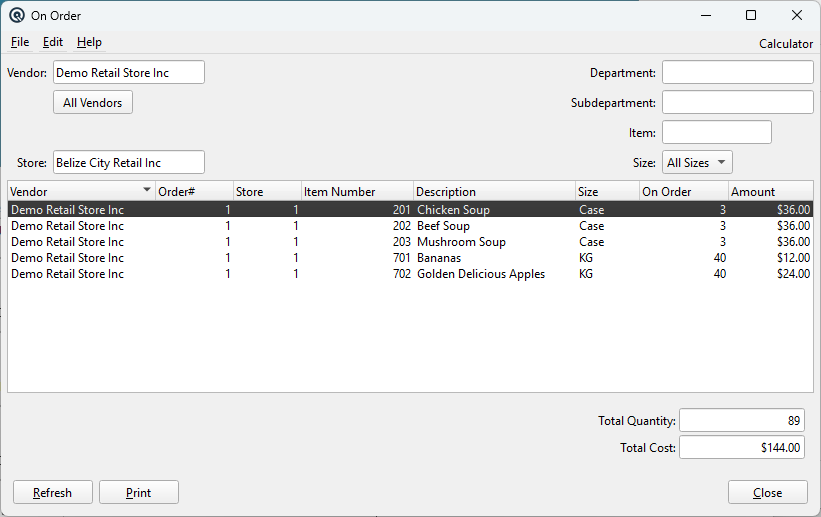
On Order shows all items currently on active (open) purchase orders that have not yet been fully received. Each row represents one line item from a purchase order, showing the remaining quantity still expected and its estimated cost. Use this screen to quickly identify outstanding vendor commitments, check expected delivery dates, and drill down directly into the source purchase order for editing. Access from Inventory Info › On Order.
Filters
VendorFilter to purchase orders from a specific vendor. When set, only orders belonging to that vendor are loaded. Changing the vendor refreshes the list immediately. All VendorsClears the vendor filter, showing on-order items from all vendors. Click this button to reset the vendor selection. StoreFilter to purchase orders for a specific store. Defaults to the current store. Changing the store also resets the item filter, since item stocking is store-specific. DepartmentFilter to items belonging to a specific department. The department is determined from each item's subdepartment. Leave blank to show all departments. SubdepartmentFilter to items in a specific subdepartment. Leave blank to show all subdepartments. ItemFilter to a specific item. The lookup is restricted to purchased items. When an item is selected, the size dropdown is populated with the item's available sizes and automatically set to the size matching the item number entered. SizeFilter to a specific size when viewing a single item, or select "All Sizes" to see all size variants. The dropdown is populated when an item is selected. |
Results List
Each row represents one line item from an active purchase order where the ordered quantity exceeds the received quantity.
|
Vendor — The vendor name on the purchase order. |
Totals
Total QuantityThe sum of the On Order column across all displayed rows. Total CostThe sum of the Amount column across all displayed rows. Represents the total estimated cost of all outstanding purchase order commitments matching the current filters. |
Drill-Down
|
Double-clicking any row opens the Purchase Order master screen for that order. The full purchase order is loaded for viewing or editing, allowing you to adjust quantities, change delivery dates, or receive stock directly from the order. This provides a fast workflow: browse outstanding items, identify what needs attention, then double-click to go directly to the source order without navigating through menus. |
Action Buttons
RefreshReloads the list from the database using the current filters. Use this after receiving stock or modifying purchase orders to see updated quantities. Generates a printable report of the current list view. The report header includes the store, vendor, department, subdepartment, item, and size filters (if set), along with the current date. CloseCloses the On Order window. |
Related Screens
| Purchase Order | Stock Status | Item History | Vendor Receiving |
| Quasar Accounting 7.1 • © Linux Canada Inc. • Table of Contents |