
Pricing & Labels
Link Type Master
The Link Type Master defines the categories of relationships that can exist between items. Once created, link types are assigned to item pairs on the Item Master Links tab, and viewed through the Linked Items screen. Access from Inventory › Link Type Master or from the Link Type List.
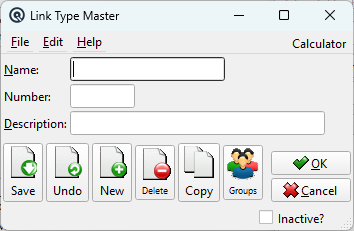
Fields
NameThe link type name (up to 30 characters). This is the label that appears on the Item Master's Links tab and in the Linked Items viewer. Choose a clear, action-oriented name that describes the relationship. NumberOptional reference number (up to 12 characters) for sorting or external system integration. DescriptionExtended description (up to 50 characters) explaining the purpose of this link type. Helpful for training and documentation. Inactive?Status bar checkbox. When checked, the link type is marked inactive and will not appear in default lists. |
Sample Link Types
|
Link types are user-defined and should reflect your business needs. Here are common examples:
|
How Link Types Are Used
|
1. Define the link type here (e.g., "Substitute", "Accessory"). 2. Assign links on the Item Master Links tab. For each item, you add linked items with a link type and optional note. For example, item "Brand Cereal" linked to "Store Cereal" with type "Substitute" and note "Same size, lower price". 3. View relationships on the Linked Items screen. Select any item and the screen shows all linked items with their link type, current price, on-hand quantity, and notes. Double-click a linked item to select it. The Check All Stores Stock Status button lets you check availability across all locations. This system enables sales staff to quickly find substitutes when items are out of stock, suggest accessories and upsells to increase basket size, and identify replacements for discontinued products. |
Related Screens
| Link Type List | Linked Items | Item Master |
| Quasar Accounting 7.1 • © Linux Canada Inc. • Table of Contents |