
Customers & Sales
Customer List
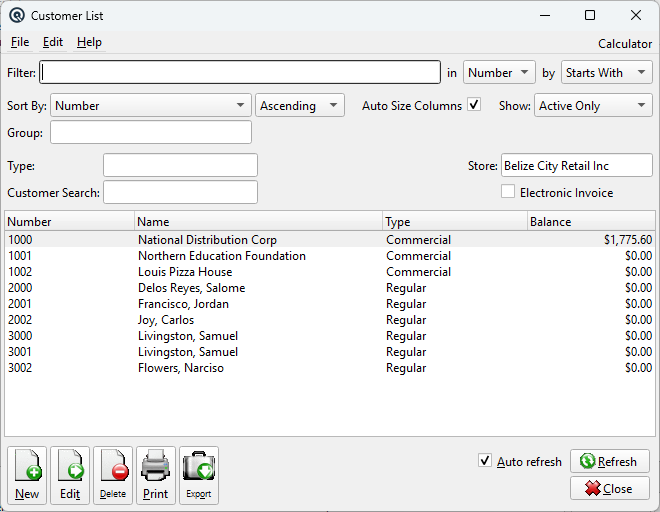
The Customer List displays all customer accounts with filtering and search capabilities. The list supports configurable columns, sorting, and multi-field search. Double-click any row to open the Customer Master for editing. Access from Cards › Customer in the Navigation Sidebar.
Filters
|
Filter controls narrow the list to matching records. All filters apply immediately when changed.
FilterQuick-search the displayed list. Type text to instantly filter rows by matching against the selected column. Use the in dropdown to choose which column to search, and the by dropdown to switch between Starts With, Contains, or Exact Match. Tip: If you do not see the column you want to search or view, go to File → Configure to customize which columns are displayed in the list. You can add, remove, and reorder columns to suit your workflow. Sort Column & MethodChoose the column used to sort the list. The dropdown displays all columns you have chosen to view, including any custom column changes you have made. Use the second dropdown to switch between Ascending and Descending order. Auto Size ColumnsWhen checked, columns automatically resize to fit their contents each time the list refreshes. This ensures all data is visible without manual adjustment. When unchecked, column widths are saved between sessions. You can drag column borders to set your preferred widths and they will be remembered the next time you open this screen. This is useful when you want a consistent layout regardless of the data displayed. ShowFilter records by status. Options include: TypeFilter the list to show only customers assigned to a specific Customer Type. Leave blank to show all types. StoreFilter by store. Defaults to the current store. Clear the field to show records from all stores. Electronic InvoiceWhen checked, filters the list to show only customers that have electronic invoicing enabled. Useful for reviewing your e-invoicing customer base. Customer SearchFree-text search across multiple fields simultaneously: customer name, number, address, phone numbers, email, contact name, and web page. Supports multi-word searches — each word must match somewhere across the searched fields (AND logic). For example, typing “Acme Toronto” finds customers named Acme with a Toronto address. GroupFilter by group membership. Select a group to show only records that belong to that group. Leave blank to show all records. |
Default Columns
|
These columns are displayed by default when the list is first opened.
NumberCustomer account number. NameCustomer display name. BalanceCurrent account balance (sum of all AR changes). |
Available Columns
|
Additional columns configurable via File → Configure. Listed in alphabetical order.
Account NameLinked GL account name. Account NumberLinked GL account number. Can Charge?Whether customer can charge purchases to AR. Can Pay?Whether customer can make payments. Can Withdraw?Whether customer can withdraw credit balances. Check Withdraw Balance?Enforce balance check before withdrawals. CityCity from primary address. Company?Whether the customer is a business entity. ContactPrimary contact name. CountryCountry from primary address. Credit Hold?Whether customer is on credit hold. Credit LimitMaximum outstanding AR balance allowed. Email address. Email Statements?Email statements instead of printing. FaxFax number. First NameCustomer first name (individuals only). Last NameCustomer last name (individuals only). Pat Group #Patronage group number. Pat Group NamePatronage group name. PhonePrimary phone number. Phone2Secondary phone number. Points AvailableCurrent spendable loyalty points balance. Points EarnedTotal loyalty points earned from purchases. Require Statements?Whether batch statements are printed for this customer. Second Receipt?Auto-print a second receipt for charge transactions. Service ChargeAnnual percentage rate for overdue balance charges. State/ProvProvince or state from primary address. Store NameAssigned store name. Store NumberAssigned store number. StreetStreet address line 1. Street2Street address line 2. Tax ExemptTax exemption code. TermsPayment terms (e.g. Net 30). Web PageCustomer website URL. WhatsApp phone number for business messaging. Zip/PostalZIP or postal code. |
Related Screens
| Customer Master | Customer Type | Invoices | Aged Receivables |
| Quasar Accounting 7.1 • © Linux Canada Inc. • Table of Contents |