
Purchases
Aged Payables
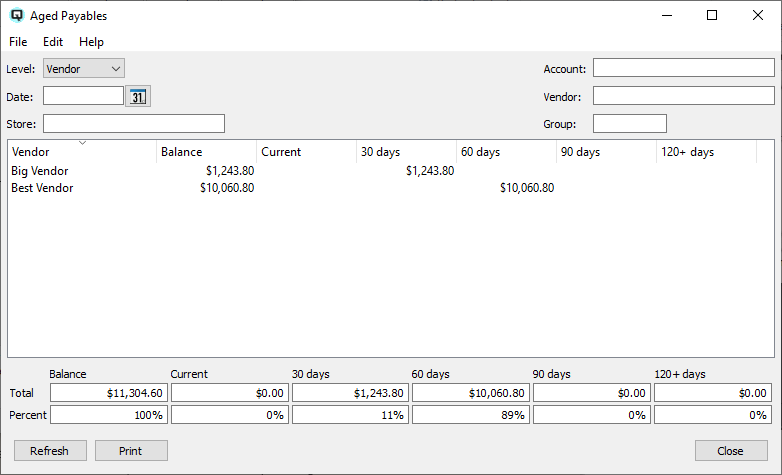
The Aged Payables screen shows outstanding vendor balances broken down by aging period (Current, 30, 60, 90, 120+ days). It supports three drill-down levels — Store, Vendor, and Transaction — allowing you to start with a high-level overview and drill into specific invoices. Includes totals with percentage distribution and an "as-at" date feature for historical analysis. Access from Purchases › Aged Payables.
Filters
LevelControls the grouping and drill-down depth:
Defaults to Vendor level. At the Store level, the Store filter is disabled (since you're viewing all stores). DateThe "as-at" date for aging calculations. Defaults to today if left blank. When set to a past date: • Only transactions posted on or before this date are included. StoreOptional store filter. Only transactions from this store are included. Disabled at the Store level (since the report groups by store). AccountOptional. Filter to vendors assigned to a specific AP account. VendorOptional. Filter to a single vendor. Selecting a vendor and clicking Refresh shows only that vendor's transactions. GroupOptional. Filter to vendors belonging to a specific vendor group. |
Results List
|
One row per store, vendor, or transaction depending on the Level. Column headers are clickable for sorting.
|
Aging Logic
|
Aging is calculated based on the number of days between the transaction's post date and the as-at date:
Credit CascadeCredits (overpayments, adjustments) are placed in the 120+ bucket and then cascaded upward. If 120+ goes negative, the excess is moved to 90, then 60, then 30, then Current. This ensures credits are applied to the oldest outstanding amounts first. Historical Date HandlingWhen an as-at date is specified, the system excludes any payments whose work date falls after the as-at date. This shows balances as they existed on that historical date, including invoices that were later paid. |
Totals & Percentages
|
Below the list, two rows show: Total — Sum of each aging column across all displayed rows (Balance, Current, 30, 60, 90, 120+). |
Drill-Down Navigation
|
Double-click any row to drill down: • Store level → sets the Store filter and switches to Vendor level. • Vendor level → sets the Vendor filter and switches to Transaction level. • Transaction level → opens the source transaction (vendor invoice, cheque, adjustment, etc.) in its master screen for viewing or editing. |
Buttons
RefreshReloads the data from the database using the current filter settings. Must be clicked manually after changing filters (the display does not auto-refresh except when drilling down). Generates a printable report from the current display. The report header includes the level, as-at date, and filter criteria. Footer shows the total and percentage rows. CloseCloses the Aged Payables window. |
Workflow
|
Monthly payables review: 1. Open Aged Payables. Set the Level to Vendor. Multi-store comparison: 1. Set the Level to Store and click Refresh. |
Related Screens
| Pay Bills | Vendor List | Vendor Invoice | Aged Receivables |
| Quasar Accounting 7.1 • © Linux Canada Inc. • Table of Contents |