
Card File & CRM
Card Adjustment
The Card Adjustment screen creates balance adjustments for customer (AR) or vendor (AP) accounts. Use this to write off bad debts, correct opening balances, apply credits or debits, or record miscellaneous charges. Each adjustment is a balanced GL transaction posting to the card's AR/AP account and one or more offsetting accounts. Adjustments can be allocated against outstanding invoices and emailed to the card. Access from Card File › Card Adjustment.
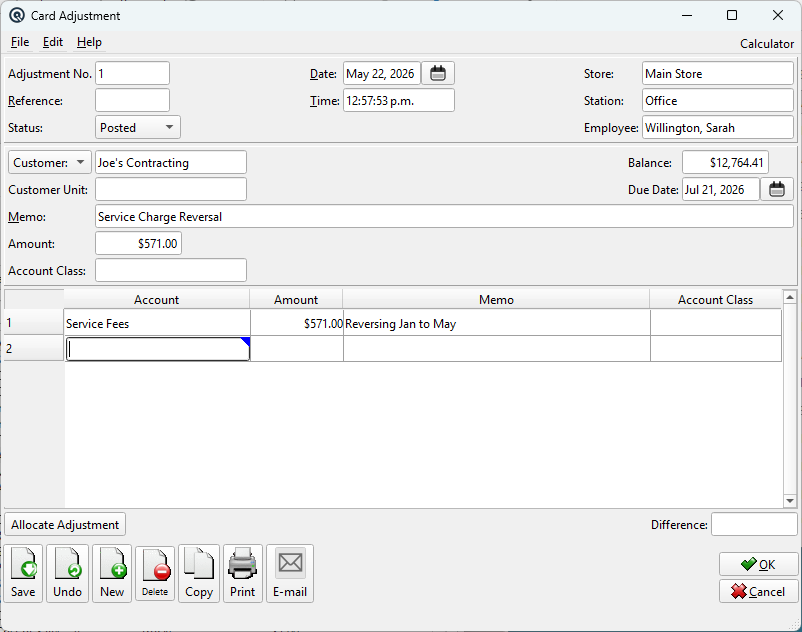
Header Fields
Adjustment No.System-generated transaction number. Uses the standard Gltx frame with Store, Date, Time, Station, and Employee fields. Sequence numbering is by store. Card TypeDropdown: Customer or Vendor. Switching the type hides the other lookup and clears its value. The Customer Unit field is only visible for customers. Due Date is only enabled for customer adjustments with positive amounts. Customer / VendorThe card being adjusted (lookup). Only one is visible depending on the Card Type. Selecting a card displays its current Balance (read-only). For customers, the Due Date is auto-calculated from the customer's payment terms or grace period. Customer UnitOptional. Assigns the adjustment to a specific customer unit (franchise, division, etc.). Only visible for customer adjustments. Selecting a unit that belongs to a different customer clears the field. Selecting a unit when no customer is set auto-fills the customer. BalanceRead-only. Current outstanding balance of the selected customer or vendor. AmountThe adjustment amount. For customers, a positive amount increases the AR balance (charge); a negative amount decreases it (credit). For vendors, a positive amount increases the AP balance. Due DatePayment due date. Only enabled for customer adjustments with a positive amount. Auto-calculated based on: • With Terms: Post date + term's due days. Disabled for vendor adjustments (vendors manage their own payment terms). MemoReason for the adjustment (up to 40 characters). Examples: "Write off bad debt", "Opening balance correction", "Credit note #1234". Account ClassDefault account class applied to all account lines that do not have their own class set. Only visible when the Account Classes feature is enabled. |
Account Lines
|
The offsetting GL account entries for the adjustment. The card's AR/AP account is posted automatically — you only need to specify the other side(s) of the entry.
Add as many account lines as needed. The total of all account lines should equal the Amount. |
Difference
|
Displayed at the bottom of the screen. Shows the difference between the header Amount and the total of all account lines. When blank (zero), the transaction is balanced. A non-zero value indicates the account lines need to be adjusted before saving. |
Allocate Adjustment
|
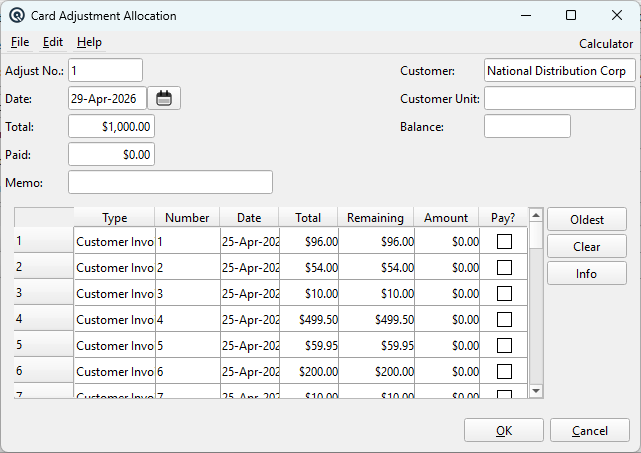
The Allocate Adjustment button opens the allocation dialog, which lets you apply this adjustment against specific outstanding invoices. Prompts to save first. The dialog displays the adjustment number, card, date, current balance, total, amount paid, and a memo field. Below is a table of outstanding invoices for the card:
Auto AllocAutomatically applies the adjustment to the oldest invoices first until the adjustment amount is fully consumed. Clear AllRemoves all allocations, resetting the Paid column to zero on every line. View InvoiceOpens the selected invoice in its master screen for review. After closing the dialog, the Card Adjustment screen refreshes to show updated allocation status. |
Standard Buttons
SaveSaves the adjustment, creating the GL entry. The AR/AP account line is generated automatically from the card's default account. NextSaves and opens a blank new adjustment. Prints the adjustment using the Emails the adjustment to the card. Requires the customer or vendor to have an email address on file. Displays a warning if no email is configured. CopyDuplicates the adjustment with a new number and today's date. CloseCloses the screen. |
Menu: Recurring
|
Available from the File menu. Opens the Recurring transaction dialog to set up this adjustment as a recurring entry (e.g. monthly service charges, recurring credits). Prompts to save first. |
Workflow Examples
|
Write off a bad debt: 1. Set Card Type to Customer, select the customer. Opening balance entry: 1. Select the customer or vendor. Vendor credit note: 1. Set Card Type to Vendor, select the vendor. |
Related Screens
| Card Adjustment List | Customer Master | Vendor Master | Aged Receivables |
| Quasar Accounting 7.1 • © Linux Canada Inc. • Table of Contents |