
More Topics
Cheque Master
The Cheque Master creates and edits outgoing payments. The screen is divided into a fixed header area (always visible) and a mode-specific body that changes completely based on the Cheque Type. Access from Cheque Book › Write Cheques or by editing a cheque from the Cheque List.
| Screen Layout: The top section (Cheque Type, Payment Method, Bank Account, Balances) and the transaction bar (Number, Date, Store, Memo, Reference) are always visible. The entire lower portion of the screen — payee fields, allocation tables, action buttons, and totals — changes based on the selected Cheque Type. |
Header Fields (Always Visible)
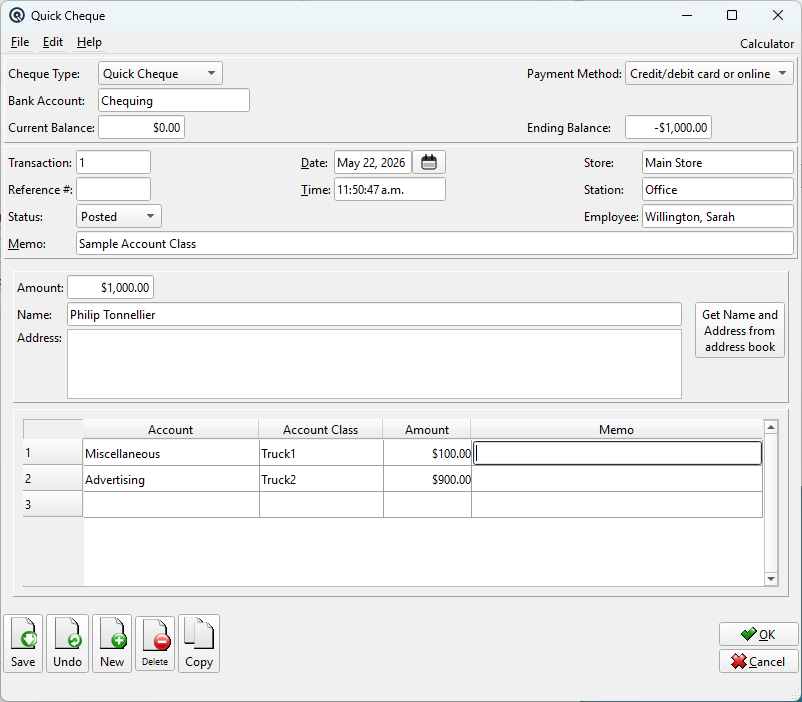
Cheque TypeSelects the payment mode. This changes the entire lower portion of the screen — the payee area, allocation table, action buttons, and totals all switch to match the selected type: Payment MethodHow the payment is issued. This controls the cheque number behaviour and print options: Bank AccountThe bank GL account the payment is drawn from. Changing this updates the Current Balance and auto-assigns the next cheque number (for hand-written cheques). Defaults to the store's configured bank account. Discount AccountGL account for posting early-payment discounts. Only visible in Vendor Cheque mode. Auto-populated from the store's vendor terms account. If the store has no default set, the value you enter here becomes the store default when saved. Current BalanceRead-only. Current balance of the selected bank account (before this cheque). Ending BalanceRead-only. Projected balance after posting (Current Balance minus cheque amount). Updates live as you change amounts. |
Transaction Bar (Always Visible)
Transaction No.Unique identifier. Enter # to auto-generate the next available number. Sequence numbering is by store. DateCheque posting date. Defaults to today. TimeTransaction time. StoreStore posting the cheque. Determines the default bank account and discount account. MemoMemo line. Printed on the cheque stub. ReferenceCheque number (hand-written) or external reference number (card/online). For system-generated cheques, this is left blank until printing. StatusTransaction status: Posted, Suspended, or Voided. Work DateStore work date corresponding to the transaction date/time. ShiftShift assignment for this transaction. StationWorkstation where the transaction was entered. EmployeeEmployee who entered or is responsible for the transaction. |
▶ Quick Cheque Mode
|
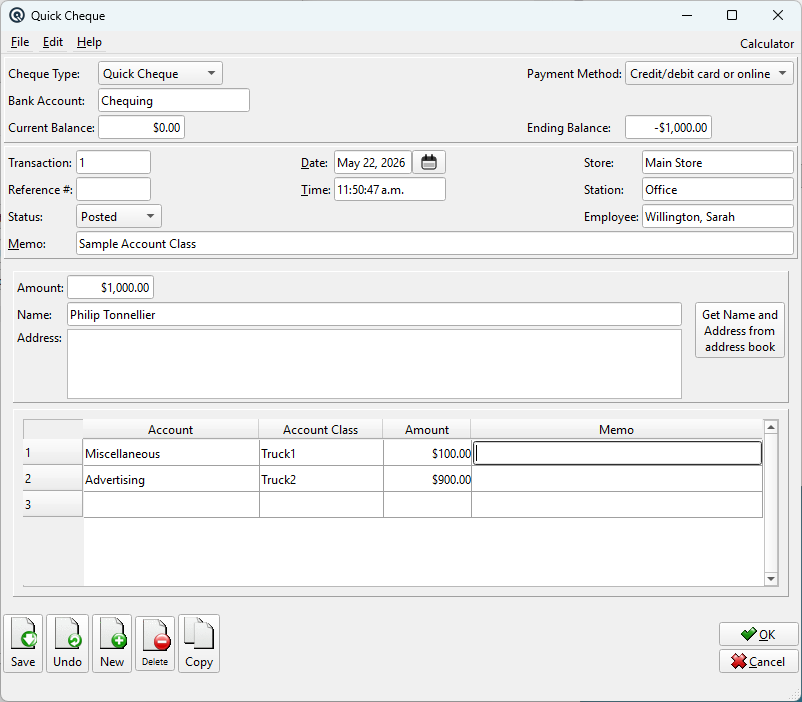
For ad-hoc payments to any payee — rent, utilities, one-time payments, or any cheque not tied to a vendor or customer account. No vendor/customer lookup is shown. FieldsAmountTotal cheque amount. NamePayee name printed on the cheque. Required. AddressPayee mailing address (multi-line). Used when printing cheques with an address window. ButtonsGet Name and Address from address book — Opens a selection dialog to pick a payee from the address book (customers, vendors, and other contacts). Auto-fills the Name and Address fields. Account Allocation TableDistribute the cheque amount across one or more GL expense accounts. Each row is a debit entry:
Add rows by entering a new account on the blank last row. Delete rows with the Delete key. The total of all account lines must equal the Amount field. |
▶ Vendor Cheque Mode
|
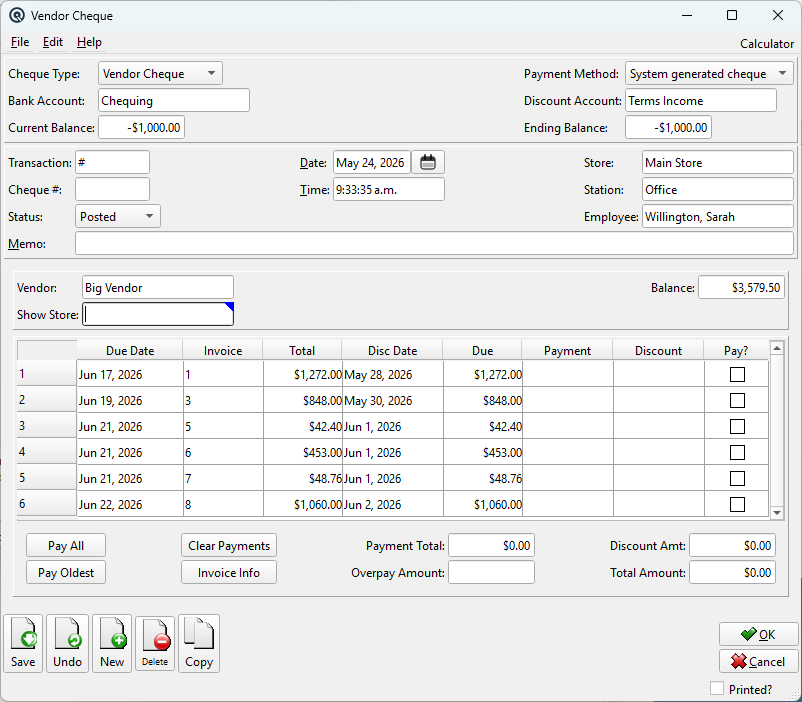
For paying vendor invoices. Selecting a vendor loads all their unpaid invoices. Early-payment discounts are automatically calculated based on invoice terms. The cheque is posted against the vendor's AP account. FieldsVendorThe vendor being paid (lookup). Selecting a vendor auto-fills the payee name and address and loads all open invoices into the table below. Show StoreOptional filter. When set, only invoices from this specific store are shown. Leave blank to show invoices from all stores. BalanceRead-only. Total outstanding balance for the selected vendor. Invoice Allocation TableShows all open (unpaid) invoices for the selected vendor. Check individual invoices to pay or use the action buttons.
Action ButtonsPay All — Checks every invoice and applies maximum early-payment discounts where eligible. 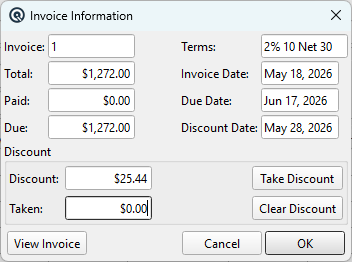 The Invoice Info dialog shows terms and discount details for the selected invoice. TotalsPayment TotalRead-only. Sum of all Payment column amounts. Overpay AmountEditable. Additional amount beyond the allocated invoices. Creates a credit on the vendor's account. Discount AmtRead-only. Sum of all Discount column amounts. Total AmountRead-only. Grand total debited from the bank account (Payment Total + Overpay Amount). |
▶ Customer Cheque Mode
|
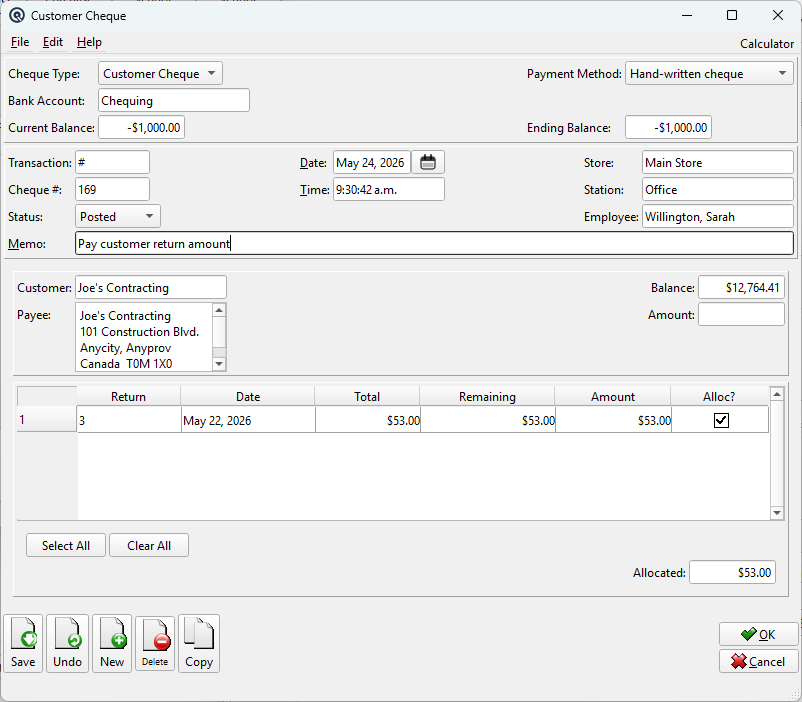
For issuing refund cheques to customers. The customer's open return credits are loaded for allocation. If the customer has "Check Withdraw Balance" enabled, the system validates that the cheque amount does not exceed their credit balance. FieldsCustomerThe customer receiving the refund (lookup). Selecting a customer auto-fills the payee name and address and loads open return credits. BalanceRead-only. Customer's current credit balance. PayeeMulti-line payee name and address. Auto-filled from the customer's address record. Editable. AmountTotal refund cheque amount. Return Allocation TableShows all open (unallocated) return credits for the selected customer.
Action ButtonsSelect All — Checks all open return credits and allocates them in full. TotalsAllocatedRead-only. Total amount allocated from return credits. |
Cheque Printing
|
Cheque printing behaviour depends on the Payment Method selected in the header: Printed? (status bar)Checkbox in the status bar. Only visible for system-generated cheques. Indicates whether the physical cheque has been printed. Toggling this on/off controls whether the cheque number is assigned. Print buttonOpens the Cheque Print screen to print the physical cheque. Only active for system-generated cheques — hidden for hand-written and card/online methods. |
Standard Buttons & Menu (Always Available)
SaveSaves and posts the cheque. Validates: DeleteVoids the cheque. Reverses all GL postings and payment allocations. CopyDuplicates the cheque with a new number and today's date. Retains the same type, method, vendor/customer, and account allocations. File › RecurringCreates a Recurring transaction from this cheque for automatic re-posting on a schedule (e.g. monthly rent, regular vendor payments). |
Mode Comparison
| Quick Cheque | Vendor Cheque | Customer Cheque | |
| Payee | Manual name/address or address book | Vendor lookup | Customer lookup |
| Table shows | GL account lines | Open vendor invoices | Open customer returns |
| Key action | Allocate to accounts | Pay All / Pay Oldest | Select All |
| Discounts | N/A | Early-payment discounts | N/A |
| Discount Account | Hidden | Visible in header | Hidden |
| Balance check | No | No | Yes (if enabled on customer) |
Related Screens
| Cheque List | Print Cheques | Pay Bills | Reconcile |
| Quasar Accounting 7.1 • © Linux Canada Inc. • Table of Contents |