
AI & Automation
AI PDF Invoice Detail
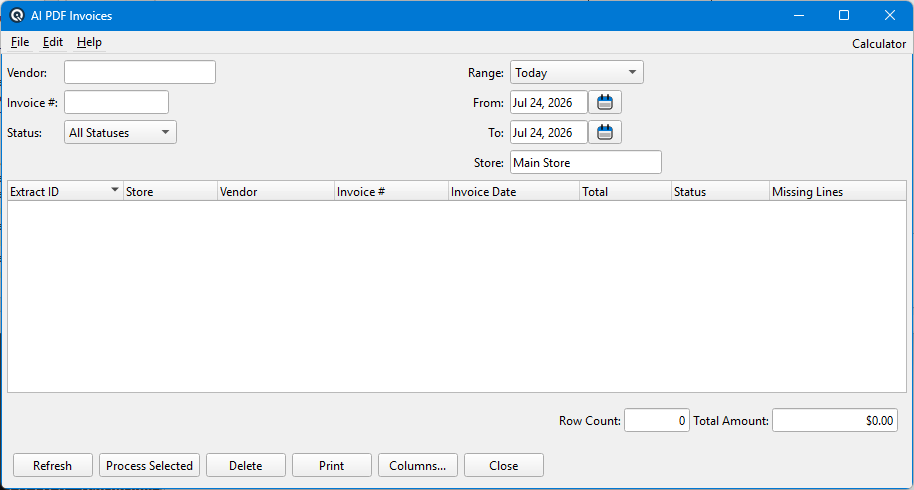
Reviews one AI-extracted vendor invoice line by line before it is posted. Lines the AI could not match to a Quasar item are flagged so you can correct the item number or mark the line as a new item to be created. When every line resolves, Post Invoice creates a Vendor Invoice. Opened from AI PDF Invoices with Process Selected.
Header Fields
Extract IDRead-only identifier of the extraction record. StatusRead-only processing state of this invoice. VendorRead-only vendor the invoice was matched to, from the skill's default vendor. Invoice #Read-only vendor invoice number as read from the PDF. Invoice DateRead-only vendor invoice date as read from the PDF. Due DateRead-only payment due date as read from the PDF or calculated from the vendor's terms. StoreReceiving store for the posted invoice. Defaults from the skill or the ship-to address on the PDF, and can be changed before posting. Default DeptDepartment applied to lines marked Not Found when new items are created. Default SubdeptSubdepartment applied to lines marked Not Found when new items are created. |
Line Items
|
One row per line read from the PDF. The first columns show what the AI extracted; the last columns are where you resolve the line to a Quasar item.
Dept (line editor)Department chooser shown in the Dept column while a line is being edited. Defaults from Default Dept in the header. Subdept (line editor)Subdepartment chooser shown in the Subdept column while a line is being edited. Defaults from Default Subdept in the header. |
Totals
Vendor SubtotalSubtotal as printed on the vendor's invoice. TaxTax total as printed on the vendor's invoice. TotalInvoice total as printed on the vendor's invoice. Line TotalSum of the line items above. Compare this with the vendor total to confirm the extraction is complete and arithmetically sound before posting. |
Actions
Fix Not FoundSteps through the unmatched lines so each can be resolved without hunting for them in the table. Post InvoiceCreates a Vendor Invoice from the reviewed lines. Available once every line is either matched to an item or marked Not Found with a Dept and Subdept. IgnoreMarks the extraction as Ignored and leaves it unposted. Use for duplicates or invoices that should not be imported. CloseCloses the screen. Review changes are kept so the invoice can be finished later. |
Related Screens
| AI PDF Invoices | Vendor Invoice | AI Skill Master | Item Master |
| Quasar Accounting 7.1 • © Linux Canada Inc. • Table of Contents |