
Customers & Sales
Customer Return
The Customer Return creates a credit memo or return transaction. It reverses a previous sale — returning items to inventory and crediting the customer's accounts receivable balance. A return can be created directly, or from an existing Invoice using the "Create Return" button on the Invoice screen, which pre-populates all line items, prices, discounts, and e-invoice data from the original invoice. Returns support government e-invoicing (credit note) certification. Access from Sales › Customer Return or from the Return List.
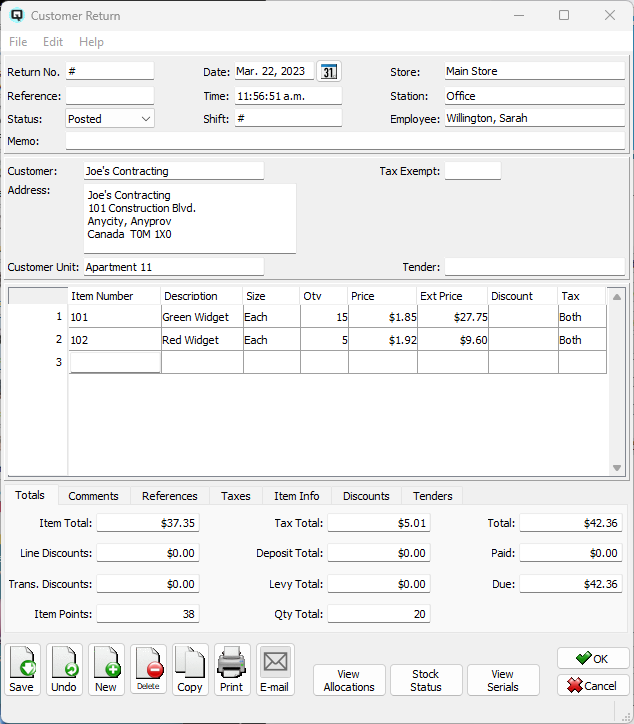
Header Fields
Return No.Unique identifier. Enter # to auto-generate. Once saved, the number is permanent. Sequence numbering is by store. ReferenceOptional external reference number. DateReturn date. Defaults to today. TimeReturn time. Used for audit tracking. StoreThe store receiving the return. Changing the store validates the customer and items. StationWorkstation where the return was created. EmployeeEmployee processing the return. StatusTransaction status. Controls posting and visibility in lists. Work DateWork date for the transaction (may differ from posting date). ShiftShift assignment for labour or shift-based reporting. MemoFree-form memo or notes attached to the transaction. |
Customer & Return Details
CustomerThe customer returning items. Auto-populates address, tax exempt status, and customer discounts. AddressBilling address, auto-filled from the customer. When e-invoice certification is requested without a customer, this becomes required for name/address capture. Return FromDropdown listing the customer's shipping addresses. Select the location the items are being returned from. The return-from address auto-fills from the selected entry. Return From AddressRead-only display of the selected return-from address. Tax ExemptCustomer tax exemption. Overrides item-level tax for exempt items. Orig InvoiceLinks the return to the original Invoice. When a return is created from an invoice, this is auto-populated. Used for audit trail and to track which invoice is being credited. TenderDefault refund tender type. When set, a refund tender line is automatically added in the Tenders tab. Customer UnitOptional customer unit the return applies to — a branch, department, or service location of the customer. See the Customer Unit Master. Account ClassDefault account class for return line items. Hidden when account classes are not enabled. See the Account Class Master. |
Detail Tabs
Item Table
Each row is a line item being returned. Quantities are entered as negative values (debiting inventory).
|
Item Number — Enter or look up an item. Only sold items appear. |
Totals Tab

|
Item Total — Sum of all extended prices. |
Comments Tab

CommentFree-text comment area for return notes, reason details, or internal instructions. |
References Tab

|
Read-only table of reference name/data pairs. Populated by the system to track external references such as e-invoice credit note UUIDs and POS transaction identifiers. |
Taxes Tab

|
Read-only tax breakdown by tax code: Tax — Tax code name. |
Item Info Tab

Detailed information for the currently selected return item. Updates as you move between rows.
Discountable?Whether this return line is eligible for discounts. Include Tax?Tax-inclusive pricing for this line. Include Deposit?Whether the price includes the deposit amount. DepositEditable deposit amount being reversed. LevyEditable levy amount being reversed. DiscountSelect a predefined line-level discount. Percent / DollarChoose discount method and enter the amount. Percent AmountThe percentage discount amount entered when Percent is selected. Dollar AmountThe dollar discount amount entered when Dollar is selected. Percent AmountEnter the percentage discount for this line. Dollar AmountEnter the dollar discount for this line. Line Disc.Read-only total line discount for this item. Line TotalRead-only line total after all adjustments. Trans. Disc.Read-only share of transaction discount. PointsRead-only loyalty points reversed for this line. Edit SerialsButton to open the serial number selection dialog for serialized return items. |
Discounts Tab

Discounts TableTransaction-level discounts applied to the return. Discount — Transaction-type discount lookup. Auto-populated from system auto-apply and customer-specific discounts. |
Tenders Tab

|
Refund tenders for this return. Multiple refund methods can be combined. Tender — Refund method (Cash, Credit Card, E-Wallet, etc.). |
Govt E-Invoice Tab

|
Government electronic credit note for regulatory compliance. When a return is created from a certified invoice, e-invoice data (Tax ID, name, address, tax category, CFDI usage) is automatically carried over. StatusRead-only certification lifecycle: General, Pending, Submitted, Sent, Received, Failed, Certified, Contingency, CancelPending, CancelFailed, Cancelled, GlobalCfdi, GlobalCfdiFailed. Require Invoice CertificationCheckbox to flag for government certification. Opens the Certification Capture Dialog to collect Tax ID, name, postal code, tax category, CFDI usage, email, and phone. TIN ID / RFC / Tax IdCustomer's government tax identifier (locale-dependent label). Customer NameCustomer name for government e-invoice certification. Captured from the billing address when a customer is selected. Postal CodeCustomer postal code for government e-invoice certification. Captured from the billing address when a customer is selected. Tax CategoryMexico CFDI tax regime code (601–626). CFDI UsageMexico CFDI use code (G01–CN01). Customer email for automated credit note delivery. PhoneCustomer phone for notifications. Error CodeRead-only error code for failed certification. Error MessageRead-only error message for failed certification. Retry CertificationResubmit a Failed credit note. Request CancellationCancel a Certified credit note. Replaced ByRead-only reference to replacement document. Cancel ReasonRead-only cancellation reason. |
E-Invoice Sender Tab

Delivery StatusRead-only PEPPOL/ETD delivery status. Status MessageRead-only detailed delivery message. Retry SendRetry a failed PEPPOL delivery. |
Action Buttons
Select Original InvoiceOpens the Invoice List to select the original invoice that this return credits. When selected, items from the invoice are loaded into the return with quantities reversed. Serial numbers from the original invoice are matched and carried over when available in stock. E-invoice data (Tax ID, name, etc.) is also carried over for credit note certification. View AllocationsOpens the Return Allocation screen showing how this return's credit has been applied against the customer's open invoices. Stock StatusOpens Stock Status for the selected item. View SerialsRead-only list of all serial numbers on the return. |
Standard Buttons & Menu
SaveSaves and posts the return. After saving, you are prompted to print. DeleteVoids and deletes the return. Reverses all GL and inventory postings. CopyDuplicates the return with a new number and today's date. Prints the return/credit note. Emails the return to the customer. File › RecurringCreates a Recurring transaction from this return. |
Related Screens
| Return List | Invoice | Customer Payment | Stock Status |
| Quasar Accounting 7.1 • © Linux Canada Inc. • Table of Contents |